
Developer with a fixed workstation
You develop the scoring programme locally and want to view code, test windows and scores on a connected display. The Raspberry Pi documentation explains how to connect a computer like this to a monitor.


For a local board-game scoreboard, a standard adjustable monitor is a good fit for developing the programme and viewing scores from a fixed computer. Choose a touchscreen if players need to enter scores on the display, or a portable monitor if you move your setup frequently. Before buying, check that your computer can provide video, any touch signals and power through the connections you plan to use. The monitor itself doesn’t run or store the scoring programme.
You develop the scoring programme locally and want to view code, test windows and scores on a connected display. The Raspberry Pi documentation explains how to connect a computer like this to a monitor.
You want to enter points directly at the table. So check both the video connection and the touch connection, along with software support for touch. ASUS and Lenovo describe different touch setups for their models.
You take the scoreboard display to different gaming tables. Philips says video over USB-C on the 16B1P3302D/00 requires a source device with DP Alt Mode; also check how the display is powered.
Start with how you enter and view scores; only add touch controls or portability if you need them.
A good fit if: you enter scores using a keyboard or mouse and mainly use the display for code and score summaries.
Bear in mind: a standard monitor doesn’t have touch input; check that your computer supports the video connection you need.
A good fit if: players need to enter points on the screen and you can test the connection to your computer and scoring programme.
Bear in mind: touch may require a separate connection in addition to the video cable; the software must also support touch input.
A good fit if: you take the scoreboard display to different gaming venues.
Bear in mind: check the source device’s video output and power supply; a smaller screen isn’t necessarily easy for everyone at the table to read.
| What to consider | What to look for | What matters to consumers? |
|---|---|---|
| Local video connection | Compare your computer’s video output with the input on the exact display model. For USB-C, check the video mode and power supply specifically. | If I want to be sure the scores will appear on my connected computer, I check the video connection before choosing a display. Around 33% of consumers prioritise a reliable local connection. |
| Space for code and scores | Consider the screen size, resolution, stand and adjustable text size in your scoring programme for the table you plan to use. | If I want to read code or scores clearly from my seat, I consider the screen size and text settings. Around 27% of consumers prioritise enough room to read code and scores. |
| Entering scores by touch | As well as the video cable, check what connection is needed for touch signals and test the local app with your own computer. | If players need to enter points directly on the screen, I want to know whether my computer and scoring programme support touch. Around 20% of consumers prioritise touch input. |
| Taking it to different gaming tables | Check the video output and USB-C power supply of the device you’ll be bringing, and consider whether the screen size will suit the table. | If I want to take the scoreboard display between venues, I weigh up its portable size against the connections and screen space I need. Around 20% of consumers prioritise portability. |
Dell says the USB-C downstream port on the P2425H is for data and provides up to 15 W; it isn’t a video input. Philips says video over USB-C on the 16B1P3302D/00 requires DP Alt Mode on the source device.
Before buying, check which functions the ports support on both your computer and the exact monitor model, and also check how the monitor is powered.
If the connection doesn’t transmit a picture, you may need a different monitor or a suitable video solution.
ASUS lists a USB 2.0 port for the touch signal on the VT229H. So seeing a picture over HDMI doesn’t mean the touch controls will work.
Check which cables you need and test touch with your own computer and local scoring programme.
Your setup may need an extra USB connection as well as the video cable.
The Dell P2425 and Dell P2425H are different models. Dell lists the P2425H as 23.8 inches with a resolution of 1920 × 1080 pixels; Joybuy’s product information for the P2425 gives 24.1 inches and 1920 × 1200 pixels.
Compare the full model number and key specifications before treating one product as a replacement for another.
These models illustrate different display setups for a local scoreboard. The features listed apply to the specific models and aren’t a general recommendation for every product from the brand.
The P2425H is an example of a fixed monitor for development and displaying scores.
The VT229H is an example of a fixed touchscreen for entering scores at the table.
The ThinkVision T24t-20 is a larger fixed touchscreen option for interactive use.
The 16B1P3302D/00 is an example of a portable monitor for different gaming venues.
The 27UP650K-W illustrates a larger fixed display for showing scores and providing extra workspace.
These Joybuy monitors are designed to display scores from a connected local device. Fixed, portable and touchscreen models offer different setup options.
 Image unavailable
A portable option for displaying scores at different gaming venues from a connected device.
16 inches; 2560 × 1600 pixels; 16:10 aspect ratio; two USB-C ports and Mini HDMI.
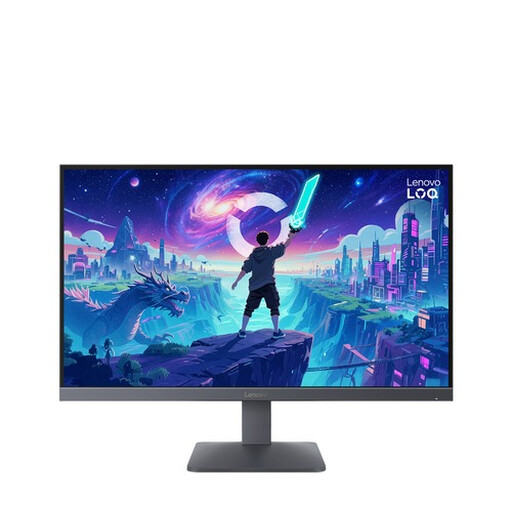 Image unavailable
A fixed display option for a local scoreboard interface shown from a computer.
27 inches; Full HD; Fast IPS; two HDMI inputs and one DisplayPort input; tilting stand.
 Image unavailable
A fixed monitor for displaying scores or work windows; adjust the text scaling in your scoring programme to suit the display.
3840 × 2160 pixels; HDMI and DisplayPort; height-adjustable stand.
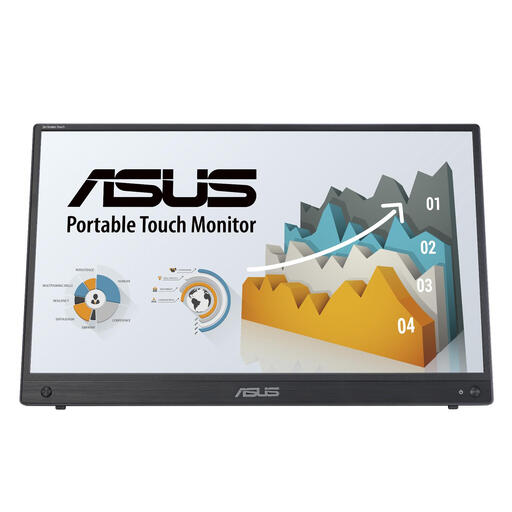 Image unavailable
A portable touchscreen option if you want to view or enter scores at different venues; check that your computer and programme support touch.
15.6 inches; 1920 × 1080 pixels; IPS; HDMI and USB-C.
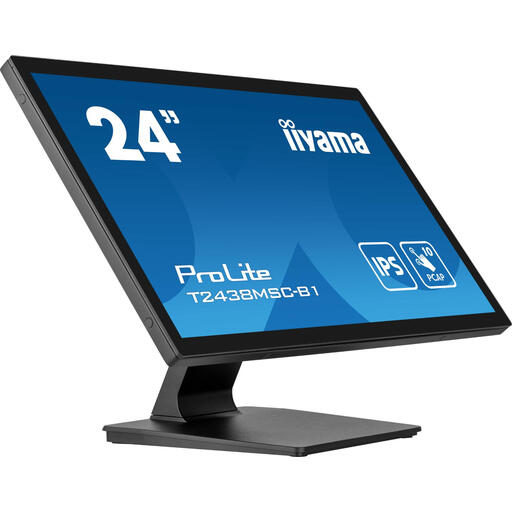 Image unavailable
A fixed touchscreen option for players who enter scores directly on the display; test touch with your own computer and scoring programme.
23.8 inches; 1920 × 1080 pixels; IPS; 10-point multitouch and VESA mounting.
For touch to work, you’ll need to connect the supplied USB touch cable to the computer as well as the video connection.
No. You’ll also need a suitable local device and a scoring programme. The Raspberry Pi documentation explains how to connect a computer to a monitor; check that your programme runs locally and stores scores locally.
The ASUS VT229H uses a USB 2.0 connection for the touch signal. So, as well as the video cable, check the connection needed for touch and test support in your operating system and scoring programme.
Not necessarily: Philips says video over USB-C on the 16B1P3302D/00 requires DP Alt Mode on the source device. Also check how the display is powered.
According to the Rijksoverheid, online purchases from a business generally come with a 14-day cooling-off period, although exceptions may apply depending on the circumstances. Your statutory guarantee is separate: the Netherlands doesn’t have one fixed general guarantee period, and if a product is faulty, the seller is your point of contact.
According to Milieu Centraal, when you buy a new, similar electrical appliance, you can hand in your old one free of charge; this also applies to online purchases. Reusing a screen that still works is another option.