Choose based on how many catalogue fields and source windows you want to view at once, then check that the screen size, adjustability and connections suit your desk and computer. QHD has more pixels than Full HD, while a more compact 16:10 screen can help free up desk space. A monitor does not store your catalogue: arrange a separate backup on your computer and a storage device, as VeiligInternetten explains.
Who is this guide for?
Catalogue organiser who works with multiple windows
You want to view collection fields, game information and, where relevant, images at the same time. Compare the screen space offered by models such as the Dell P2725D and LG 27BA45QB-B with the desk space their screen size takes up. Dell Netherlands and LG Netherlands list both models as 27-inch QHD screens.
Collector with local archives
You want to be able to store and restore catalogue files locally. Choosing a suitable screen is separate from your backup process: VeiligInternetten describes a backup as a copy of files.
Catalogue organiser with a small desk
You need to fit a monitor, game boxes and notes into one workspace. Consider the screen size, stand and adjustability; Dell Netherlands lists these adjustment options for the P2425.
What should you consider when choosing?
First decide whether you mainly want to view several windows at once or keep more desk space free. Then check your backup process and the connection to your computer.
| What to consider |
What should you check? |
Who is this important for? |
| Viewing your catalogue and source information |
Compare the screen size, resolution and window layout you use. Dell Netherlands and LG Netherlands list the P2725D and 27BA45QB-B as 27-inch screens with 2560 × 1440 pixels; Dell Netherlands lists the P2425 as 24.07 inches with 1920 × 1200 pixels. |
I want to see catalogue fields and source information side by side without constantly switching between windows. Around 33% of consumers mainly want a clear overview. |
| Restoring local copies |
Decide which files to copy, where to store the copy and whether you can access it again. A monitor hub is no substitute for backing up files on your computer, as VeiligInternetten explains. |
I want to be able to restore my catalogue files locally if necessary. Around 27% of consumers prioritise having a restorable local copy. |
| Workspace and screen position |
Measure the available space, including the monitor stand, and check which adjustment options you need. |
I want to leave room for game boxes and notes, while being able to position the screen comfortably. For around 20% of consumers, desk space and screen position are the main priorities. |
| Connecting to a laptop or PC |
Compare your computer’s video output with the exact monitor port and cable. Dell Netherlands distinguishes the P2425’s USB-C data port from the P2725DE’s USB-C hub; for other models, check the stated video and charging capabilities. |
I want to connect the monitor to my computer’s ports and, if I want to use a single cable, check the power delivery too. Around 20% of consumers prioritise connecting to a laptop. |
Common selection mistakes
-
Assuming a monitor with USB ports provides backup storage
A USB port on a screen does not automatically create or store a restorable copy of your catalogue files.
First decide how you’ll copy and access files on your computer. Then consider whether a monitor hub would make it easier to connect peripherals.
Factor a separate storage device into your process, along with the time needed to make and check copies.
-
Assuming every USB-C port supports video or charges a laptop
Dell Netherlands lists the P2425’s USB-C downstream port as a data port and describes the P2725DE as a USB-C hub monitor. So the model name alone does not tell you what a port can do.
Check the port’s function on the exact model, your laptop’s output, the cable and the power required.
If the ports aren’t compatible, you may need a different cable, adapter or dock.
-
Confusing a larger screen with more pixels
Screen size and resolution are different specifications. For example, the Dell P2425 is 24.07 inches with 1920 × 1200 pixels, while the Dell P2725D is 27 inches with 2560 × 1440 pixels; Dell Netherlands lists these model specifications.
Compare both the pixel dimensions and the space available for the monitor stand and your game materials.
-
Assuming the manufacturer’s warranty is the same as your full statutory rights
ACM ConsuWijzer explains that your statutory warranty depends on what you can reasonably expect from the product under normal use, and exists alongside any manufacturer’s warranty.
Keep your purchase and product information, and contact the retailer if something goes wrong.
Brands to consider
Dell
Dell lists different screen and connectivity options across its models: the P2425, P2725D and P2725DE are not the same model.
- According to Dell Netherlands, the P2425 is a 24.07-inch 16:10 model with 1920 × 1200 pixels, while the P2725D is a 27-inch QHD model with 2560 × 1440 pixels.
- According to Dell Netherlands, the P2725DE is a separate QHD option with USB-C hub features.
- Dell lists the P2425’s USB-C downstream port as data-only. Check the full model code and port function before relying on USB-C video or laptop power delivery.
LG
LG describes the 27BA45QB-B as a 27-inch QHD IPS monitor with an adjustable stand.
- According to LG Netherlands, its 27-inch screen and 2560 × 1440-pixel resolution make it an option for viewing source information alongside your catalogue.
- The Joybuy product listing for this model does not mention USB-C. Check the connection if you need laptop video or power delivery via USB-C.
AOC
According to AOC, the Q27B3CF2 is a 27-inch QHD monitor that can connect to a compatible laptop via USB-C.
- AOC lists video via DisplayPort Alternate Mode over USB-C and power delivery via USB-C for this model.
- Check that your laptop supports USB-C video and that the cable and charging capacity suit your needs. This connection does not create a local backup.
Philips
According to Philips Netherlands, the Philips 24E1N1100A/00 is a 23.8-inch Full HD model for work where you don’t necessarily need to display multiple windows side by side.
- Philips lists a resolution of 1920 × 1080 pixels.
- Full HD has fewer pixels than the QHD models mentioned above. Check the exact version if a specific refresh rate is important to you.
Monitors at Joybuy
These models offer different screen sizes and resolutions for viewing catalogue fields and source information. Check the connections and adjustment options for each model, and arrange local backups separately on your computer and a storage device.
 No image available
Dell Pro P3426WEV 34.1-inch curved WQHD IPS USB-C hub monitor with webcam, 100 Hz, 90 W Power Delivery
Suited to anyone who wants to view lots of catalogue fields and source information at once.
The product listing specifies a 34.1-inch curved WQHD IPS screen, a USB-C hub, webcam and 90 W Power Delivery.
View at Joybuy
 No image available
INNOCN CB27U1 27-inch 4K UHD monitor
Suited to anyone who wants to view catalogue details and other source information at the same time.
The product listing specifies a 27-inch IPS screen with 4K UHD resolution of 3840 × 2160 pixels, PIP/PBP display and USB-C with 90 W PD.
View at Joybuy
 No image available
Dell Pro Plus P2425D 24-inch QHD monitor
Suited to anyone looking for a more compact screen for catalogue and source information.
The product listing specifies 24 inches and 2560 × 1440 pixels; check the port functions on this version before connecting the monitor.
View at Joybuy
 No image available
Dell Pro Plus P2725D 27-inch QHD monitor
Suited to anyone who wants to view a catalogue window alongside game information or images.
Dell Netherlands lists the P2725D as a 27-inch QHD screen with 2560 × 1440 pixels. Check the connections on the exact version.
View at Joybuy
 No image available
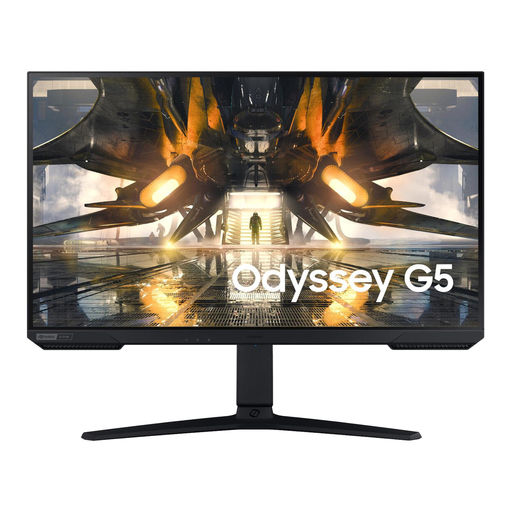
Samsung S27AG500PP 27-inch QHD monitor
Suited to anyone who wants to view catalogue details and source information on a QHD screen.
The product listing specifies a 27-inch screen with 2560 × 1440 pixels. Check that the adjustment options and connections suit your workspace and computer.
View at Joybuy
Frequently asked questions
Does a monitor automatically make a local backup of your board game catalogue?
No. Copy the relevant files on your computer, for example to an external drive or USB stick, and check that you can open the copy. A monitor hub is, at most, a way to connect peripherals, as VeiligInternetten explains.
When can you connect your laptop using a single USB-C cable?
Only if the monitor supports video through that port, your laptop has a compatible USB-C video output and the power delivery is suitable for your laptop. Dell Netherlands distinguishes the P2725DE as a USB-C hub monitor from the P2425, whose USB-C downstream port is for data only.
How should you set up a monitor for longer data-entry sessions?
Check that you can adjust the screen height and viewing position to suit you, and avoid distracting reflections. Arboportaal highlights height adjustment for screen-based work; the regulations cited apply to employers and employees under the relevant conditions.
Are you always entitled to exactly two years of statutory warranty on a monitor in the Netherlands?
No. According to ACM ConsuWijzer, statutory warranty depends on what you could reasonably expect from the product under normal use. The retailer is your point of contact, and any manufacturer’s warranty does not automatically limit your statutory rights.
What energy information can you compare?
Electronic displays covered by EU rules have an energy label with a scale from A to G, as the European Commission explains. Compare the energy information for the specific models; the label does not tell you whether a monitor can back up your files.


