
Photo selector working with references
You compare photos with field notes or species references and want enough screen space to view windows side by side.


Choose a laptop with a generous built-in screen if you often view photos and references side by side. A more compact model may suit you better if portability comes first, while an external monitor is an option for a fixed workspace. Then compare the specifications of the exact configuration, including the screen, memory, camera card reader and display output. A quoted colour gamut is no substitute for proper screen calibration: Adobe recommends calibration for consistent colour in Lightroom Classic.
You compare photos with field notes or species references and want enough screen space to view windows side by side.
You regularly take your laptop with you, weighing the space offered by its built-in screen against its size, weight and power requirements.
You usually review photos in one place and want to be able to connect and set up a second screen.
Start by thinking about where you review your photos: this will determine whether built-in screen space, portability or an external monitor matters most to you.
Choose this if: you often want to view a photo alongside field notes or species references without an external monitor.
Bear in mind: a larger screen means a larger device; also check the weight and screen reflections of the exact configuration.
Choose this if: you often carry your laptop around and are happy to view references one at a time or on an external monitor.
Bear in mind: a smaller built-in screen leaves less room for windows side by side.
Choose this if: you usually work in one place and want to use a second screen for photos or references.
Bear in mind: you’ll need a suitable monitor and connection; Adobe recommends calibration for consistent colour in Lightroom Classic.
| What to consider | What should you check? | Who should pay particular attention? |
|---|---|---|
| Screen space and photo detail | Compare screen size, resolution and reflections; check whether your usual window layout will fit. | I want to view a photo alongside field notes or species references without constantly switching between windows. Around 33% of consumers make screen space their top priority. |
| Working with several items at once | Check the memory in the exact configuration, whether it can be upgraded and what your software requires. | When I have my photo app and several references open at once, I want to choose a configuration suited to that use. Around 27% of consumers prioritise working with several items at once. |
| Taking it between locations | Check the weight of the exact configuration and what else you’ll need to carry, such as a charger or adapter. | I often take my laptop with me and weigh portability against the space available for windows on screen. Portability comes first for around 20% of consumers. |
| Photo transfer and storage | Compare your camera card type with the built-in reader or available connections, and decide how many photos you want to store locally. | I want to be able to read my camera card and have enough space for the photos I store locally. Around 20% of consumers prioritise photo transfer and storage. |
A model range may include different screen and storage options. Memory can also vary between configurations and may not be upgradeable.
Before buying, compare the full model code and the specifications of the exact configuration you’re considering.
A screen specification doesn’t tell you how the screen is set up in your workspace. Adobe recommends calibration for consistent colour in Lightroom Classic.
Consider screen specifications alongside how well you can calibrate the display.
ASUS states that the ProArt P16 H7606GP does not include a power adapter. The Joybuy listing checked for a MacBook Pro also says that no charger is included; this does not automatically apply to other configurations.
Check what’s included with the specific offer and which power specifications apply.
The ProArt P16 H7606GP is a Windows configuration for anyone looking to compare a generous built-in screen with other setups.
The Yoga Pro 9i Aura Edition 83L0007VMB is a 16-inch option to compare, with a built-in SD card reader.
The 14-inch MacBook Pro with M5 Pro is a macOS option to compare if a more compact built-in screen is important to you.
The Dell 16 Plus DB16250 is a 16-inch Windows model listed with several configurations.
This selection focuses on laptops with a built-in 16-inch screen for viewing photos alongside references. For each configuration, check that the camera card connection and other specifications suit the way you work.
 No image available
The built-in 16-inch screen and listed SD card reader are worth considering if you view photos alongside references and want to transfer photos from a card.
OLED screen with 2560 × 1600 resolution; 16 GB memory; 1 TB SSD; UHS-II SD card reader.
The product description states that a charger is not included as standard.
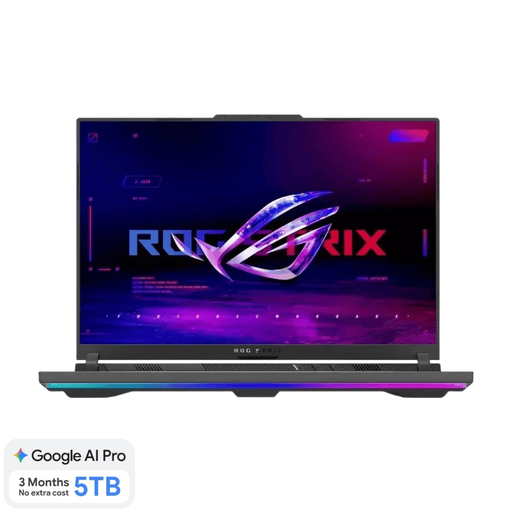 No image available
The 16-inch screen gives you a built-in workspace for viewing photos and references side by side.
Screen resolution 2560 × 1600; 16 GB memory; 1 TB SSD; IPS-grade panel with anti-glare coating.
 No image available
This configuration has a 16-inch anti-glare screen; check whether its memory and storage setup suits the way you use it.
1920 × 1200 screen resolution with a 16:10 aspect ratio; IPS screen; 8 GB memory; 512 GB SSD.
The product description states that a charger is not included.
 No image available
The product description lists an HDMI output for connecting an external monitor; bear in mind that this configuration does not have a built-in memory card reader.
1920 × 1200 screen resolution with a 16:10 aspect ratio; anti-glare screen; 16 GB memory; 1 TB SSD; HDMI 2.1.
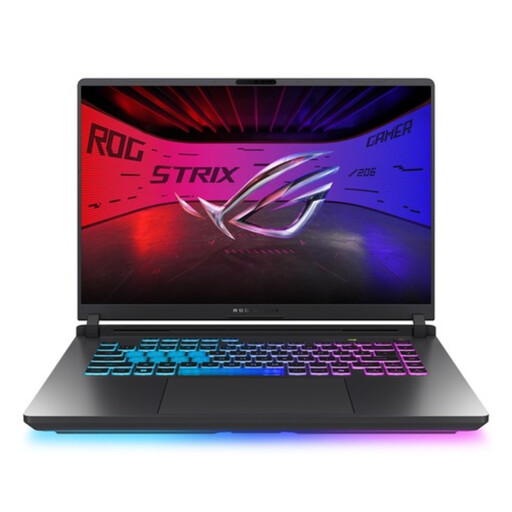 No image available
The listed 32 GB of memory is worth considering if you want to keep photos and several references open at the same time.
16-inch WQXGA screen; 32 GB DDR5 memory; 1 TB SSD; QWERTY keyboard.
Not necessarily: you can view photos and references on the built-in screen if it suits the way you work. Lightroom Classic supports a second Library window; also check that the exact laptop has a suitable display output.
No. A screen specification doesn’t tell you how the display is set up in your workspace. For consistent colour in Lightroom Classic, Adobe recommends calibrating the screen.
If you use Lightroom Classic, keep the catalogue and photo files separate: Adobe describes the catalogue as a database that includes references to photos. Work out how much local storage you need and make a separate backup plan for your files.
According to the Dutch government, the Netherlands has no fixed statutory guarantee period; you are still entitled to a product that works properly, and the retailer is your point of contact if there’s a problem. So consider an extended guarantee in terms of what it actually adds.
For a typical online consumer purchase, the Netherlands Authority for Consumers and Markets says you generally have up to 14 days after delivery to change your mind. There are legal exceptions, so check the terms that apply to your purchase.