
Creator of a printed booklet
You write and position reference images, and also want to assess colours for print. As well as the monitor, consider the output profiles and calibration in your workflow.


For writing and digital page layout, a practical starting point is a monitor with clear, easy-to-read text, enough space for pages and reference images, and an adjustable setup. ASUS and BenQ specify 100% sRGB for the 27-inch QHD models mentioned here, but those specifications don’t guarantee a match with a print; as Adobe explains, printing also depends on calibration and the right output profile. If you use a laptop, check that both the laptop and cable support the video connection, and that the charging power is suitable for your laptop.
You write and position reference images, and also want to assess colours for print. As well as the monitor, consider the output profiles and calibration in your workflow.
You want to view text, pages and reference images clearly while editing. Readability, workspace and an adjustable setup are key considerations.
You want to connect the monitor to a compatible laptop and possibly use it to charge the laptop too. Check USB-C video support and charging power separately.
First decide whether your booklet will remain digital or be printed. Then check which screen space, colour workflow and connections are right for your workspace.
| What to consider | What should you check? | Who should prioritise this? |
|---|---|---|
| Readable text and room for page layout | Compare screen size and resolution, try a comfortable text scaling setting, and check whether the monitor is height-adjustable. | If I want to review text and reference images side by side, small characters need to remain comfortable to read. Around 36% of consumers prioritise readability and page layout. |
| Digital reference images | Check the stated colour coverage and colour mode. Consider calibration if you want to assess colours more accurately. | If I’m adding illustrations or photos digitally, I want to view colour differences without mistaking a stated colour gamut for accuracy. Around 29% of consumers prioritise digital image display. |
| Assessing colour for print | Ask which ICC profile is right for the printing method and paper. Then consider whether wide gamut and hardware calibration suit that workflow. | If my booklet is being printed, I want to assess screen colours in the context of the output profile and paper. Around 21% of consumers prioritise print colours. |
| Laptop connection and adjustability | Check video support, cable compatibility and charging power for your laptop. Also check the monitor’s range of adjustment. | If I use a laptop in my compact workspace, I want to know whether both the picture and charging will work through the connection I plan to use. Around 14% of consumers prioritise laptop connectivity. |
A monitor and a print are part of a colour workflow involving output and paper profiles. A stated colour gamut alone doesn’t tell you whether the print will match what you see on screen.
First establish whether the booklet will be printed and which ICC profile is right for the printing method and paper. Don’t choose based solely on a coverage percentage.
Calibration and a suitable colour proof can take extra time and require the right tools.
The laptop, cable and monitor must all support the necessary video connection. The charging power must also be suitable for the laptop.
Before buying, check your laptop’s requirements and the video and charging features listed separately for the exact monitor model.
Depending on the connections available, you may need a different cable, a separate power supply or another connection.
Small characters, reflections and poor ambient lighting can affect readability. Arboportaal outlines these considerations for working with screens.
Check the text scaling, the monitor’s position in relation to light, and how adjustable your whole workstation is.
The ProArt PA278CV is an option to compare for QHD page layout, with sRGB display and a laptop connection.
The PD2705Q is one of BenQ’s design monitors to compare for sRGB-focused image layout and writing.
The ColorEdge CS2740 is worth comparing if colour assessment is a major consideration for a printed publication.
The UltraSharp U2724D is an alternative to compare for an adjustable QHD screen with colour coverage specified by Dell.
These product picks are aimed at writing and digital page layout, with room for reference images. A stated colour gamut doesn’t replace a suitable colour workflow for print.
 No image available
The 27-inch QHD format is worth considering if you want to lay out pages and reference images on the same screen.
Product details list a 2560 × 1440 resolution, an IPS panel and 200Hz Rapid IPS.
 No image available
The 27-inch QHD format could suit writing and page layout work where you want to view pages and reference images side by side.
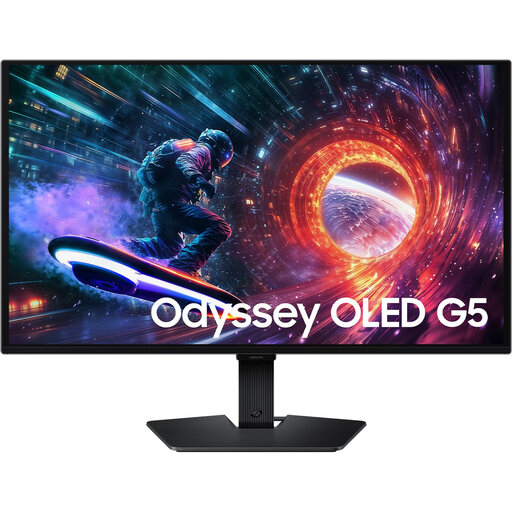
Product details list a 2560 × 1440 resolution, an OLED panel and HDR10 support.
 No image available
The 27-inch QHD resolution is worth considering if you want to view text, page layouts and reference images together.
Product details list a 2560 × 1440 resolution, a VA panel, and HDMI and DisplayPort connections.
 No image available
The 31.5-inch 4K screen offers a different size and resolution combination to consider for pages and reference images.
Product details list a 3840 × 2160 resolution, a QD-OLED panel and USB-C. The stated colour coverage of 98% Adobe RGB and 99% DCI-P3 isn’t a measure of how closely it matches print.
 No image available
The 27-inch QHD format is an option to compare when viewing page layouts and reference images.
Product details list a 2560 × 1440 resolution, an IPS panel, 92% DCI-P3 and 114% sRGB. This stated coverage isn’t an independent measure of colour accuracy. The monitor can be tilted and is VESA-mount compatible.
Not necessarily. First decide how you’ll assess colours and which output profile is right for the printing method and paper. EIZO specifies wide gamut and hardware calibration for the ColorEdge CS2740, but you’ll still need the right output profile and colour settings.
Calibrate the screen when objective colour assessment matters, and use the right ICC profile for the output device and paper in your print workflow. Adobe also advises avoiding double colour conversion between page layout software and the printer driver.
Only if the laptop, cable and monitor support the required video connection and the charging power is sufficient. ASUS and BenQ specify USB-C video and 65 W Power Delivery for the models mentioned; check your laptop’s requirements separately.
For a standard online consumer purchase, you generally have a statutory cooling-off period of up to 14 days after delivery; ACM ConsuWijzer lists some exceptions. This is separate from your rights if a product is faulty, in which case the seller must offer a solution under the applicable conditions, according to the ACM.