Vandaag of morgen in huis

Kwaliteit gegarandeerd

Welkomstaanbiedingen ontgrendelen: GRATIS bezorging | Tot 80% korting | Gratis 30 dagen JoyPlus-proefperiode
Download de app
Whether you're working from home, attending online classes, or catching up with family, a stuttering or grainy built-in laptop camera is often a source of frustration. An external webcam can significantly improve the quality of your video calls. But with so many options on the market, from simple HD models to advanced 4K cameras, choosing the right one can be challenging.
This article will guide you. We'll discuss the key specifications to look out for and highlight some popular choices for different users, so you can make an informed decision when buying a new webcam.
Before you make a choice, it's helpful to know which specifications matter. Here are three key points to consider.
The resolution determines how sharp you appear on screen. This is expressed in pixels.
A good webcam with a microphone is essential for being heard clearly. Many webcams have a built-in microphone. Look for specifications like noise cancellation, which filters out distracting background sounds. For the best audio quality, a separate USB microphone might be worth considering, but for most users, a good built-in microphone is sufficient.
The field of view, expressed in degrees (°), determines how much of your surroundings the camera captures.
Based on specifications and use cases, we have selected a few models that stand out for different situations.
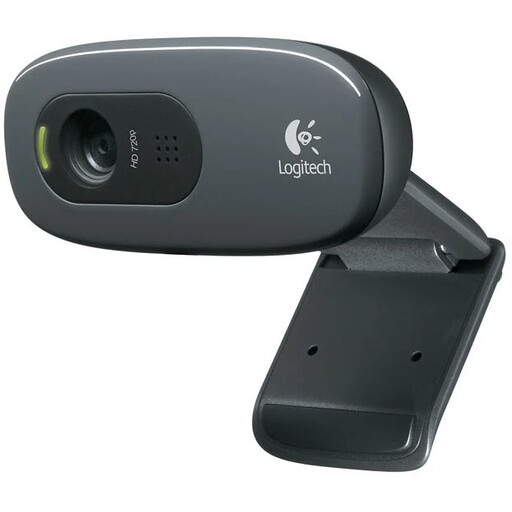
Why this model stands out The Logitech C270 is a reliable and affordable USB webcam that gets the job done. It's a simple plug-and-play solution that provides an immediate, noticeable improvement for your video calls.
Advantages
Who is this for? This is an excellent choice for students, home users, and anyone looking for a budget-friendly yet reliable upgrade for standard video calls with apps like Skype, FaceTime, or Teams.
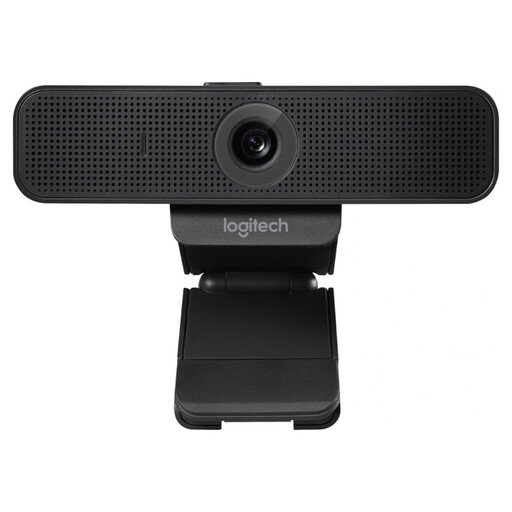
Why this model stands out The Logitech C925e is designed for the professional user. With its sharp image, convenient privacy shutter, and optimizations for business software, this is a solid choice for the home office.
Advantages
Who is this for? Ideal for professionals who do a lot of working from home and participate in online meetings. If you need a reliable, sharp, and professional appearance, this Logitech webcam is a smart choice.
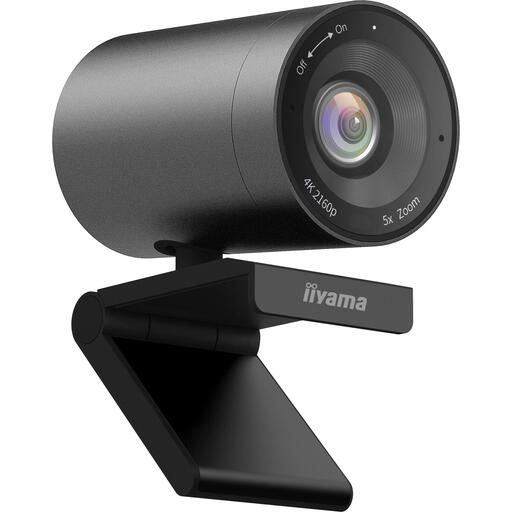
Why this model stands out This iiyama webcam targets users who demand the highest quality. With a 4K Ultra HD resolution and a very wide field of view, this model is suited for more than just standard video calls.
Advantages
Who is this for? This 4K webcam is a great option for content creators, streamers, and business users who host group meetings or give detailed presentations. It's also a model to consider for anyone who simply wants the best possible image quality.
Good video is one thing, but clear audio is at least as important. If your webcam's built-in microphone isn't sufficient or you want a richer audio experience during meetings or while listening to music, consider a set of external speakers.
Check out our range of USB PC speakers and find the perfect complement to your new webcam.
For most users, such as for standard video calls and online classes, a 720p (HD) or 1080p (Full HD) webcam is more than enough. A 4K model is primarily useful for content creators, streamers, or if you need to present in high detail. Keep in mind that streaming in 4K also requires a fast and stable internet connection for both the sender and the receiver.
Most modern USB webcams are 'plug-and-play'. You connect the USB cable to an available port on your computer. The operating system (like Windows or macOS) will recognize the device and usually install the necessary drivers automatically. You can then select the webcam as your video and audio source in your favorite application, such as Teams, Zoom, or Skype.
A webcam with fixed focus is designed to be sharp at a preset, average distance. This works well if you sit relatively still in the same spot in front of your camera. A webcam with autofocus automatically focuses on you, even if you move forward or backward. This is useful if you are more dynamic during a presentation or don't always sit at the exact same distance from the camera.
Joybuy Product Recommendation Officer