Vandaag of morgen in huis

Kwaliteit gegarandeerd

Welkomstaanbiedingen ontgrendelen: GRATIS bezorging | Tot 80% korting | Gratis 30 dagen JoyPlus-proefperiode
Download de app
Choppy video calls, a movie that's constantly buffering, or poor Wi-Fi reception in the attic? An unstable or slow internet connection is a common problem. Fortunately, the solution is often simpler and more affordable than you might think. A good network adapter can significantly improve your internet performance, without you needing a new subscription or an expensive router right away.
This article will help you make the right choice. We'll explain the differences between adapter types and give you practical tips. We will also highlight several popular models for various situations, based on their specifications and ease of use.
Before you make a choice, it's helpful to know which factors are important. The right adapter depends on your device, your home, and what you plan to do with your internet connection.
There are roughly three types of adapters, each with its own function:
The speed of an adapter is expressed in Megabits per second (Mbit/s). For simple internet use, 300 Mbit/s is sufficient, but for 4K streaming, online gaming, or downloading large files, a higher speed is recommended.
Also, pay attention to the Wi-Fi standard. Wi-Fi 6 (802.11ax) is the most recent standard and not only offers higher speeds but also a more efficient connection when multiple devices are online simultaneously. A Wi-Fi 6 adapter is a future-proof choice that reduces latency (delay), which is a major advantage, especially for gamers.
Based on specifications and applications, we have selected three different types of network adapters that solve common connectivity problems.
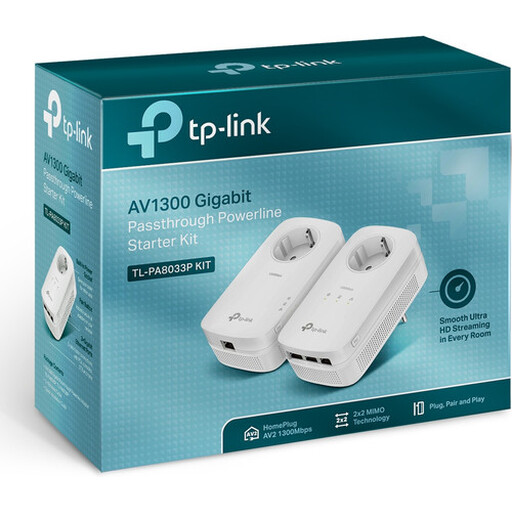
Why it stands out This powerline kit is a practical solution for creating a reliable, wired internet connection in places where your Wi-Fi signal is weak. It uses your electrical wiring, so you can bypass issues like thick walls or ceilings. Furthermore, the integrated pass-through socket ensures you don't lose a power outlet.
Pros
Who is this for? For users who need a stable, wired connection in a room far from the router, such as an attic or a concrete new-build home. It is an excellent choice for connecting stationary devices that require high performance.
View the TP-Link TL-PA8033P Kit
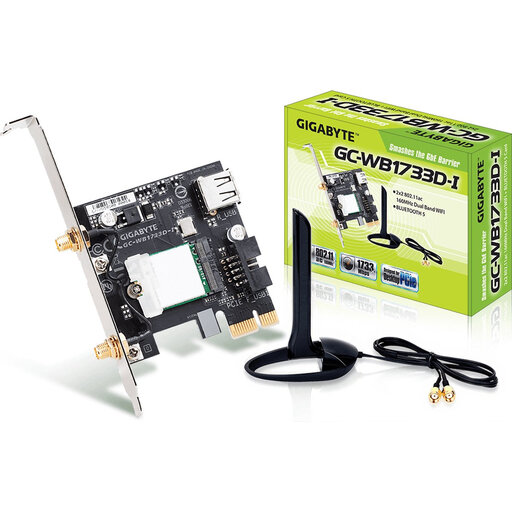
Why it stands out This internal PC Wi-Fi card is a two-in-one upgrade for your desktop. It not only adds fast Wi-Fi 5 (802.11ac) functionality but also Bluetooth 5.0. The external antenna ensures a better and more stable range than built-in solutions.
Pros
Who is this for? For desktop users who want to give their PC a powerful and permanent wireless upgrade. It's a popular choice for gamers and remote workers who need a reliable connection for both internet and Bluetooth devices.
View the Gigabyte GC-WB1733D-I
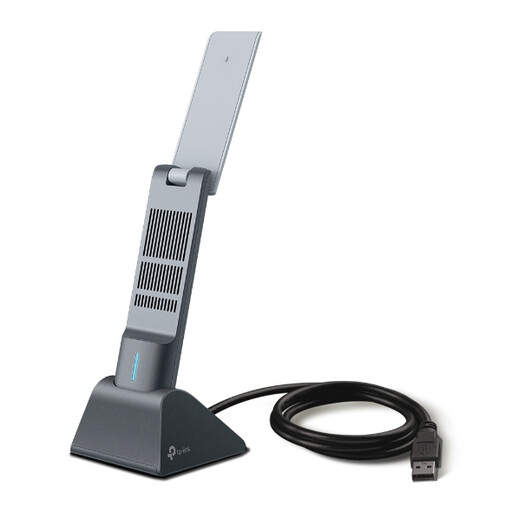
Why it stands out This USB Wi-Fi adapter combines the convenience of USB with the power of Wi-Fi 6. It's a flexible and high-speed solution to instantly upgrade any PC or laptop to the latest Wi-Fi standard. The adjustable antennas ensure a focused and strong signal.
Pros
Who is this for? For anyone who wants to easily benefit from the advantages of Wi-Fi 6 without having to open up their computer case. Ideal for gamers, streamers, and users who want to get the highest possible wireless performance from their laptop or desktop.
View the TP-Link Archer TX20UH
The right network adapter depends on your specific situation. The products above offer a solution for the most common scenarios, but there are many more options available. If you're looking for a different type or model, there's sure to be an adapter that fits your needs.
Browse our full range of computer Wi-Fi adapters
A Wi-Fi adapter (USB or PCIe) receives the wireless signal directly from your router. A powerline adapter uses your home's electrical grid to transport the internet signal. It essentially creates a new, wired access point in a different location, which is often more stable in situations where the Wi-Fi signal is blocked.
Yes, a modern USB Wi-Fi adapter can certainly be suitable for online gaming. It's best to choose a model that supports the 5 GHz band and a recent standard like Wi-Fi 6. These offer higher speeds and lower latency. For the most competitive gamers, a wired connection (via ethernet or a powerline adapter) often remains the most stable option.
The installation process varies by type. A USB adapter is the simplest: you plug it into a USB port and install the software. A powerline kit is also plug-and-play: you plug the adapters into the wall sockets and connect them with cables. An internal PCIe card requires you to open the computer case and place the card in a free slot on the motherboard, which requires some technical skill.