Vandaag of morgen in huis

Kwaliteit gegarandeerd

Welkomstaanbiedingen ontgrendelen: GRATIS bezorging | Tot 80% korting | Gratis 30 dagen JoyPlus-proefperiode
Download de app
Waiting for large files to transfer, a full laptop, or a PlayStation 5 begging for more space. Sound familiar? An external SSD (Solid State Drive) is a practical solution. Whether you're editing 4K videos, expanding your game library, or needing a fast, reliable backup on the go, the right drive can significantly speed up your workflow.
The market for portable storage is vast, and the specifications can be overwhelming. This article will help you understand the key features and find a model that suits your needs, based on objective product information.
Before we look at specific models, it's useful to consider three key factors. These will determine how well an external SSD performs for your purposes.
The speed of an SSD is expressed in megabytes per second (MB/s). A fast external SSD can drastically reduce the time you spend copying files. Pay attention to the following specifications:
Most modern SSDs use a USB-C connection but are often supplied with an extra cable for older USB-A ports.
The required storage capacity depends entirely on your usage.
A portable SSD needs to be durable. Many models offer drop protection up to a certain height. Do you often work outdoors or in dusty environments? A model with an IP rating (dust and water resistance) can provide extra peace of mind.
Additionally, compatibility is important. Most external SSDs work out of the box with both Windows and macOS. For optimal interchangeability, especially for an external SSD for Mac and PC, you can format the drive to the exFAT file system.
Based on specifications, we have listed a few popular choices for different user profiles.
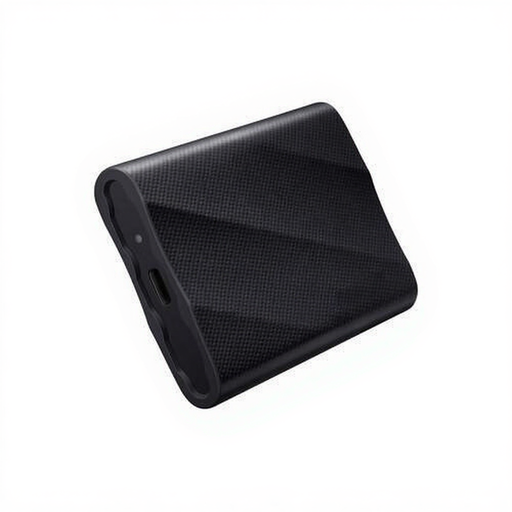
Why It Stands Out The Samsung T9 is engineered for maximum performance. Thanks to its USB 3.2 Gen 2x2 interface and NVMe protocol, this drive achieves read and write speeds of up to 2,000 MB/s, according to the manufacturer. This makes it a powerful choice for the most demanding tasks.
Advantages:
Who Is It For? Professionals and content creators who work with very large files (like 4K or 8K video) and need the highest possible transfer speeds to optimise their workflow.
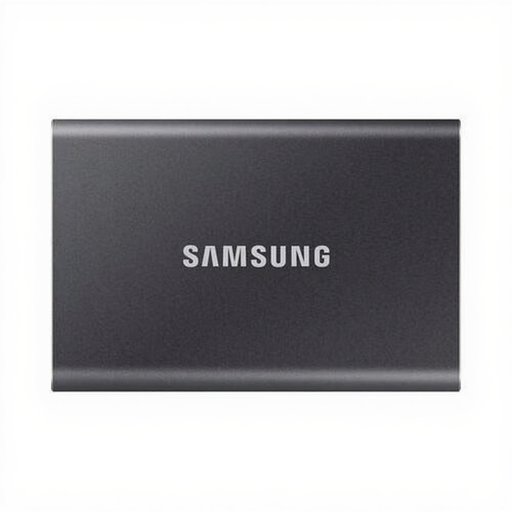
Why It Stands Out The Samsung T7 offers an excellent balance of speed, size, and functionality. With speeds up to 1,050 MB/s, it is significantly faster than a traditional hard drive and perfect for everyday tasks. Its light and slim metal casing makes it highly portable.
Advantages:
Who Is It For? Students, office workers, and photographers looking for a fast, lightweight, and secure portable SSD for work, study, and creating backups.
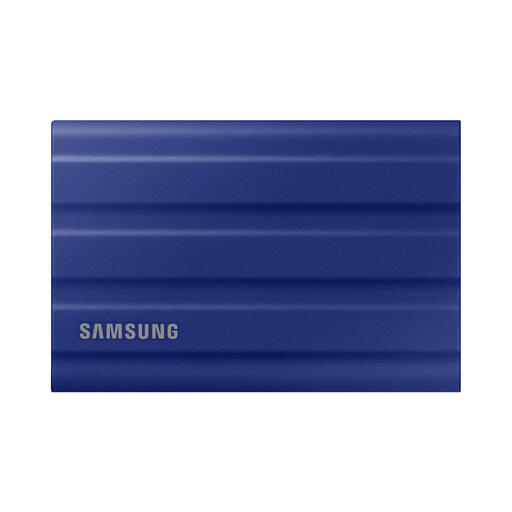
Why It Stands Out The T7 Shield is the rugged version of the T7. It is designed for use in challenging conditions. According to Samsung, its rubber-coated casing provides protection against drops of up to 3 metres and has an IP65 rating for dust and water resistance.
Advantages:
Who Is It For? Users who are frequently on the move, work in varied environments (such as outdoor photographers or on-location filmmakers), or simply want extra assurance for their data's protection.
The world of external storage is vast. If these models don't meet your exact requirements, or if you're looking for a different capacity or brand, there's more to explore. Compare specifications and find the drive that perfectly matches your equipment.
Check out all our compatible hard drives and find the perfect match.
An external SSD (Solid State Drive) has no moving parts, which makes it much faster, quieter, and more shock-resistant than a traditional external HDD (Hard Disk Drive). An HDD uses a spinning disk and a read/write head, making it more fragile and slower, but often cheaper per gigabyte for very large storage capacities.
Yes, you can use an external SSD to expand your PlayStation 5's storage. You can play PS4 games directly from it and archive PS5 games on it to free up space on the internal drive. To play a PS5 game, however, you must first transfer it back to the internal storage. A fast external SSD significantly reduces loading and transfer times.
To make an external SSD for Mac and Windows interchangeable, it's best to format it to the exFAT file system. This can be done via the Disk Utility app on a Mac or through Disk Management in Windows. Keep in mind that formatting a drive will erase all existing data.