Don’t replace your router straight away. First, check the connection at the router, then test the Wi-Fi where you watch your cooking class. If you can run a cable to the basement, a wired access point or mesh point is one option to consider. Without a cable, your choice between a wireless repeater and powerline depends on the reception at an intermediate location and how the intended sockets perform in a test. The Consumentenbond recommends testing the speed over a network cable, while a newer router alone cannot guarantee reception through a floor.
Who is this choice relevant to?
Viewer with weak basement Wi-Fi
Your internet works elsewhere, but your cooking class keeps buffering in the basement. The Consumentenbond recommends positioning Wi-Fi points so they can reach each other with as few obstacles as possible. So, first test the reception where you watch.
Viewer without a route for a cable
You can’t easily run an Ethernet cable downstairs and want to find out whether a wireless intermediate point or your home’s electrical wiring can provide a usable connection. The Consumentenbond and devolo describe placement and powerline as options you can investigate.
Household with several rooms that have weak Wi-Fi
Other rooms need better coverage as well as the basement. In that case, it’s worth comparing the placement and connection between multiple Wi-Fi points, as described in product information from TP-Link and ASUS.
What should you look for when choosing?
Start by checking the connection itself: first make sure your internet connection works well at the router, then choose a way to get the signal down to the basement.
Move your router
Choose this if: testing shows that a higher, more central position gives you enough reception in the basement.
Bear in mind: the cable length you’ll need and any conditions your provider may have for moving its modem.
Wired access point or mesh point
Choose this if: there’s a network cable to the basement, or you can install one.
Bear in mind: the cable route, available ports and the access point mode you need.
Wireless repeater or mesh
Choose this if: a spot between the router and basement still gets usable Wi-Fi. Mesh may be suitable if other rooms need coverage too.
Bear in mind: the extra point still depends on its own wireless connection.
Powerline with Wi-Fi
Choose this if: installing a cable is impractical and a wireless connection via an intermediate point doesn’t work well enough.
Bear in mind: performance can vary between sockets and depending on the electrical environment, so test the sockets you plan to use.
| Consideration |
What to look for when buying |
Who should give this more weight? |
| Connection all the way to the basement |
Compare the speed over a network cable at the router with the Wi-Fi where you watch. Then see whether you can run Ethernet to an additional point. |
If Wi-Fi barely gets through the floor, I want to know whether a cable can connect an extra point in the basement. Around 36% of consumers put this need first. |
| Coverage without a network cable |
Check whether the kit includes an adapter for the router and provides Wi-Fi in the basement. Test the sockets you plan to use and check compatibility with any existing adapters. |
If installing a cable isn’t an option and an intermediate location gets too little Wi-Fi, I’m looking for another way to get a connection downstairs. Around 29% of consumers prioritise a cable-free connection. |
| Extending coverage from an intermediate location |
Test whether your chosen spot still gets usable Wi-Fi. Check that the repeater has the connection or LAN mode you need. |
If there’s still Wi-Fi halfway along, I’d rather extend the signal from there than run cables. Around 21% of consumers prioritise this type of wireless extension. |
| Coverage in several rooms |
Work out how many rooms need coverage and check where the points can connect, possibly using Ethernet backhaul. |
If other rooms have weak coverage too, I want to weigh up placing multiple points against a solution for the basement alone. Around 14% of consumers prioritise coverage in several places. |
Avoiding common buying mistakes
-
Confusing high Wi-Fi speeds with coverage in the basement
Floors and other obstacles can weaken the signal. A higher Wi-Fi specification on your router won’t, by itself, tell you how good reception will be where you watch.
First test your internet connection over a network cable at the router, then check Wi-Fi in the basement. Next, choose a suitable way to connect an extra Wi-Fi point.
-
Putting a repeater where the signal is weakest
A wireless repeater still needs to receive usable Wi-Fi itself. If there’s no working incoming connection, a repeater won’t solve the problem by itself.
Try an intermediate location with reception. If that doesn’t work, compare a wired connection with testing powerline using the sockets you plan to use.
-
Assuming every powerline adapter or socket works in the same way
devolo explains that performance can vary between sockets and that certain adapter series aren’t supported with Magic 2 WiFi next.
Check the exact adapter series and test the adapters in the sockets you plan to use.
-
Choosing a large mesh kit when only the basement has weak coverage
The number of Wi-Fi points should suit the rooms that need coverage. Mesh points also need to be able to connect to each other.
First map the weak spots and possible locations. Then compare a solution with one extra point against a mesh kit for several rooms.
Brands to consider
FRITZ!
According to FRITZ!, the FRITZ!Repeater 1200 AX is designed as an additional Wi-Fi point and can also work with routers from other brands. FRITZ! Mesh is designed for a compatible FRITZ! network.
- The Dutch product information lists one gigabit LAN port and connection via LAN to a FRITZ!Box.
- As a wireless repeater, the device needs a usable incoming signal. If you have a router from another brand, check that it supports the mode you need.
TP-Link
The Deco X50 is a Wi-Fi 6 mesh range designed for placing multiple points around your home. TP-Link lists Ethernet backhaul as an optional way to connect Deco units.
- TP-Link lists three gigabit ports per standard Deco X50 unit.
- The coverage stated by the manufacturer can’t predict reception in a specific basement. The Deco X50-PoE and X50-5G are different models.
ASUS
According to ASUS, the ZenWiFi XD5 is a Wi-Fi 6 mesh option for several locations, with the option to connect points by cable or wirelessly.
- ASUS lists Ethernet backhaul for when Ethernet connections are available.
- The manufacturer’s coverage claim doesn’t predict performance in a basement. Specific Wi-Fi 6 benefits depend on having compatible devices.
devolo
The Magic 2 WiFi 6 next Starter Kit combines powerline with Wi-Fi. It’s an alternative when you don’t have a network cable or a usable wireless connection via an intermediate point.
- devolo lists two gigabit ports on the Wi-Fi adapter.
- Test the connection in the sockets you plan to use. If you’re expanding your setup, don’t assume older adapter series are compatible without checking.
Joybuy products for basement Wi-Fi
These product choices cover mesh for several rooms, powerline with Wi-Fi, a wireless repeater and a router for a home network. For each model, check that its connection method suits the reception and connections in your home.
 No image available
TP-Link Deco E4 (3-pack), dual-band Wi-Fi 5
Suitable if you want to extend mesh coverage to several areas of your home.
The product description lists three mesh units and two network ports per unit. According to the description, the wired ports support speeds of up to 100 Mbps.
View at Joybuy
 No image available
TP-LINK TL-WPA7517 KIT powerline adapter starter kit
Suitable if you want to add a Wi-Fi point using your home’s electrical wiring when running a long network cable isn’t practical.
The product information describes a powerline Wi-Fi extender kit with a Type E plug. Test the sockets you plan to use to see whether the connection works there.
View at Joybuy
 No image available
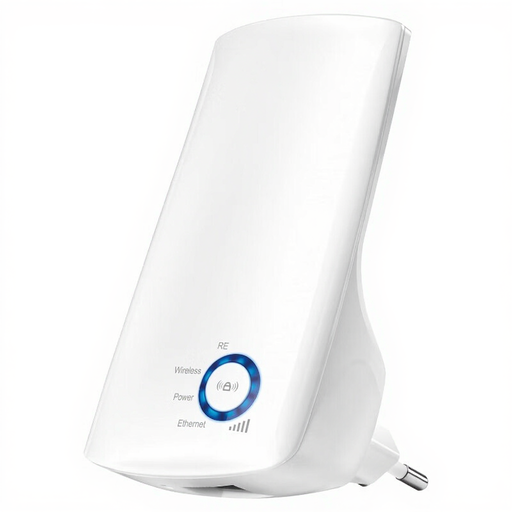
TP-Link TL-WA850RE Wi-Fi range extender, 300 Mbps
Suitable if you want to extend an existing wireless network from a spot that still gets usable reception.
The product information lists speeds of up to 300 Mbps, support for 802.11b/g and Wi-Fi 4 (802.11n), plus an Ethernet port. The actual connection depends on the reception where you place the extender.
View at Joybuy
 No image available
ASUS RT-AX52 AX1800 dual-band Wi-Fi 6 router
Suitable if you’re looking for a router for your home network and are considering expanding it with compatible ASUS AiMesh routers.
The product name specifies dual-band, and the description mentions Wi-Fi 6, OFDMA and MU-MIMO. A new router alone doesn’t guarantee reception in the basement.
View at Joybuy
 No image available
TP-Link Deco X50 (3-pack), dual-band Wi-Fi 6
Suitable if you want mesh coverage across several rooms and can make use of the three-unit setup.
The product description lists Wi-Fi 6 and three gigabit Ethernet ports per unit. TP-Link lists Ethernet backhaul as an optional way to connect Deco X50 units.
View at Joybuy
Frequently asked questions
Should you replace your router if your cooking class only buffers in the basement?
Not straight away. The Consumentenbond recommends first testing the connection with a network cable at the router, then comparing it with Wi-Fi where you watch. If the wired connection is also consistently slow, look into your connection or contact your provider. An extra Wi-Fi point won’t fix the internet connection itself.
Where should you put a wireless repeater?
Put a wireless repeater at an intermediate location where it can still receive usable Wi-Fi. The Consumentenbond recommends positioning Wi-Fi points with as few obstacles between them as possible. Then test the connection where you watch your class.
How do you test a powerline kit in the basement?
Test both adapters in the sockets you plan to use, and check the connection indicator or app. devolo recommends plugging the adapters directly into wall sockets wherever possible. Nearby power supplies and dimmer switches can affect performance.
What internet speed do you need for an online cooking class?
It depends on the platform and the video quality you choose. As a guide, Netflix recommends a stable connection of at least 3 Mbps for 720p, 5 Mbps for 1080p and 15 Mbps for 4K. These aren’t requirements for every cooking-class platform. Check the requirements of the platform you use and test on the device you watch on in the basement.
Can you use your own router in the Netherlands?
Yes. According to ACM ConsuWijzer, you’re free to choose your router. Connecting your own modem directly also involves network and security requirements, so ask your provider which settings you’ll need. Adding a Wi-Fi point behind your existing provider’s equipment is different from replacing that modem.


