First, measure the upload speed using a wired connection at your router, then compare it with a measurement in the basement. Extending your Wi-Fi won’t make a slow internet connection faster. If the signal is weak mainly in the basement, a network cable to an access point gives you a wired route. A repeater needs a usable Wi-Fi signal where you place it, while powerline depends on your home’s electrical wiring.
Who is this for?
Portfolio uploaders with weak Wi-Fi in the basement
Your internet works elsewhere in the house, but uploads from one basement room keep stalling. You want to find out whether a carefully positioned repeater will do the job. The Consumers’ Association and NETGEAR Support highlight measurement and placement as important considerations.
Uploaders who can run a cable
You can run a network cable to your workspace and want a connection that doesn’t rely on a wireless signal travelling through the floor. A wired access point can provide Wi-Fi in the basement if the cable reaches it, as the manufacturer describes for the TP-Link RE605X.
Uploaders without a practical cable route
Running a cable to the basement isn’t feasible, and the floor weakens the Wi-Fi signal. You want to weigh up powerline or a suitable connection between mesh points. devolo and TP-Link describe solutions that use your home’s electrical wiring.
What should you consider when choosing?
First, compare the upload speed at your router with the speed at your workspace. Then choose how to connect to the basement based on the available cable route, signal and power sockets.
Network cable with access point
Choose this when: you can run a cable to the basement and need Wi-Fi there.
Consider: you’ll need a suitable cable route. An Ethernet port on a wireless repeater doesn’t automatically mean it has a wired connection to the router.
Wireless repeater
Choose this when: you need coverage in one basement room and there’s a spot where the repeater can still receive a usable Wi-Fi signal from the router.
Consider: the connection still relies on a wireless link. NETGEAR Support recommends placing the repeater within the router’s range.
Mesh with multiple Wi-Fi points
Choose this when: you need coverage in several rooms and the points can maintain a usable connection with each other.
Consider: you’ll need multiple devices, and they use electricity. Mesh alone doesn’t guarantee a strong signal through a basement floor.
Powerline with Wi-Fi point
Choose this when: running a cable isn’t practical, Wi-Fi doesn’t reach the basement reliably and you have suitable power sockets.
Consider: power sockets and sources of electrical interference can affect the connection. Test it in the locations you plan to use.
| Main concern |
What to look for |
Who prioritises this? |
| Upload speed from your internet connection |
Take a wired measurement at the router and compare it with the upload speed in the basement. |
If I first want to know whether my internet connection itself provides enough upload speed, I’ll measure it at the router before buying network equipment to extend coverage. Around 25% of consumers say the upload speed of their internet connection is their main purchasing concern. |
| Wi-Fi coverage and placement |
For a repeater, choose a spot with a usable signal from the router. Check the indicator and test the upload speed at your workspace. |
When I work from one basement room, I want to know whether Wi-Fi reaches it and where a repeater can still connect to the router. Around 31% of consumers prioritise coverage and placement. |
| Route to the basement |
Compare a cable with powerline, and test powerline using the sockets you intend to use. |
If running a cable isn’t practical, I want to know whether the power sockets in my home will provide a usable powerline connection. Around 25% of consumers put the connection route to the basement first. |
| Kit, compatibility and support |
Check what’s included in the kit, whether it’s compatible with your router and connection, and what support is available for the version you choose. |
I want to know in advance which components my setup needs and whether the features work with my router. Around 19% of consumers say the total purchase cost and support are their main purchasing concerns. |
Common purchasing mistakes
-
Buying a repeater when the upload speed at the router is already slow
A repeater won’t improve your internet connection from your provider. So your upload speed may still be slow after extending your network.
First, take a wired measurement at the router and compare it with one in the basement. If the connection at the router itself is consistently slow, investigate your internet service first.
-
Putting the repeater where the Wi-Fi signal has already dropped out
A wireless repeater still needs to receive a usable signal from the router. NETGEAR Support recommends placing it within the router’s range.
Look for a spot between the router and the basement, check the connection indicator, then measure the upload speed at your workspace.
-
Assuming the stated connection speed is your upload speed
A Wi-Fi or powerline specification isn’t a measurement of your upload speed through your internet connection, the basement floor and your home’s electrical wiring.
Test the actual upload speed at your workspace. Assess powerline using the sockets you genuinely intend to use.
-
Assuming an Ethernet port connects the repeater to the router by cable
An Ethernet port on a repeater doesn’t mean the connection between the repeater and the router runs through a cable. Access point mode requires a cable to the network.
Check separately how the basement point connects to the router and how your laptop connects to it.
Brands to consider
TP-Link
The range includes the standalone RE605X repeater with access point mode, as well as the Deco PX10, which TP-Link says combines Wi-Fi and powerline.
- TP-Link lists a gigabit port and signal indicator for the RE605X. OneMesh requires a compatible OneMesh router.
- The listed features don’t tell you what upload speed a device will achieve in a particular basement.
devolo
The Magic 2 WiFi 6 next Starter Kit is a manufacturer’s example of powerline with a Wi-Fi point for a room that’s difficult to reach wirelessly.
- devolo lists two adapters and two gigabit ports on the Wi-Fi unit.
- According to devolo, certain power sockets and sources of electrical interference can limit the connection. The stated Wi-Fi speed isn’t a measured portfolio upload speed.
FRITZ!
The FRITZ!Repeater 1200 AX is an alternative for anyone looking to extend an existing router or FRITZ! network setup.
- FRITZ! confirms gigabit LAN support for this model.
- That specification doesn’t prove there’s a suitable wireless connection between the router and the basement.
NETGEAR
NETGEAR’s placement guidelines are useful if you’re considering a wireless extender for one basement room.
- NETGEAR recommends placing the extender within the router’s range.
- This general guidance can’t predict how a specific model will perform in your home.
Products for basement coverage and uploads
These product options cover powerline, a wireless repeater or a wired access point for the basement. For each device, check that the version on offer meets the relevant requirements and carries the correct CE marking. The Dutch Authority for Digital Infrastructure (RDI) emphasises that a product listing alone doesn’t prove this.
 No image available
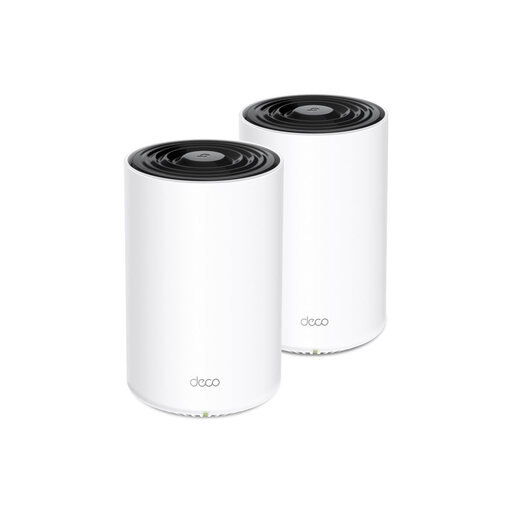
TP-Link Deco PX10, dual-band Wi-Fi 6 (2.4 GHz / 5 GHz)
TP-Link says the Deco PX10 combines Wi-Fi and powerline between Deco units. It’s an option to look into if the floor makes a wireless connection to the basement difficult.
Check the connection using the power sockets you plan to use: powerline performance depends on your home’s electrical wiring.
Joybuy
 No image available
TP-Link TL-WPA7517 Kit, powerline adapter starter kit
This starter kit is worth considering if running a network cable to the basement isn’t practical and you want to test powerline as a way to connect.
Performance depends on your home’s electrical wiring and the sockets you use. So test it in the places where you plan to use the adapters.
Joybuy
 No image available
Wi-Fi Repeater Pro, black
A wireless repeater is worth considering if there’s a spot between the router and the basement where the Wi-Fi signal is still usable.
Check the signal where you plan to put it, then measure the upload speed in the basement. A repeater placed where there’s no signal from the router won’t solve the coverage problem.
Joybuy
 No image available
TP-Link Omada EAP653, wireless access point
This access point suits a wired setup if you can run a network cable to the basement and want Wi-Fi there.
For this setup, the cable must reach the basement point. An access point doesn’t replace that wired connection.
Joybuy
 No image available
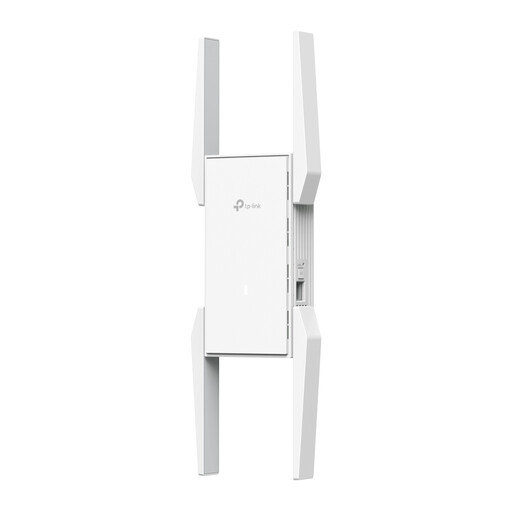
TP-Link Omada EAP673 access point
An access point could be a good choice if you can run a wired network connection to the basement.
Before choosing, check how the access point connects to the router and whether you can run a cable to your workspace.
Joybuy
Frequently asked questions
How can you tell whether you need a Wi-Fi booster or a different internet plan?
Compare a wired upload speed test at the router with one in the basement. If the wired connection itself is consistently slow, investigate your internet service first. If the problem is mainly with the basement connection, look at the way your home network is set up.
Can you put a repeater straight in the basement?
Only if it can still receive a usable signal from the router there. NETGEAR Support recommends placing it within the router’s range. Also check the connection indicator and test the upload speed at your workspace.
How do you test powerline adapters for use in the basement?
Test them using the sockets where you plan to use them. devolo recommends plugging the adapters directly into a wall socket where possible. Electrical equipment can affect performance.
What extra equipment might you need to extend your network?
It depends on the route you choose. Running a cable may require installation work or extra materials, while a new powerline setup may need several adapters. Multiple network points use electricity, so the equipment you need will depend on your chosen setup.
What can you do if your device breaks after purchase?
In the Netherlands, contact the seller if a product doesn’t meet what you could reasonably expect from it. The Dutch government distinguishes between your statutory rights with the seller and any manufacturer’s warranty.
What should you look for in the CE marking on a Wi-Fi device?
Check the marking and the exact version of the device before using it. The Dutch Authority for Digital Infrastructure (RDI) states that radio equipment sold in the European market must meet the applicable requirements and carry the correct CE marking.


