Don’t automatically replace your router if the Wi-Fi is poor only in the basement: walls and floors can weaken the signal, and a faster router in the same place won’t necessarily solve the problem. If you can run a cable to the basement, a wired access point or mesh node could be a good option. Without a cable, your choice between wireless mesh and powerline depends on the connection at the intended location. Treat file storage and access permissions as a separate decision.
Who is this choice relevant to?
Project team with weak basement Wi-Fi
You share files while working downstairs and mainly want to know how to get a reliable network connection to your workspace. The Consumentenbond points out that walls and other obstacles can interfere with the Wi-Fi signal.
Maker with large local files
You want to exchange files between workstations or with a storage device. As well as Wi-Fi, consider wired connections, where your files will be stored and what the exact model supports. TP-Link Nederland and ASUS describe model-specific connections and file-sharing features.
Sharing confidential project files
You want to control who can access shared files and use the Wi-Fi network, and keep a separate backup. The Consumentenbond outlines points to consider for Wi-Fi security and ransomware.
What should you consider?
Wired access point or mesh node
Choose this when: your existing router is otherwise working well and you can run a network cable to the basement.
Bear in mind: you’ll need to install the cable and check that the additional Wi-Fi point can work with your existing network.
Single router
Choose this when: testing shows that one well-placed router can reach the basement and you also need router-based file sharing.
Bear in mind: the advertised Wi-Fi speeds alone don’t tell you how well the signal will travel through the basement floor.
Wireless mesh
Choose this when: you can’t run a cable, but there’s still a usable wireless connection between the main router and an additional Wi-Fi point.
Bear in mind: obstacles still affect the signal; an extra point on the other side of a difficult floor doesn’t guarantee a good connection.
Powerline with Wi-Fi
Choose this when: running a cable isn’t practical and wireless mesh doesn’t provide a suitable connection.
Bear in mind: performance can vary between sockets, so test the adapters where you intend to use them.
The table below can help you work out whether your main priority is the connection, file transfer, access security or installation.
| What to consider |
What to look for when buying |
Who is this more important for? |
| Basement connection |
Test the connection at your workspace and at potential locations for an additional Wi-Fi point. If you’re running a cable, check for Ethernet backhaul and access point mode. |
If I work downstairs, I want a usable connection there, not just a higher speed on the router’s spec sheet. Around 36% of consumers prioritise basement coverage. |
| File transfer and storage |
Decide which devices need to access files. Check the LAN connections and, if using router USB, the storage and sharing features supported by the exact model. |
If I want to move files between workstations, I also need to know where they’re stored and how those devices can access them. Around 29% of consumers prioritise local file transfer and storage. |
| Access and recovery |
Check that the router and devices support the same Wi-Fi encryption, set user permissions for shared folders and keep a separate backup. |
For confidential project files, I want to be able to restrict access and recover important files. Around 21% of consumers prioritise access security and recoverability. |
| Installation and equipment |
Test your current connection first and work out whether you need cables, additional Wi-Fi points, powerline adapters or separate storage. |
If I want to improve the basement connection without unnecessary installation work, I need to know what equipment my setup requires. Around 14% of consumers prioritise ease of installation and the equipment needed. |
Common pitfalls
-
Replacing only the router when the signal needs to pass through the basement floor
Walls and floors can interfere with Wi-Fi; a higher advertised speed doesn’t guarantee coverage at your workspace.
Test the connection downstairs and compare it with the router in a different position or a Wi-Fi point in the basement.
-
Confusing Wi-Fi speed with a file storage solution
A network connection doesn’t determine where project files are stored or who can open them.
First decide where your files will be stored, then check the sharing and access permissions offered by your chosen solution.
-
Assuming powerline works the same at every socket
According to devolo, certain sockets and sources of electrical interference can affect data transfer.
Test the adapters in the sockets you plan to use, with your own files, before relying on them.
Brands to consider
TP-Link
The product ranges covered include the Archer AX55 router and Deco X50-PoE mesh points. TP-Link Nederland describes the X50-PoE as offering different placement options and PoE power.
- The documentation describes wired Deco backhaul; according to TP-Link Nederland, the Archer AX55 has a USB 3.0 port.
- A USB port doesn’t prove that a single router in a poor location will provide adequate basement coverage. Don’t assume the X50-PoE’s specifications also apply to the standard X50.
ASUS
The RT-AX59U specifications list router, access point and AiMesh node modes, as well as USB connections.
- ASUS describes Samba Server, along with settings for shared folders and access permissions.
- These features don’t show what coverage the router will provide in a basement; check the permissions before sharing project files.
FRITZ!
The manufacturer describes the FRITZ!Box 4060 as a router for use behind a modem, with mesh and NAS features.
- FRITZ! lists three gigabit LAN ports and a NAS feature for this model.
- Check that the storage feature suits your file-sharing needs; the advertised maximum Wi-Fi speed isn’t a measure of basement coverage.
devolo
According to devolo, the Magic 2 WiFi 6 next Starter Kit combines powerline and Wi-Fi to extend your network.
- The manufacturer lists two gigabit LAN ports on the Wi-Fi device.
- Performance may be lower with certain sockets or sources of electrical interference; a powerline kit isn’t a storage solution in itself.
Joybuy product picks
This selection of Joybuy products includes wired access points, powerline adapters, mesh systems and routers for getting network access in a basement. For each model, check that its connections and features suit your existing network and the way you share files.
 No image available
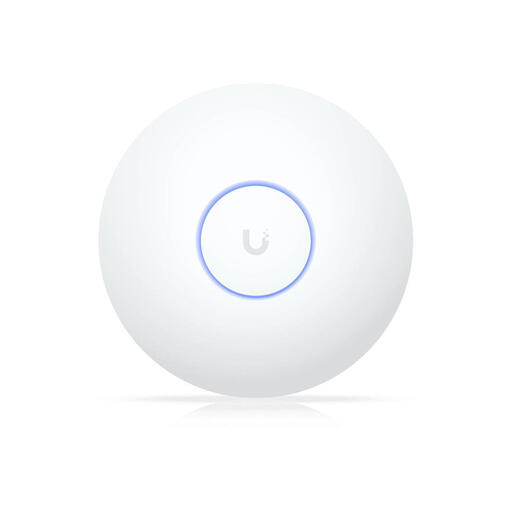
Ubiquiti UniFi AP U7 Long-Range
A wired access point to consider if you can run an Ethernet cable to the basement.
Wi-Fi 7 access point with a 2.5GbE uplink and PoE+ (802.3at); designed for indoor use and wall or ceiling mounting.
View at Joybuy
 No image available
TP-LINK TL-WPA7517 KIT
A powerline starter kit with Wi-Fi to consider if running a cable isn’t practical; test the connection in the sockets you plan to use.
The stated maximum transfer speed is 1000 Mbit/s; this isn’t a measurement of the connection in your basement.
View at Joybuy
 No image available
Huawei eKit OptiX FG736 BE3600 Dual-Band WiFi 7 Mesh Router
A mesh router to consider if you want to use several mesh units; check that the planned locations still have a usable connection.
The product description says that multiple units can work together to form a single network.
View at Joybuy
 No image available
ASUS RT-AX52 Pro AX3000
A dual-band router to consider if you want a router that can be expanded; the AiMesh feature described requires a compatible network setup.
The title mentions Gigabit Ethernet; the product description lists Wi-Fi 6 and AiMesh compatibility.
View at Joybuy
 No image available
TP-Link Deco X50-PoE (3-pack)
A three-unit mesh kit to consider if you want to position several Wi-Fi points; check what kind of connection between the units is practical in your locations.
The product description lists Wi-Fi 6, PoE and two Ethernet ports per unit.
View at Joybuy
Frequently asked questions
Should you replace your router if the Wi-Fi is poor only in the basement?
Not necessarily. First test the connection at your workspace and see whether moving your existing router or adding a wired Wi-Fi point helps. The Consumentenbond points out that walls and floors can affect the signal.
Can a router share project files itself?
Only if the exact model supports a suitable storage and sharing feature. The ASUS RT-AX59U specifications list USB connections and Samba Server; check the shared-folder permissions too, as a USB port alone doesn’t tell you how file sharing works.
What should you keep maintaining after installation?
Check your Wi-Fi encryption and access permissions, and keep a separate backup of important files. The Consumentenbond warns that ransomware can also affect files on connected external drives or network storage.
Will you need anything besides the router?
That depends on the solution you choose. You may need to run cables, add Wi-Fi points or powerline adapters, or get storage for files and backups. Work out what you need after testing the connection in the basement.
Do you need a permit or registration for ordinary home Wi-Fi in the Netherlands?
According to the Rijksinspectie Digitale Infrastructuur, Wi-Fi can be used without a permit under the applicable conditions; the frequency use described as permit-exempt doesn’t require notification or registration. Radio equipment sold in the Netherlands must meet the applicable European requirements and carry a CE mark.


