
Vandaag of morgen in huis

Kwaliteit gegarandeerd

Welkomstaanbiedingen ontgrendelen: GRATIS bezorging | Tot 80% korting | Gratis 30 dagen JoyPlus-proefperiode
Download de app
A barebone PC gives you more freedom than a fully built desktop. You choose components such as RAM and storage, while the processor, case and essential connectivity are already in place. This makes it an interesting option for home workers, IT professionals and business users who want to tailor a PC to their software and working environment.
However, a barebone desktop can also come with surprises. A tempting low price doesn’t always mean you can get started straight away. Before buying, check which components are missing, how much room there is for expansion and whether the size will suit your workspace.
Some models don’t include RAM, storage or an operating system. In effect, you’re buying a basic computer that still needs to be built up. A PC without an operating system also means you’ll need to install Windows or another compatible system yourself.
Be aware of exceptions, too. The MSI CUBI NUC AI 1UMG-018BEU is listed in the product specifications with Windows 11 Home. Always check the current product page before assuming you’ll need to install an operating system yourself.
An Intel Core processor alone doesn’t tell you enough about the overall experience. For multitasking, the maximum RAM, memory type and storage interface all matter. A system with limited RAM may struggle sooner when you have lots of browser tabs open, run virtual machines or use business software.
So don’t just look at processor speed. Check support for DDR4 or DDR5 memory, the number of slots and the available M.2 connections.
A barebone mini PC takes up very little space, but it usually has less room for extra components than a desktop case. Check the internal drive bays, number of M.2 slots and cooling. Don’t place a compact mini PC in an enclosed cabinet either, as its ventilation openings need to remain clear.
For office work and home use, 16 GB is often a practical starting point, while intensive multitasking may call for more. Pay particular attention to the maximum capacity and the correct standard:
A PC with upgradeable RAM is useful if you want to start with less memory and add more later. Check whether you’ll need to buy the modules separately and whether the configuration is compatible with the motherboard.
An SSD connected via M.2 PCIe is generally faster than a traditional hard drive. Check the number of slots and the supported drive lengths. According to its specifications, the CUBI NUC 1MG-237BEU has two M.2 connections and one SATA-600 connection. This lets you pair a fast system SSD with extra storage, as long as the drives you choose physically fit.
The MSI CUBI NUC AI is listed as supporting two M.2 PCIe 4.0 x4 slots. The MSI PRO DP180 supports M.2 as well as HDD and SSD storage. If you’re looking for a PC with M.2 SSD support, it’s also worth checking the SSD length and how it’s installed.
For an office setup, multiple monitor outputs, USB ports and a wired network connection may matter more than a slightly higher turbo speed. Check the following:
A VESA mini PC can be mounted behind a monitor. This saves desk space, but check that your monitor arm or VESA plate supports its weight and mounting method.
The models below are matched to different user profiles based on their stated processor, expansion options, connections and dimensions.
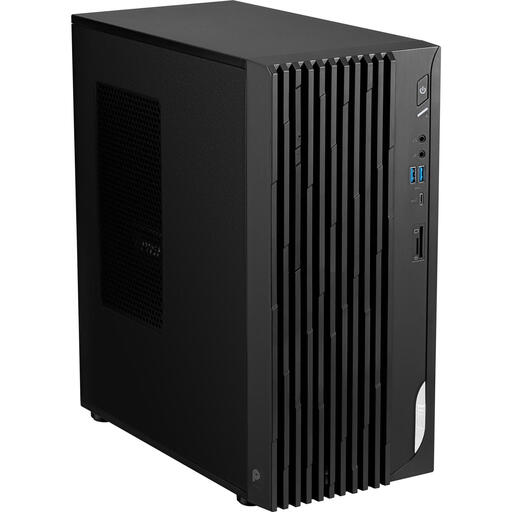
Why it suits this profile: This barebone desktop has an Intel Core i5-14400, supports up to 64 GB of internal memory and comes with a 350W power supply. It’s a good fit for users looking for a traditional desktop for office work and everyday multitasking.
The product information clearly sets out the RAM and storage options. Bear in mind that the specifications state that no operating system is installed, and you may need to buy RAM and storage separately.
Up to 64 GB of internal memory, Wi-Fi 6, one M.2 connection, HDMI 2.1, DisplayPort 1.4 and two Ethernet ports.
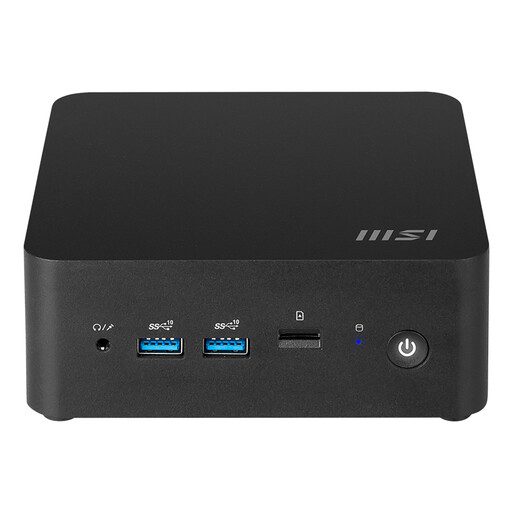
Why it suits this profile: This model combines a Core Ultra 7 155H with an exceptionally compact 0.52-litre chassis. It’s ideal for a modern workspace with multiple screens, fast wireless connections and limited desk space.
The specifications list support for up to 64 GB of DDR5 memory and two M.2 PCIe 4.0 x4 slots. That means there’s room to expand both memory and fast storage in a compact case.
Wi-Fi 6E, Bluetooth 5.3, two Thunderbolt 4 ports, two HDMI outputs, two 2.5Gbps Ethernet ports and VESA mounting support.
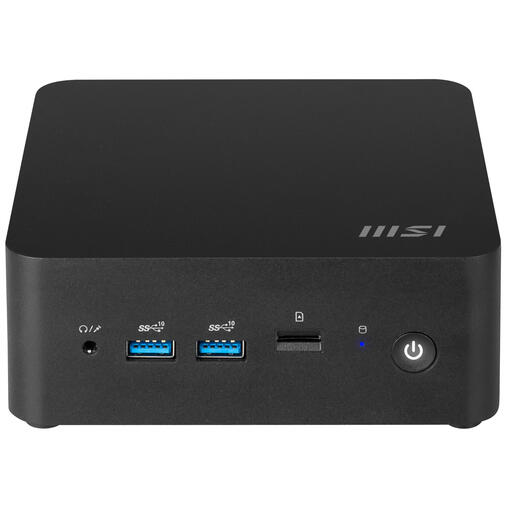
Why it suits this profile: This workstation barebone has a volume of around 0.90 litres, an Intel Core 7 150U and space for several storage drives. That makes it a practical choice for business environments, managed workspaces and users who want to expand their local storage.
According to the specifications, the case has two M.2 connections, one SATA connection and two DDR5 SODIMM slots. Before buying, check which components are included.
Up to 64 GB DDR5, two 2.5Gbps Ethernet ports, Wi-Fi 6E, Bluetooth 5.3, two HDMI outputs and VESA support.
We’ve put together a complete, up-to-date list of products that meet these strict selection criteria and comply with current European safety regulations.
Not always. A barebone PC may not include RAM, an SSD or an operating system. Check the product specifications and what’s included in the box. Some mini PCs come with Windows, while others are intended for you to build up yourself.
Shut down the computer completely, unplug it from the mains and follow the manufacturer’s installation instructions. Only install compatible RAM modules and an M.2 SSD of the correct length. Then install the operating system and the relevant drivers. If you’re not familiar with working with internal components, you can ask a qualified installer to fit them for you.
Power consumption depends on the processor, power supply, connected devices and how long you use the PC. A mini PC with a stated power rating of 120W may use less in practice during light office work, but actual consumption varies by configuration. For a reliable comparison, measurements taken during your own working day are more useful than looking at the maximum power supply rating alone.
