Choose a network scanner with user accounts if several authorised staff need to scan independently. For one designated user, a scanner connected to a computer may be enough. Also compare duplex feeding and double-feed detection, and check the saved files: connectivity and stated speeds don’t guarantee that every statement has been processed fully and correctly.
Who is this choice relevant to?
A team handling confidential statements
If several authorised people use the same scanner, the scan destination and access permissions help determine who can view bank details. The Dutch Data Protection Authority stresses that organisations must protect personal data appropriately and match access permissions to what staff need for their work.
Someone processing stacks of statements
If you regularly scan double-sided stacks, you’ll want to feed the pages efficiently and check the results for missing or duplicate pages. Duplex feeding and double-feed detection are therefore useful features to compare across models.
A user with one scanning computer
If one designated member of staff processes statements using a managed computer, you may not need a standalone network scanning workflow. Make sure the process works with your computer, storage location and access permissions.
What should you look for in a bank statement scanner?
First decide who can scan and where files will be stored. Then choose the feeding features and connection type that suit the way you process your statements.
Network with user accounts
Best for: several authorised staff who need to scan independently to a managed destination.
Bear in mind: user accounts and scan destinations need to be set up and managed appropriately.
Wired network for shared scanning
Best for: several people scanning to managed network folders.
Bear in mind: a network connection doesn’t automatically mean each user can sign in separately.
One managed scanning computer
Best for: one designated member of staff processing statements using a computer.
Bear in mind: the scanning workflow depends on that computer and the access permissions set up on it.
Network and USB with browser control
Best for: a workstation that needs both a computer connection and network access.
Bear in mind: test that the browser workflow, user permissions and destinations work with your network.
| What to consider |
What should you check? |
Who is this important for? |
| Confidential destination |
Check sign-in options, configurable scan destinations and permissions for the final storage location. |
If several authorised colleagues use the same scanner, I want to control who can open scans and where they’re stored; around 37% of consumers put a confidential destination first. |
| Double-sided stacks |
Compare duplex scanning, feeder capacity and double-feed detection. Once scanning is complete, check the number and order of the pages. |
If I regularly process stacks with information on both sides, I want to spot missing or duplicated pages; around 27% of consumers give complete stacks top priority. |
| Finding files again |
Test the storage destination and file workflow. If you need to search the contents, assess text recognition using real statements. |
If I need to find scans later in my records, I want to know where the files go and how to check them; around 18% of consumers prioritise being able to find files again. |
| Set-up and management |
Work out how many people will scan, which computers they’ll use and who will manage destinations and access permissions. |
If one authorised member of staff does the scanning, I don’t want to set up a shared network workflow that I don’t need; around 18% of consumers give a simple set-up top priority. |
Common pitfalls when going paperless
-
Assuming a network connection provides access security
Having a scanner on the network doesn’t automatically determine who can view bank statements. Access also depends on how user accounts and storage locations are set up.
Check both sign-in on the device and permissions for the storage destination. Make sure your measures suit the way your organisation handles the data.
Setting up and managing user and folder permissions takes time.
-
Assuming ADF capacity or scan speed guarantees complete files
A stated feeder capacity or speed doesn’t tell you whether every page is saved in the right order.
Use duplex scanning and double-feed detection where appropriate, and compare the scanned result with the originals.
Checking files and rescanning where needed take extra time.
-
Destroying paper originals straight away
Rules for retaining business records may apply. Requirements for scanned invoices and receipts can’t automatically be assumed to apply to bank statements.
Before destroying originals, first establish which retention requirements and conversion conditions apply to these specific documents.
If your digital records don’t meet the applicable requirements, you may need to put in extra work or find more storage space.
Brands to consider
Epson
The models listed offer different options: standalone network use with the WorkForce DS-790WN, or computer-based scanning with the DS-530III.
- According to Epson, the DS-790WN supports user accounts and LDAP and has a 100-sheet ADF. The DS-530III has USB connectivity and a 60-sheet ADF.
- The DS-790WN requires user accounts and destinations to be set up; in this comparison, the DS-530III is intended for a computer-based workflow.
Brother
The ADS-4300N is a wired network option. According to Brother, the ADS-4700W adds wireless networking and a touchscreen.
- Brother specifies duplex scanning and an 80-sheet ADF for both models.
- The information consulted for the ADS-4300N doesn’t confirm individual user sign-in on the device. Check how your users and scan destinations can be kept separate.
Canon
The imageFORMULA DR-S250N is an A4 sheet-fed model worth comparing if you need both USB and Ethernet.
- Canon specifies duplex scanning, a 60-sheet ADF, double-feed detection and a built-in web app.
- Test whether the browser and destination workflow suits your network and the way you want to manage permissions.
Ricoh
The fi-8040 is worth comparing if USB, LAN and PC-free scanning are important to you.
- Ricoh lists a speed of 40 pages per minute and a 50-sheet ADF for the fi-8040.
- A stated speed doesn’t tell you whether statements have been processed in full; check the files after scanning.
Joybuy products for shared scanning
This selection includes sheet-fed scanners for digitising documents at a shared desk.
 No image available
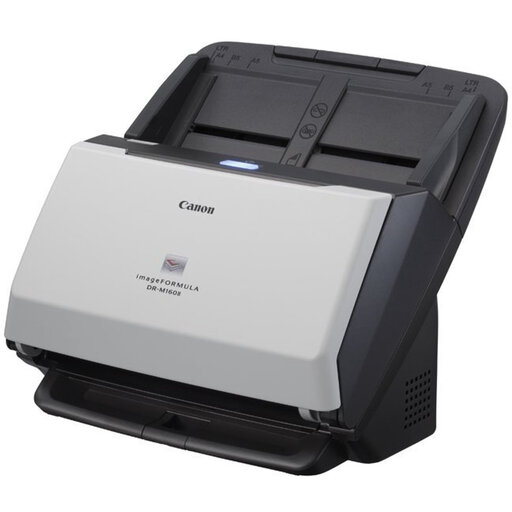
Canon imageFORMULA DR-M160II
Suited to a workflow where scans are received by one managed computer.
Format: A4. Resolution: 600 × 600 DPI.
View at Joybuy
 No image available
Epson DS-C330
Suited to processing statements using a designated scanning computer.
Format: A4. Resolution: 600 × 600 DPI.
View at Joybuy
 No image available
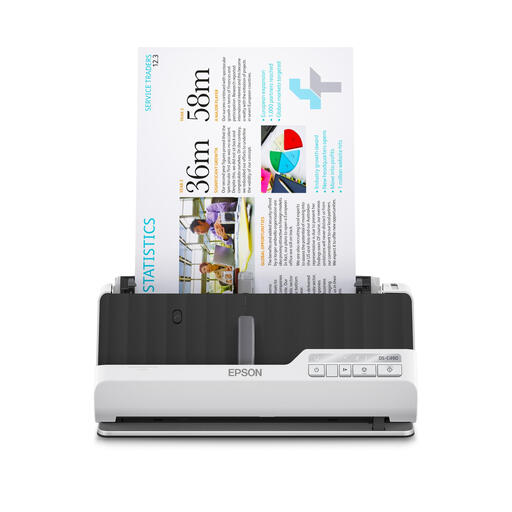
Epson DS-C490
Suited to shared scanning over a wired network; agree folder permissions and destinations in advance.
Format: A4. Resolution: 600 × 600 DPI.
View at Joybuy
 No image available
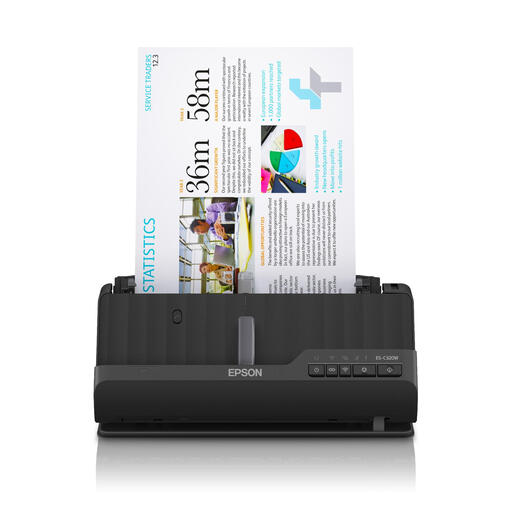
Epson ES-C320W
For double-sided statements at a shared workstation; check that the connectivity options and scan destination suit your set-up.
Format: A4. Resolution: 600 × 600 DPI.
View at Joybuy
 No image available
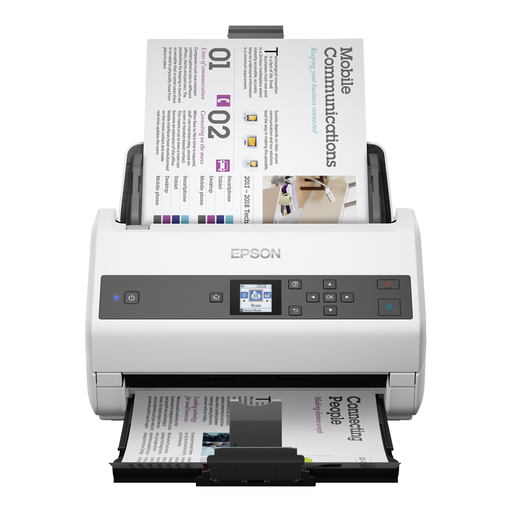
Epson WorkForce DS-970
Suited to processing double-sided stacks using a designated scanning computer; check the files afterwards.
Format: A4. Resolution: 600 × 600 DPI.
View at Joybuy
Frequently asked questions
Do I need duplex scanning for bank statements?
If information may appear on both sides, duplex feeding saves you from having to scan each reverse side separately. Also check the finished file for missing or incorrectly ordered pages.
How do you set up a scanner at a shared desk?
First decide who can process the statements and which secure destination they should be sent to. When an organisation processes personal data, the GDPR requires appropriate security measures based on the risks. The Dutch Data Protection Authority also explains the need to define access permissions; a scanner feature won’t set those permissions automatically.
Can I throw away paper bank statements for my business after scanning them?
Not just because you’ve scanned them. The Dutch Tax and Customs Administration says business records can be kept in their original form, digitally or on paper, and sets out conditions for keeping them in another format. Before destroying originals, establish which retention requirements and conversion conditions apply to the specific business documents. Specific permission to keep scanned invoices and receipts digitally doesn’t automatically apply to bank statements.


