
Building a site with lots of windows open
You want to keep the auction site, a preview and your reference material visible at the same time. Microsoft Support explains how to arrange windows side by side or in the corners of your screen in Windows.


For building a charity auction website, a single ultrawide monitor is a good fit if you want to arrange several browser windows across one wide workspace. A standard QHD monitor may be enough if you usually work with two windows side by side and need less horizontal screen space. Two monitors are worth considering if you want to keep windows physically separate, and have enough desk space and a computer or dock that supports both screens. Whatever your setup, check the connections, window layout and adjustability.
You want to keep the auction site, a preview and your reference material visible at the same time. Microsoft Support explains how to arrange windows side by side or in the corners of your screen in Windows.
You want text to be comfortable to read and the screen to be positioned just right, so consider resolution, scaling settings and adjustability. For employees, Arboportaal outlines workplace requirements for screen-based work.
You want extra workspace without an impractical setup. Compare the screen size with the space available, and check that your laptop supports the required video and, if applicable, charging features through the connection you choose.
Choose based on how you want to arrange your windows and the space available on your desk. Each setup has different requirements for screen width, connections and positioning.
A good fit if: you want to place the auction site, a preview and reference material side by side on one continuous screen. LG specifies a 34-inch 21:9 screen with 3440 × 1440 pixels for the 34U640B-B.
Bear in mind: a wide screen needs plenty of horizontal desk space. Check the stand and connections on the exact model, too.
A good fit if: you usually work with two windows side by side and don't want a 34-inch ultrawide on your desk. Dell specifies a 27-inch screen, 2560 × 1440 pixels and height adjustment for the P2725D.
Bear in mind: the QHD monitor we looked at has fewer horizontal pixels than the ultrawide mentioned here. Adjust the window size and text scaling to suit your work.
A good fit if: you want to keep the site on one screen and admin or documentation on the other.
Bear in mind: you’ll need space and connections for two screens. Microsoft Support explains how to configure detected displays separately in Windows, but that doesn’t mean every computer supports two external screens.
| Consideration | What should you check? | Who should consider this? |
|---|---|---|
| Multiple windows | Compare the aspect ratio, resolution and physical screen width. Try arranging the browser windows you use. | If I want to see the auction site, a preview and reference material at the same time, usable width is my priority. Around 36% of consumers prioritise being able to see multiple windows at a glance. |
| Readability and positioning | Check the resolution, text scaling, height adjustment and screen finish on the exact model. | For long work sessions, I want to be able to read the text and position the screen comfortably. Around 29% of consumers prioritise readability and screen position. |
| Laptop connection | Check video output, supported resolution and refresh rate, cable and any required charging power. | If I want to connect my laptop to the monitor and possibly charge it, the combination needs to be compatible with my laptop. Around 21% of consumers prioritise laptop compatibility. |
| Desk space and cost | Measure the space available and compare the dimensions with the stand attached; check which accessories you’ll need. | I want a setup that fits on my desk without having to buy extra accessories I don’t need. Around 14% of consumers prioritise desk space and purchase costs. |
Monitors with the same screen size can differ in their stands and adjustability. For example, LG lists tilt adjustment for the 34WR50QC-B, while the 34WR55QC-B also has height adjustment.
Before ordering, compare the resolution, dimensions with the stand attached and adjustment options for the exact model.
If you can’t position the screen comfortably, you may need a different setup or a monitor arm.
The Dell P2725DE lists 90 W power delivery, while the LG 34WR55QC-B lists 65 W. Whether that’s suitable depends on your laptop’s requirements and the connection.
Check your laptop’s video output, charging requirements and cable specifications.
Depending on your setup, you may also need a suitable cable, charger or dock.
For the 346B1C/00 at 3440 × 1440, Philips lists different supported refresh rates depending on the USB hub setting.
Check the connection and resolution requirements for the exact model if a particular combination of hub features and refresh rate is important to you.
Your statutory rights when buying as a consumer in the Netherlands are separate from any purchased or manufacturer’s warranty. ACM ConsuWijzer explains that the seller is responsible if a product breaks sooner than you could reasonably expect.
Compare any additional package with the cover and rights you already have. Don’t assume you need one to benefit from your statutory rights.
The models mentioned are worth considering if you’re looking for an ultrawide workspace.
The P2725D and P2725DE are examples of standard 27-inch QHD monitors with different connection options.
The 346B1C/00 is an ultrawide model with USB-C and an ergonomic stand, according to the product information.
This selection focuses on ultrawide monitors for anyone who wants to work with multiple windows on one continuous screen.
 No image available
A good fit if you want to arrange several browser windows on one wide screen and connect a laptop via USB-C.
34.1 inches, 21:9 and 3440 × 1440 pixels; the product description lists 100 Hz, up to 90 W USB-C power delivery, a USB hub, KVM, RJ45 and an adjustable stand.
According to the product description, USB-C power delivery requires a compatible laptop with USB Power Delivery and DisplayPort Alt Mode. Allow enough horizontal desk space.
 No image available
A good fit if you want a wide workspace on one screen and the flexibility to choose between the picture modes listed.
34 inches and 21:9; the product description lists up to 140 W USB-C power delivery, a USB hub and KVM.
The listed modes are 5120 × 2160 at 120 Hz or 2560 × 1080 at 240 Hz. Allow enough horizontal desk space.
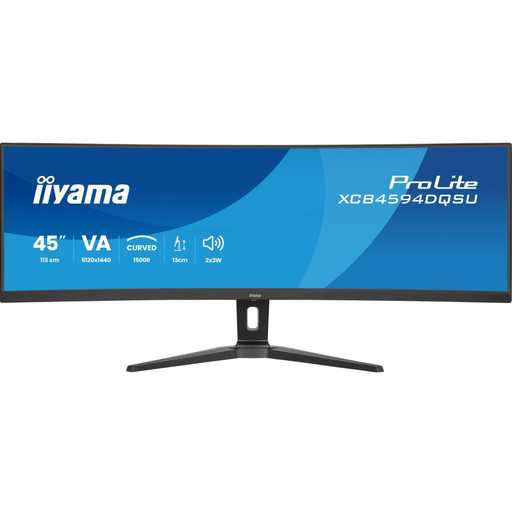 No image available
A good fit if you want plenty of side-by-side workspace on one screen and have enough room horizontally.
44.5 inches, 32:9 and 5120 × 1440 pixels; the product description lists height and tilt adjustment, plus HDMI and DisplayPort connections.
The wide format needs plenty of horizontal desk space.
 No image available
A good fit if you want to work with several windows side by side across a wide screen and need the KVM feature listed.
49 inches, 32:9 and 5120 × 1440 pixels; the product description lists KVM and 90 W USB-C power delivery.
The wide format needs plenty of horizontal desk space.
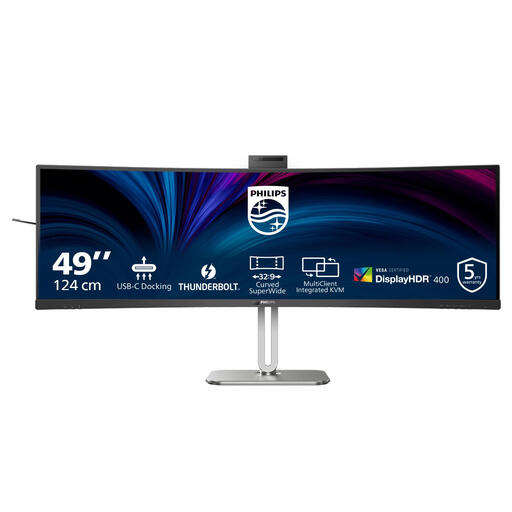 No image available
A good fit if you want to combine several windows on one wide screen and connect devices using the hub features listed.
49 inches, 32:9 and 5120 × 1440 pixels; the product description lists Thunderbolt 4 with up to 100 W power delivery, SmartKVM, a USB hub and height adjustment.
The wide format needs plenty of horizontal desk space.
No. In Windows 10 or 11, you can use Snap to arrange windows side by side or in a grid on a standard screen. Whether they’ll still be large enough depends on the content, resolution and text scaling.
Connect both screens to outputs supported by your computer or dock. If Windows detects them, you can identify each one in the display settings and drag it to match its physical position.
Compare the EU energy label and product information for the specific monitors. The European Commission states that computer monitors are covered by the energy labelling rules for electronic displays; an energy label rating alone won’t tell you what your electricity costs will be.
No. When buying as a consumer in the Netherlands, your statutory rights are separate from any purchased or manufacturer’s warranty. According to ACM ConsuWijzer, the seller is responsible if a product used normally breaks sooner than you could reasonably expect; there isn’t one fixed statutory warranty period for every monitor.
It depends on the working situation: rules for screen-based work in employment don’t automatically apply to every personal project. For employees, Arboportaal explains, among other things, that if you work with a screen for more than two hours a day, the screen and keyboard must not be attached to each other. Check whether the rules apply to your specific workplace.