
Vandaag of morgen in huis

Kwaliteit gegarandeerd

Welkomstaanbiedingen ontgrendelen: GRATIS bezorging | Tot 80% korting | Gratis 30 dagen JoyPlus-proefperiode
Download de app
A large screen with a high refresh rate sounds appealing, but not every 31.5-inch gaming monitor is right for your PC, games or desk. In fast-paced shooters, racing games and competitive titles, the wrong connections, limited graphics performance or an unsuitable screen size can make your purchase less worthwhile.
The ASUS TUF Gaming VG32AQL1A is aimed at gamers looking for a QHD monitor with 2560 x 1440 pixels, a high refresh rate and support for variable refresh rate technology. Read on to find out which specifications really matter and what to check before you buy.
A 170Hz gaming monitor refreshes the image more often per second than a 60Hz model. That doesn’t automatically mean every game will run at 170 frames per second, though. Your graphics card and processor need to produce enough frames at your chosen resolution.
QHD gaming puts more demands on your system than Full HD. So check whether your PC can handle 2560 x 1440 pixels. A 170Hz monitor can be particularly appealing if your PC can achieve a high frame rate in your favourite games.
A stated 1ms response time is a technical figure, but manufacturers may use different measurement methods. So it’s worth looking at the panel type, settings and support for synchronisation technology too. Response time alone doesn’t give you the full picture of how well a monitor handles movement.
The ASUS TUF Gaming VG32AQL1A uses an IPS panel and lists a response time of 1ms GTG. IPS panels are generally known for their wide viewing angles and consistent colours. For dark scenes, it’s also worth considering the contrast ratio and HDR specifications.
HDR can make the difference between light and dark areas more noticeable, but performance varies from one screen to another. The ASUS VG32AQL1A lists DisplayHDR 400, HDR10 support and a brightness of 350 cd/m² in its product specifications. DisplayHDR 400 is an entry-level HDR certification, so don’t expect the same effect as you’d get from screens with much higher peak brightness.
A 31.5-inch gaming monitor with QHD resolution offers more screen space and detail than Full HD. At this size, 2560 x 1440 is a practical middle ground for gaming: sharper than 1080p, but less demanding than 4K.
The ASUS VG32AQL1A has a 16:9 aspect ratio, a pixel density of 93 ppi and a matte screen finish. The matte coating can help reduce distracting reflections in a bright living room or home office, although positioning the screen in relation to windows is still important.
The monitor supports up to 170Hz. Variable refresh rate technology helps synchronise the screen’s refresh rate with your graphics card’s frame rate. This can help reduce visual disturbances such as screen tearing.
The product specifications list both G-Sync Compatible and FreeSync Premium. Before you buy, check that your graphics card, driver and chosen connection are compatible. DisplayPort is often the natural choice for PC gaming, while HDMI can be useful when connecting multiple devices.
The ASUS TUF Gaming VG32AQL1A has:
Check that you have enough space: with the stand, the screen is approximately 716mm wide, 565mm high and 240mm deep. If you’re using a VESA arm, make sure it can support the monitor’s weight of around 8.6kg with the stand.
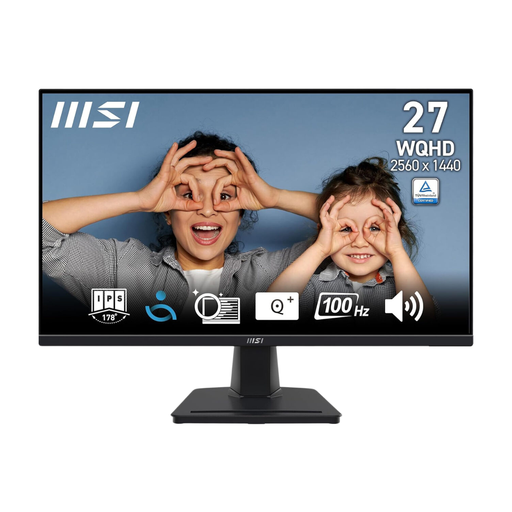
Why it suits this profile: A more compact QHD IPS screen for anyone who doesn’t need a 31.5-inch model or 170Hz straight away.
The specifications clearly state 100Hz, 4ms and 2560 x 1440 pixels. That means you’re not paying for features you may not use.
27-inch IPS panel, QHD resolution, 100Hz and VESA 100 x 100 mm.
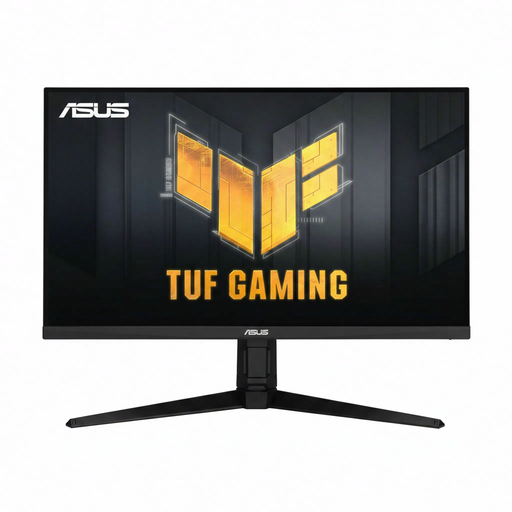
Why it suits this profile: For gamers looking for a large QHD IPS screen, a high refresh rate and a wide range of connections.
The product specifications list more than just 170Hz: they also include DisplayPort, HDMI, G-Sync Compatible, FreeSync Premium and 1ms GTG.
31.5-inch QHD IPS panel, 170Hz, DisplayHDR 400, 1ms GTG and height adjustment.
Why it suits this profile: For serious PC gamers who play fast-paced games and value motion settings and a wide range of connections.
ELMB Sync is listed as a feature, but its performance depends on the game, frame rate and settings. So check compatibility with your PC first.
ELMB Sync, G-Sync Compatible, FreeSync Premium, 2 USB ports and VESA mounting.
We’ve put together a complete, up-to-date list of products that meet these strict selection criteria and the applicable European safety regulations.
Where possible, use DisplayPort to make the most of the maximum refresh rate for PC gaming. Then select the correct resolution and refresh rate in Windows or your driver settings. Check the monitor’s menu too, as some features, such as variable refresh rate or ELMB Sync, may need to be switched on manually.
Position the screen directly in front of you and adjust its height so you don’t have to keep looking upwards. For wall mounting, use only a suitable VESA 100 x 100 mm bracket. The manual recommends placing the monitor on a stable, well-ventilated surface and warns against blocking the ventilation openings.
That depends on your graphics card and the games you play. The monitor offers 2560 x 1440 pixels and up to 170Hz. Your PC therefore needs to deliver enough frames for you to see the benefit of the high refresh rate.
The product specifications list G-Sync Compatible. Once connected, check that your Nvidia graphics card and driver support the feature. FreeSync Premium is listed for AMD systems.
Power consumption varies depending on brightness, HDR use, connected devices and settings. Higher brightness and HDR enabled can increase power consumption. So check the energy label and adjust the brightness to suit the lighting in your room.
