A larger conventional tablet is a good fit for archival research if you often want to view large scans, maps and notes side by side, although it may be less easy to handle. If you mainly read for long periods by a window, compare matte models and e-paper too. Check the exact screen version, the apps you need and what’s included with the pen: the stated brightness or anti-reflective properties don’t guarantee how reflections will look from where you sit.
Who is this buying guide for?
Researcher working with large scans
You compare maps, newspapers or scans with notes and want enough screen space without losing sight of the device’s size. The Consumers’ Association notes that larger tablets offer more screen space than 11-inch models.
Reader beside a bright window
You read in the same spot for long periods and want to assess the exact matte, anti-reflective or e-paper version for distracting reflections. The right option also depends on colour reproduction and the documents you use.
Mobile archive visitor
You take your tablet between home and the archive or hold it regularly. You want a size that suits your documents and notes without being unnecessarily large.
What should you look for in a tablet for archival research?
Large conventional tablet
A good fit if: you often want to view detailed scans, maps, websites and notes side by side. For example, compare the 13-inch iPad Air (M4) and the 12.6-inch Galaxy Tab S12+ for their apps and pen bundles.
The trade-off: more screen space can mean a less manageable device. The Consumers’ Association describes larger tablets as roomier than 11-inch models.
Matte Android tablet
A good fit if: you want both room for large documents and a matte screen, such as the matte Lenovo Idea Tab Pro.
The trade-off: check the full model name and bundle; the matte and glossy versions have different screens.
E-paper
A good fit if: you mainly want to read and annotate existing documents. The BOOX Note Air5 C and reMarkable Paper Pro each have their own document workflow.
The trade-off: check that your archive website, scans, colour details and import steps work on the device you choose.
More manageable conventional tablet
A good fit if: you often take or hold your tablet and don’t always need to view large scans side by side. The 11-inch iPad Air (M4) is one example of this size.
The trade-off: you’ll see less of a large scan at once on a smaller screen.
| What to consider |
What to look for when buying |
Who should pay particular attention? |
| Reflections |
Check whether the exact model has a matte or e-paper screen, or an anti-reflective coating. Also assess colour reproduction and, if possible, try the screen in similar window light. |
If I read beside a bright window, I want to minimise distracting reflections without losing sight of colour and scans. Around 33% of consumers prioritise reflections. |
| Space for scans |
Compare the screen diagonal with the size of your maps or scans, and consider whether you want to view documents alongside your notes. |
What matters most to me is having enough room for a large map or newspaper page while I make notes. Around 27% of consumers prioritise space for scans. |
| Weight and portability |
Compare the weight of the exact version, including any case, and think about how often you’ll hold the device. |
If I often take my tablet between home and the archive or hold it for a long time, a more manageable size matters more than having maximum document space. Around 20% of consumers prioritise portability. |
| Notes and files |
Test the archive website, PDF or import steps and any note-taking apps you need. Check pen compatibility, what’s included in the bundle and how you’ll work offline. |
I want to be able to open and annotate my archive files, and know in advance which apps and pen I’ll need. Around 20% of consumers name their document and note-taking workflow as their top priority. |
Things to check before buying
-
Mistaking a glossy Idea Tab Pro for the matte version
Lenovo describes a matte Idea Tab Pro, but the screen version may differ between listings. The model name alone doesn’t tell you whether you’re looking at the matte version.
Compare the full version name and screen specifications before choosing.
-
Assuming a compatible pen is always included
Pen support and what’s in the box are two different things. Apple lists Pencil support for the iPad Air (M4), while Samsung says an S Pen is included with the Galaxy Tab S12+.
For the exact version, check both pen compatibility and the stated bundle contents.
If the pen you need isn’t included in your chosen bundle, you may need to budget for a separate purchase.
-
Choosing e-paper based on glare reduction alone
A document-focused workflow also needs to suit the scans, archive website and files you use.
Test representative documents and the web or import steps you need before deciding.
-
Assuming a camera means you can photograph any archive material
Taking photographs, accessing documents and publishing them are separate matters. The Dutch National Archives allows photographs of public documents subject to certain conditions and prohibits photographs or scans of restricted-access documents; these rules don’t automatically apply to every local archive.
Check the rules of the archive you’re visiting and the rights attached to the specific material.
Brands and product ranges to compare
The features below apply to the models and versions named, not automatically to the entire brand.
Apple
The 11- and 13-inch iPad Air (M4) is an option if you need iPadOS apps and a conventional colour screen.
- Apple specifies an anti-reflective coating and Apple Pencil support for both sizes.
- Apple says the 13-inch version is heavier. A coating alone doesn’t tell you how much reflection you’ll experience where you sit.
Samsung
The Galaxy Tab S12+ is an Android tablet with a large screen for documents and notes.
- Samsung lists a 12.6-inch screen and an S Pen included in the box.
- The description of a bright screen is a manufacturer claim; don’t treat it as proof of how much reflection you’ll experience in your space.
Lenovo
The Idea Tab Pro Matte is an Android version with a large screen and pen.
- Lenovo lists a 12.7-inch matte version with a pen.
- There’s also a glossy Idea Tab Pro, so check the exact screen version and bundle.
BOOX
The Note Air5 C is an e-paper option for reading and note-taking if Android apps are also important to you.
- BOOX lists a glare-free 10.3-inch colour e-paper screen, Android 15 and microSD.
- The claims about viewing comfort come from the manufacturer; check that your website and scans work well.
reMarkable
The Paper Pro is designed for importing and annotating documents.
- reMarkable lists an 11.8-inch colour screen, reading light and PDF import.
- Check that importing your archive material works with the web-based workflow you need.
Joybuy products for archival research
This selection includes conventional tablets for scans and notes, as well as e-ink models for reading and annotation. For each version, check that the screen, apps and bundle suit the way you use archives.
 No image available
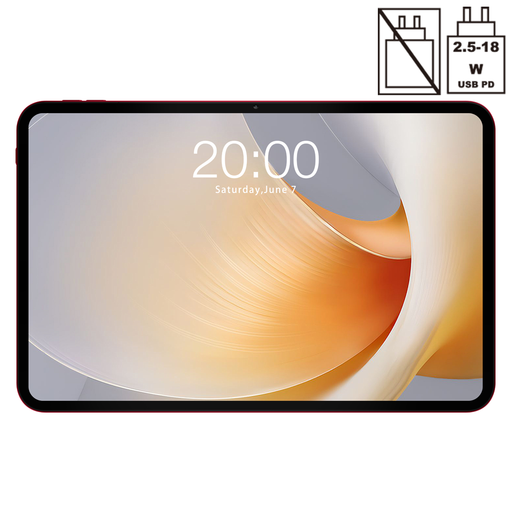
TECLAST T65 Plus 13.4-inch 120Hz tablet
The large screen is worth comparing if you want plenty of room for scans and maps.
The product name lists Android 15, 20 GB RAM and 256 GB ROM.
View at Joybuy
 No image available
Apple 11-inch iPad Air (M4), Wi-Fi, 256 GB, Space Grey (2026)
The 11-inch size is a more manageable conventional option if you don’t need to view large scans side by side all the time.
Apple specifies an anti-reflective coating and Apple Pencil support for the iPad Air (M4). According to the product information, the pen is not included.
View at Joybuy
 No image available
Lenovo IdeaTab, Dimensity 6300, 11 inch, 8 GB/128 GB
The 11-inch size is a more manageable option for documents and notes; compare it with the space your scans need.
The product name lists an IPS screen, 90 Hz, 500 nits and Android 15. The product information says a Lenovo Tab Pen is included in the bundle; the charger is not included.
View at Joybuy
 No image available
iFLYTEK AINOTE 2, 10.65-inch e-ink tablet
An e-ink size to consider if reading and note-taking matter more to you than having a large screen for scans.
Check in advance that the archive website, your documents and the workflow you need are all supported on this device.
View at Joybuy
 No image available
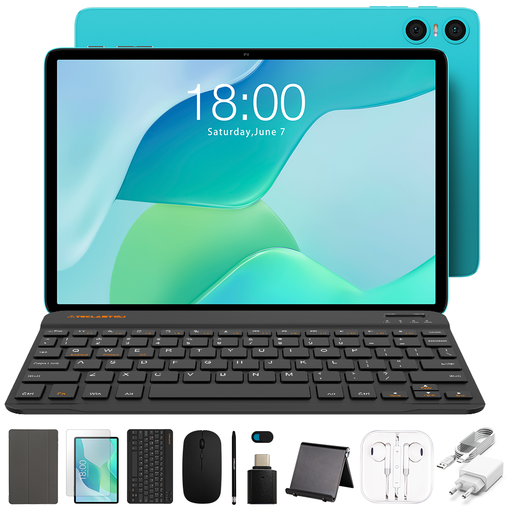
Teclast P33 10.1-inch tablet with accessory bundle
The smaller screen may suit you if you want a more compact tablet with included accessories; bear in mind there’ll be less room for large scans.
The product name lists 3 GB RAM plus 6 GB virtual expansion and 64 GB storage. The bundle includes a case, English-language Bluetooth keyboard, Bluetooth mouse, stand, charger, cable, stylus, earphones and OTG adapter, among other items.
View at Joybuy
Frequently asked questions
Is a higher stated brightness enough to combat reflections from a window?
No. Brightness alone doesn’t tell you how much reflection you’ll experience where you sit. Apple lists 500 nits for the 11-inch iPad Air (M4) and 600 nits for the 13-inch version, as well as an anti-reflective coating. These are manufacturer specifications, not a measurement of your lighting conditions.
How can you prepare a tablet for an archive visit?
Test the archive website you need and a few representative scans in advance, choose a suitable PDF or note-taking workflow, and check the archive’s rules. The Dutch National Archives allows photographs of public documents subject to certain conditions and prohibits photographs or scans of restricted-access documents; these rules don’t automatically apply at every local archive.
Do you need to buy a pen separately?
It depends on the exact version and bundle. Samsung lists an S Pen with the Galaxy Tab S12+; Apple lists Pencil support for the iPad Air (M4), but doesn’t say that the pen is included in the box. So check the bundle contents for the model you choose.
What are your rights when you buy a tablet online in the Netherlands?
ACM ConsuWijzer states that online purchases generally come with a statutory 14-day cooling-off period from delivery, subject to legal exceptions. The seller is also responsible for the statutory guarantee if the product doesn’t meet what you could reasonably expect.
Can you publish archive images stored on your tablet?
Not automatically: check both the rights attached to the material and the archive’s terms. The Dutch government distinguishes between making a copy for personal use and distributing or making copyright-protected material available to the public.


