
Source reader and transcriber
You compare handwritten source images with your transcription or notes and want a screen that’s comfortable to read.


Choose based on where you work: a larger screen gives you more room to view source images alongside your notes, while a more compact model may be more practical if you often travel to a reading room. Also check how to transfer and store permitted scans, and whether the exact model is compatible with your software and accessories. You don’t need a touchscreen to study handwritten sources.
You compare handwritten source images with your transcription or notes and want a screen that’s comfortable to read.
You regularly take your laptop to a reading room and weigh portability against the screen space you need.
You want to organise permitted reproductions and view them locally. The rules of the archive you visit determine what you’re allowed to capture.
Start with your workspace and how much screen space you need, then check portability, scan storage and the connections you’ll need for your accessories.
| What to consider | What should you check? | Who is this important for? |
|---|---|---|
| Reading handwritten sources | Check the screen size, resolution and whether the exact model has a matte or glossy finish. | If I want to read a source image alongside my transcription or notes, screen space matters most to me. Around 36% of consumers put reading space first. |
| Portability to the reading room | Compare the weight and dimensions with your bag and the space available on the table. | When I take my laptop with me often, I want its size to suit my journey and workspace. Around 29% of consumers put portability first. |
| Storing and transferring scans | Decide how much you want to store locally and check whether the laptop works with your USB stick or adapter. | If I want to transfer and organise permitted scans, storage space and a suitable connection are my main priorities. Around 21% of consumers prioritise scan management. |
| Total purchase cost | Check which accessories are included with the exact model and which ones you actually need. | I want to know in advance whether I’ll need to buy an essential adapter or another connection before choosing a model. Around 14% of consumers put total cost first. |
Specifications vary by configuration. For example, the Lenovo ThinkPad E14 Gen 7 configuration reviewed has a 14-inch anti-glare screen with a resolution of 2880 × 1800 pixels; Acer lists a matte 17.3-inch screen and a weight of around 2.09 kg for the Aspire 17 A17-51M-53T4. These details apply to these models, not every laptop from those brands.
A large-screen laptop may be less practical to carry around or use on a small table. According to Acer, the Aspire 17 A17-51M-53T4 weighs around 2.09 kg and is 402.1 mm wide.
Choose this size if you usually work at a spacious, permanent workstation. Check in advance that the laptop will fit in your bag and workspace.
If you carry it regularly, you may need a larger bag, and the laptop will be less convenient to take with you.
The National Archives’ self-service scanner uses its own USB stick. According to Apple, the 13-inch MacBook Air M5 has two Thunderbolt 4 ports (USB-C), so you may need a suitable adapter for a USB-A stick.
Check which storage medium the archive uses and whether it’s compatible with your laptop’s connection.
A touchscreen and a convertible design alone don’t tell you which pen works with the exact model or whether one is included.
Choose pen features only if you need them, and check compatibility and what’s in the box for the specific model.
ASUS states that the Zenbook 14 OLED eStore configuration reviewed doesn’t include a power adapter; this configuration requires a 65 W adapter.
Check what’s included with the configuration you’re considering and whether you already have a suitable adapter.
The ThinkPad E14 Gen 7 configuration reviewed is a 14-inch Windows laptop with an anti-glare screen.
The HP OmniBook X Flip 14-kc0600ndx reviewed is a Windows 2-in-1 for anyone who wants to use a touchscreen and switch between different viewing positions.
The 13-inch MacBook Air M5 is a macOS option for anyone who mainly reads, searches and types.
The Zenbook 14 OLED eStore configuration reviewed is a 14-inch Windows option.
The Aspire 17 A17-51M-53T4 is an option for anyone who usually works in one place and prefers a large screen.
These laptop picks are suitable for reading source images, comparing them with notes and storing scans locally.
 No image available
The 14-inch touchscreen and convertible positions may suit anyone who wants to view source images from different angles.
The product description lists an OLED touchscreen, a 360° hinge, a 512 GB SSD, and USB-A and USB-C ports. This model is listed with Windows 11 Home.
 No image available
The 16-inch screen may suit anyone who wants to view source images alongside notes.
The product description lists a 16:10 IPS touchscreen with a resolution of 1920 × 1200 pixels, a 360° hinge, a 512 GB SSD, and USB-A and USB-C connections.
 No image available
The 16-inch screen gives you plenty of room to read; check that its connections are compatible with the storage media you use.
The product name lists a WUXGA OLED screen, a Snapdragon X processor, 16 GB LPDDR5X memory and a 512 GB SSD. The description mentions Windows 11 Home and a weight of 1.70 kg.
 No image available
The 16-inch screen gives you plenty of workspace for source images and notes; decide whether the rest of the configuration suits your needs.
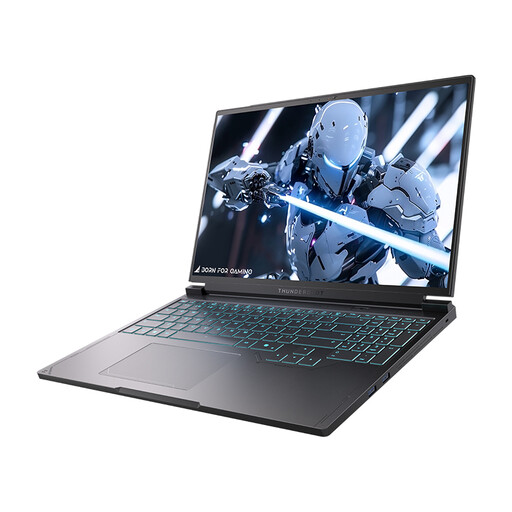
The product name lists a QHD+ 240 Hz screen, an Intel Core i7-13650HX processor, an NVIDIA GeForce RTX 5060, 16 GB DDR5 memory and a 1 TB SSD. The description mentions two USB-A and two USB-C ports.
 No image available
The 16-inch matte screen may suit anyone who wants to read documents alongside notes and take their laptop with them.
The product description lists a 16:10 IPS screen with a resolution of 1920 × 1200 pixels, an AMD Ryzen 5 7520U processor, 8 GB of memory and a 512 GB SSD. The stated weight is around 1.64 kg. The charger isn’t included; check which compatible charger you need.
You can take a laptop into the National Archives. You may only take a phone or camera in when viewing publicly accessible archive material; photographing or scanning restricted material isn’t allowed there. Check the rules of the archive you’re visiting.
That depends on the storage medium and your laptop’s ports. The National Archives’ self-service scanner saves files to a USB stick that you bring yourself. Check whether your laptop can connect to it directly or with a suitable adapter.
Don’t assume that transcriptions will be error-free. The National Archives describes handwriting recognition as a technology that uses human-made transcriptions as training material. Check important names, dates and references against the source image.
According to the Government of the Netherlands, sellers must provide information about the product and the cancellation period, among other things, when you buy at a distance. In many cases, the cancellation period is 14 days; check the terms and any exceptions that may apply to your purchase.
Don’t assume that you can: assess the source and your intended publication separately. The National Archives cites copyright when publishing photographs and prohibits reproductions of restricted material in its reading room. The Dutch Data Protection Authority defines information about an identifiable natural person as personal data.