
Architects who need to restore models
Want to restore a usable earlier version of a project, including its associated files, after an error, deletion or corruption.


Start by choosing a back-up method that lets you restore the entire project to a usable recovery point. Then work out how many bays, how much storage and what network capacity you need. A two-bay NAS may suit a defined archive, while growing projects may benefit from more room to expand. Hosting an active Revit model is a separate compatibility question; it does not automatically follow from choosing a NAS.
Want to restore a usable earlier version of a project, including its associated files, after an error, deletion or corruption.
Plan storage and retention for multiple projects, taking into account the difference between raw drive capacity and usable space.
Back up data from multiple systems and manage sharing, access permissions and the recovery of related project files.
Start with your recovery method and the files that belong together in a single project version. Then choose the right capacity and decide whether you need a separate storage location for an additional copy.
A good fit when: you want to back up a defined set of project files automatically and the usable capacity is sufficient.
Bear in mind: expansion options are limited; redundancy or snapshots in the same enclosure are not an independent copy.
A good fit when: multiple projects or a growing version archive call for more room to expand.
Bear in mind: adding drives and managing the system do not remove the need for a separate back-up location.
A good fit when: you already have a suitable NAS enclosure and want to add or replace storage.
Bear in mind: a standalone drive does not come with a NAS enclosure or back-up software; check compatibility with the exact model.
| Consideration | What should you check? | Who is this most important for? |
|---|---|---|
| Protection if the NAS is lost | Check whether you can back up to an independent destination and restore your data from it. | If I want to recover my project even if the entire enclosure is lost, I need a separate copy. Around 26% of consumers prioritise protection against losing the entire NAS. |
| Restoring the entire project | Identify which models, linked files and exports need to be restored together. If you use Revit Server, follow its recommended back-up method. | If restoring a usable earlier project state matters more to me than simply having a copy of one file, I want to be able to test recovery of the entire project set. Around 21% of consumers give this their top priority. |
| Capacity for versions and growth | Allow for project growth, the version history you want to keep and the space required by your chosen drive configuration. | As my project archive and version history grow, I want to know in advance how much storage will remain usable with my chosen drive configuration. This is the top priority for around 21% of consumers. |
| Access from different systems | Check network protocols and user permissions; assess active collaboration separately from routine file back-ups. | If files need to be shared across different workstations, I want to be able to set up suitable access and permissions. Around 16% of consumers put this at the top of their buying list. |
| Complete set-up | Compare the enclosure, compatible drives and separate back-up destination; check whether drives are included. | When I compare the complete back-up set-up, I want to know the total cost of the enclosure, drives and a separate recovery copy. Around 16% of consumers focus mainly on the complete set-up. |
A recovery option in the same enclosure does not necessarily protect against losing the entire NAS.
Alongside local version recovery points, plan an independent copy and test that you can actually restore your files.
A collection of copied files is not automatically a consistent, recoverable project. Autodesk warns that replicating Revit Server data in real time while work is in progress may not produce a usable recovery state.
Establish which project files are needed together and test the recovery process. For Revit Server, use its recommended back-up method.
According to their manufacturers, the QNAP TS-264 and UGREEN DXP2800 are supplied without hard drives. The enclosure alone therefore does not provide any storage capacity.
Compare the complete configuration and calculate usable capacity, rather than looking only at raw drive space.
Active collaboration has different network and latency requirements from storing recovery copies. Autodesk describes file-based Revit collaboration as intended for a local network.
Assess and test active collaboration separately; do not assume a NAS or network protocol is suitable just because it is available.
Offers NAS enclosures and Hyper Backup for backing up to different destinations and restoring earlier versions.
Offers NAS enclosures for network sharing, with snapshot and recovery features.
Offers NAS enclosures for local storage and back-ups, including the NASync DXP2800.
Describes support for Btrfs and Snapshot Center on models such as the Lockerstor 2 Gen2.
Supplies standalone WD Red NAS drives for use in a suitable existing enclosure.
This selection includes NAS enclosures with extra room to expand for a growing project archive, as well as standalone drives for a suitable existing NAS.
 No image available
A NAS enclosure for back-ups and a growing project archive.
Five drive bays; hard drives are not included.
The product description says expansion with an expansion unit is possible.
The product description mentions DiskStation Manager and back-up packages.
 No image available
A NAS enclosure for an archive that needs space for multiple drives.
Eight drive bays; the product description mentions expansion with an expansion unit.
The product description mentions DSM tools for back-ups and file sharing.
 No image available
A NAS enclosure for a project archive that needs more than two drive bays.
Four drive bays; hard drives are not included.
The product description mentions DSM applications for back-ups and file management.
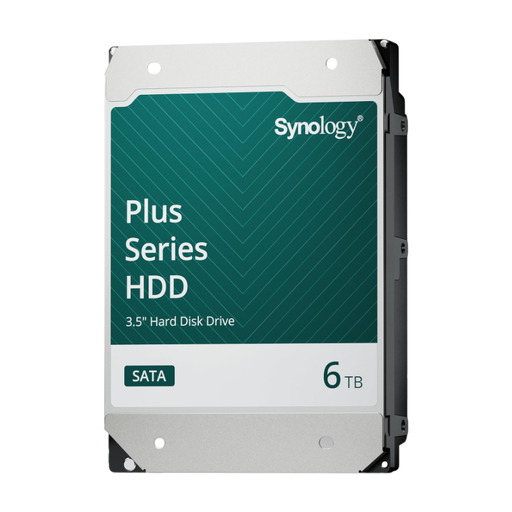 No image available
A standalone drive for anyone who already has a suitable NAS enclosure and wants to add storage.
6 TB, CMR, SATA and a 3.5-inch form factor.
The drive itself does not come with a NAS enclosure or back-up software.
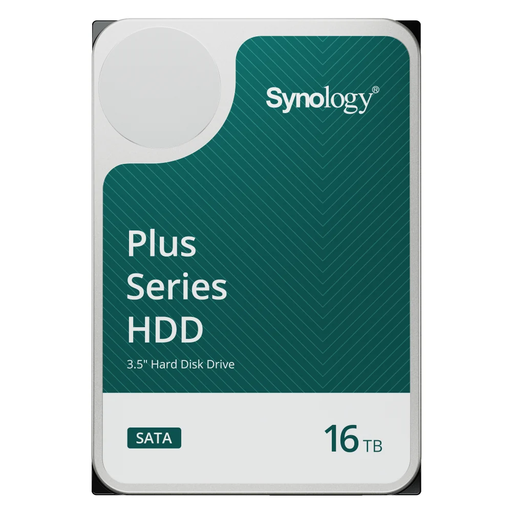 No image available
A standalone drive for anyone who already has a suitable NAS enclosure and wants to add storage.
16 TB, CMR, SATA and a 3.5-inch form factor.
The drive itself does not come with a NAS enclosure or back-up software.
No. RAID alone is not a complete back-up. It does not necessarily protect against a deleted or overwritten project version, or against losing the entire NAS. Plan a separate copy with version history and test the recovery process.
Assess active hosting separately from the back-up function. Autodesk describes file-based Revit collaboration as intended for a local network; a NAS connection or mention of a network protocol does not, by itself, confirm that it will work as required. Test your specific workflow and network environment before relying on it.
Identify which model files and other project files belong together in a single recovery point, then try restoring that set. If you use Revit Server, do not rely solely on real-time replication of the server folder: Autodesk warns that it can be inconsistent while work is in progress.
Check that you already have a suitable NAS enclosure and that the manufacturer lists the exact drive model as compatible. Also consider the recording technology and the capacity you need; a standalone drive does not come with an enclosure or back-up software.