First, choose a stylus that’s compatible with your tablet’s exact model. Then decide whether you’ll mainly be sketching, annotating or working to scale. Apple Netherlands, Samsung Netherlands and STAEDTLER list compatibility by pen or device type; for work to scale, your drawing app’s features also need to suit your workflow. For longer drawing sessions, consider the grip, your workspace and how you’ll vary your posture.
Who is this choice relevant to?
Detail drafter with an existing tablet
You want a pen that actually works with your iPad, Galaxy tablet or EMR screen. Apple Netherlands, Samsung Netherlands and STAEDTLER list compatibility by product or device; a general description such as ‘universal’ doesn’t mean every combination will work.
Architectural detail sketcher
You draw lines and make corrections, comparing pen features with the tools in your drawing app. Procreate describes features including QuickShape and an adjustable 2D grid, while Autodesk documents drawing and editing commands in AutoCAD Mobile.
Long-session desk drafter
You work at a sit-stand desk for extended periods and want to assess your pen, screen and workspace together. Arboportaal advises varying your posture and tasks when working with screens, and looking away from the screen regularly.
What should you look for when choosing?
Start by checking compatibility with your existing tablet. Then compare the features your drawing work requires, and consider the grip, your posture and everyday charging or maintenance needs.
| What to consider |
What should you check? |
Who is this important to? |
| Compatibility with your tablet |
Note down the tablet’s full model name and compare it with the compatibility list for the exact version of the pen. |
I want to know first whether the pen works with my tablet; the wrong combination won’t help with my drawing work. Around 36% of consumers prioritise compatibility. |
| Lines and drawing to scale |
Try a representative file in the app you plan to use, and check that it supports the line, grid or dimensioning tools you need. Check pen pressure separately if you need variable line widths. |
I want to sketch, annotate and edit my own detail file using the features my work requires. Around 29% of consumers prioritise drawing features. |
| Comfort during longer drawing sessions |
Consider how the pen feels in your hand and whether you can adjust your screen, lighting and working height to suit you. |
During longer sessions, I want my pen, screen and workspace to work comfortably together, and to be able to vary my posture. Around 21% of consumers prioritise working comfort. |
| Charging, nibs and warranty |
Check how the pen charges, whether suitable replacement nibs are available, and what the warranty covers. |
I want to know how charging and replacing the nib will fit into my routine, and what warranty applies. Around 14% of consumers prioritise running costs and maintenance. |
How to avoid common buying mistakes
-
Assuming ‘suitable for tablets’ means suitable for your tablet
Apple, Samsung and STAEDTLER have compatibility requirements that vary by pen and device. An unsupported combination may not provide the drawing features you need.
Before buying, compare the full model names of your tablet and pen with the manufacturer’s compatibility list.
-
Confusing tilt sensitivity with pressure sensitivity
A line that changes according to the angle of the pen isn’t the same as one that varies when you press harder or more lightly.
If you need line variation based on pen pressure, check that feature separately for the pen, tablet and app.
-
Thinking a sketching pen is a complete solution for drawing to scale
Grid and CAD tools are features of the software and workflow, not just the pen. Procreate describes grid tools, while Autodesk documents drawing and editing commands for AutoCAD Mobile.
Test a representative detail file and check the scale, units and export steps required for your own workflow.
-
Mistaking the manufacturer’s warranty for your full legal guarantee
ACM ConsuWijzer distinguishes between an offered manufacturer’s warranty and your legal rights. In the Netherlands, the legal guarantee depends on what you could reasonably expect from the product under normal use.
Keep your proof of purchase and report problems with a faulty consumer product to the seller.
Brands to consider as a guide
Apple
Apple Pencil Pro and Apple Pencil (USB-C) are options for supported iPads; check the list for your exact model.
- Apple Netherlands lists magnetic charging and additional controls for Pencil Pro. For Pencil (USB-C), Apple lists cable charging and tilt sensitivity.
- Compatibility varies by Pencil version and iPad. Tilt sensitivity alone doesn’t mean that line width varies with pen pressure.
Samsung
Samsung offers several S Pen versions for supported devices.
- Samsung describes compatibility and features such as Bluetooth or Air Actions for each version.
- Features aren’t the same across all S Pens. Samsung states that the Creator Edition doesn’t support Bluetooth.
STAEDTLER
The Noris digital jumbo 180J 22 is a triangular drawing pen for compatible EMR screens.
- STAEDTLER lists a replaceable nib and 4.096 pressure levels for this model; the pen doesn’t need charging.
- The Noris digital only works with compatible EMR technology, not with just any touchscreen.
Logitech
Crayon (USB-C) is a stylus for writing, annotating and sketching on supported iPads.
- Logitech lists tilt control, USB-C charging and palm rejection.
- Tilt control doesn’t show that the pen varies line width based on pen pressure. Check the drawing features you need and compatibility with your iPad.
XPPen
The Artist 12 (2nd Gen) is a pen display for a computer workstation, not a standalone stylus for an existing tablet.
- XPPen lists an 11.9-inch screen, 8.192 pressure levels and shortcut keys for this model.
- Check that the connections, software and placement of a separate drawing screen suit your workspace.
Stylus pens at Joybuy
This selection includes stylus pens described in their product information as suitable for iPad or capacitive screens. Check that your tablet and the features you need for your drawing work are supported by each model.
 No image available
Apple Pencil Pro 2024
For sketching on a supported iPad; the product information lists pressure and tilt sensitivity, squeeze and barrel roll controls, and magnetic charging.
The compatible models listed are iPad Pro 11-inch and 13-inch (M4), iPad Air 11-inch and 13-inch (M2), and iPad mini (A17 Pro). Check that your iPad is on the list.
View at Joybuy
 No image available
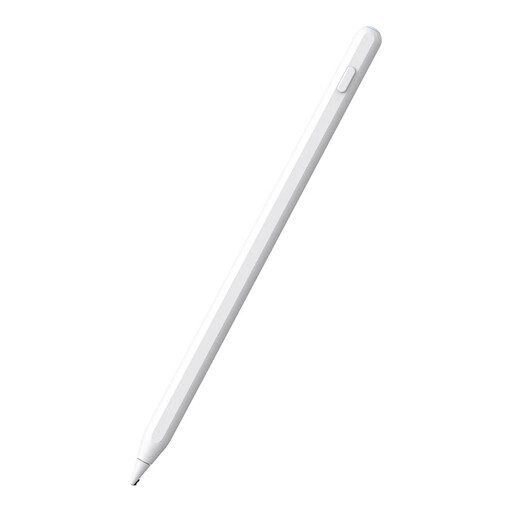
Stylus pen for iPad, white
For drawing and writing on a compatible iPad; the product information lists tilt detection and palm rejection.
The magnetic attachment is for storage and doesn’t support wireless charging. Check compatibility with your iPad model.
View at Joybuy
 No image available
iPad stylus with USB-C charging
For drawing, sketching and annotating on selected iPad models; the product information lists tilt detection and palm rejection.
It charges via USB-C and has an LED battery indicator. The magnetic attachment is for storage, not wireless charging.
View at Joybuy
 No image available
Apple Pencil (2nd generation)
For drawing, sketching and annotating PDFs on a supported iPad; the product information lists double-tap controls and magnetic pairing and charging.
The compatible models listed are iPad Pro 12.9-inch (3rd–6th generation), iPad Pro 11-inch, iPad Air (4th/5th generation) and iPad mini (6th generation). Check your exact model.
View at Joybuy
 No image available
VoxorAI HL-U05 White Pen
For drawing and sketching on capacitive screens; the product information lists a built-in battery.
According to the product instructions, pairing is done via a QR code and app. Check that this works with your device and intended workflow.
View at Joybuy
Frequently asked questions
Can a stylus automatically make an architectural detail accurately to scale?
No. Your software and workflow also need to be suitable. Procreate describes an adjustable 2D grid for scale representations, while Autodesk documents drawing and editing commands in AutoCAD Mobile. Before starting a project, check the scale, units, files and export requirements.
How can you use a pen for longer at a sit-stand desk?
Adjust your workspace to suit your body and regularly vary your posture and tasks. Arboportaal also advises looking away from the screen from time to time when working with screens; this is workspace guidance, not a proven benefit of any particular pen.
Do you need to charge a digital pen?
It depends on the model. Apple Netherlands describes magnetic charging for Pencil Pro and cable charging for Pencil (USB-C); STAEDTLER says the Noris digital jumbo doesn’t need to be charged.
Is the legal guarantee in the Netherlands always exactly two years?
No. ACM ConsuWijzer explains that the legal guarantee depends on what you could reasonably expect from the product under normal use. If a product is faulty, the seller is responsible for providing an appropriate solution; any manufacturer’s warranty is separate.
Where should you take a flat pen battery for disposal?
The Dutch government says that flat batteries must not go in the bin. For a pen with a built-in battery, check the guidance on how to dispose of the device.


