
Comparing two drawings
You keep two plans or revisions open at the same time and want a clear view of both. Stichting Fonds Architectenbureaus describes both a single widescreen monitor and two standard monitors side by side as possible setups.


If you want to view two drawings continuously as separate workspaces, start with two adjustable monitors; if you prefer arranging windows across one continuous panel, an ultrawide is an alternative. A main screen with a second monitor works well when one drawing contains particularly fine details. In every case, check legibility in your own drawing software, the space on your desk and whether your computer supports your chosen screen setup.
You keep two plans or revisions open at the same time and want a clear view of both. Stichting Fonds Architectenbureaus describes both a single widescreen monitor and two standard monitors side by side as possible setups.
You read lots of dimension lines and annotations, and want to keep text and CAD windows at a practical size. Autodesk Support notes that, in Revit, high scaling and changes to a dual-monitor setup can cause temporary display issues.
You’re weighing up a wide screen against two adjustable screens and want a setup that fits your desk. Stichting Fonds Architectenbureaus lists both screen setups as options, depending on the space available.
When comparing architectural drawings, the key considerations are having a clear view of both at once, legibility, your workspace layout and compatibility with your computer.
A good fit if: you want to keep two drawings side by side as separate workspaces at all times.
Keep in mind: the space needed for both screens and your computer’s connections; Stichting Fonds Architectenbureaus recommends placing screens close together.
A good fit if: you want to arrange drawing windows across one continuous panel and your drawing software handles this layout well.
Keep in mind: screen height and legible scaling; a wide panel doesn’t automatically offer the same space as two separate drawing areas.
A good fit if: one drawing contains fine annotations and the second screen is mainly for a reference drawing or tool panels.
Keep in mind: differences in resolution or scaling settings; Autodesk Support describes potential Revit display issues with high scaling and changes to a dual-monitor setup.
| What to consider | What to look for when buying | Who this matters to |
|---|---|---|
| Viewing two drawings at once | Try out your preferred window width and check your desk dimensions, bezels and screen placement. | When I compare two revisions side by side, I want to be able to see both drawings at once; around 33% of consumers put a clear view first. |
| Reading dimension lines and annotations | Compare the resolution and test text, dimensions and scaling in your own drawing software. | If you check lots of fine details, you’ll want to be able to read dimension lines at the scale you use; around 27% of consumers prioritise legibility. |
| Positioning two screens | Check that the screens are adjustable and will fit side by side with enough space between them. | If I want to use two screens at my workstation, the setup needs to fit and be easy to adjust; around 20% of consumers put workspace layout first. |
| Connecting your computer and screens | Check whether your computer can run both screens at your preferred resolution and which connections you’ll need. | If you want to combine your computer, a second screen and any peripherals, you’ll need the right connections; around 20% of consumers prioritise compatibility. |
A wide panel has no physical bezel in the middle, but it doesn’t automatically offer the same screen height or drawing space as two separate monitors. The layout also depends on your drawing software.
Try your preferred window layout and assess horizontal space, screen height and legible scaling separately.
Resolution alone won’t tell you whether text will remain easy to read at your viewing distance and with your software settings. Autodesk Support describes potential interface issues in Revit with high scaling and changes to a dual-monitor setup.
Test the resolution and scaling in the CAD software you actually use.
A USB-C port on its own doesn’t prove that your computer supports the display connections and charging features you need.
Check your computer’s video outputs and the features of each screen you’re considering, not just the shape of the connector.
Depending on your computer and screen setup, you may need a suitable cable, dock or other connection.
Dell offers, among other models, the 27-inch 4K USB-C monitor S2725QC and the 34-inch curved Thunderbolt monitor U3425WE.
The PD2706U is a 27-inch 4K monitor worth considering if you’re looking for CAD/CAM features and a range of connections.
The ProArt PA279CRV is a 27-inch 4K option if you also work with colour as well as drawings.
EIZO positions the FlexScan EV2740X for office and CAD use as a 27-inch 4K monitor with USB-C docking.
This selection includes wide ultrawides and 27-inch 4K screens for a main-screen setup with a second monitor.
 Image unavailable
A wide workspace for arranging drawing windows side by side; check that the selected picture mode and text scaling suit your drawings.
 Image unavailable
An option for a detail-focused main screen alongside a second monitor; test text and dimensions at the scale you use in your drawing software.
 Image unavailable
A potential main screen if you want to view dimension lines and annotations alongside a second screen. Dell lists a resolution of 3840 × 2160 and height adjustment for the S2725QC.
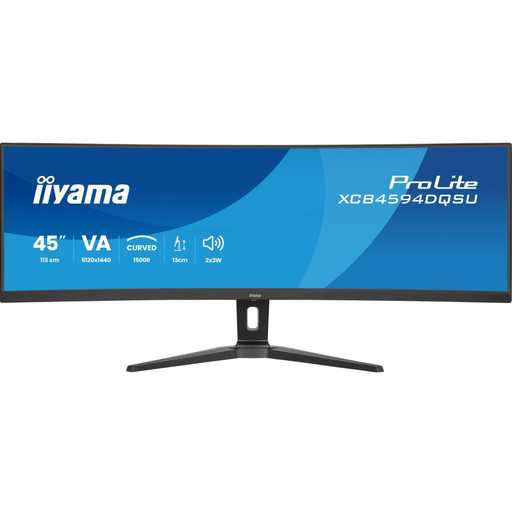 Image unavailable
A wide panel for arranging multiple windows side by side. The product name lists 5120 × 1440 pixels; consider whether the screen height gives your drawings enough room.
 Image unavailable
A curved ultrawide for arranging windows side by side on one panel. The product name lists 3440 × 1440 pixels; check that the screen height and text scaling suit your drawing work.
Open Settings > System > Display and drag the screens into positions that match your physical setup. Microsoft Support then recommends checking the display settings; also test the resolution and scaling on each screen and check that the pointer moves between them as expected.
Check the display settings and follow the Autodesk steps that apply to your version of Revit and Windows. Autodesk Support explains that high desktop scaling and changes to a dual-monitor setup can cause a temporary DPI or resolution mismatch; extra pixels won’t fix the issue by themselves.
Adjust both screens and check that windows remain legible from your usual viewing distance. Stichting Fonds Architectenbureaus recommends placing screens close together and using an adjustable monitor arm if needed.
For a consumer purchase in the Netherlands, statutory consumer rights apply alongside any manufacturer’s warranty: the seller must offer a solution if the product doesn’t meet what you could reasonably expect from it. According to ACM ConsuWijzer, online consumer purchases generally also come with a statutory 14-day cooling-off period after delivery. Don’t assume the same consumer rules apply to a business purchase.