
Writer with limited desk space
You have a small desk and want to know whether the screen, stand and keyboard will all fit. A monitor’s dimensions with its stand don’t tell you how much space the base takes up on its own.


First, measure the available width and depth of your desk, then think about how much text and how many windows you want to see at once. Full HD may be enough for one main window, while 16:10 gives you more vertical pixels and QHD offers more pixels overall. The layout that works best also depends on how you arrange your windows and set your text size. A USB-C hub is particularly useful if the monitor, cable and laptop support the video and charging functions you need.
You have a small desk and want to know whether the screen, stand and keyboard will all fit. A monitor’s dimensions with its stand don’t tell you how much space the base takes up on its own.
You switch between documentation, code examples and reference pages, and are weighing up extra vertical pixels against more screen space overall.
You want to connect your display, peripherals or charger through the monitor. To do this, check the USB-C functions supported by both the monitor and your laptop.
Choose this option if: you usually work with one document or editor at a time and an adjustable working position matters more to you than extra pixels.
Keep in mind: 1920 × 1080 gives you less screen space in pixels than the WUXGA and QHD resolutions mentioned here.
Choose this option if: you’d like more vertical space for documentation or code when writing.
Keep in mind: extra height doesn’t automatically give you the space you need for side-by-side windows. Also check laptop compatibility and current availability.
Choose this option if: you want to arrange documentation, sample code and a browser side by side, and your laptop supports the USB-C functions you need.
Keep in mind: check that the text size is comfortable to read from your usual viewing distance.
Choose this option if: a USB-C connection for a compatible laptop matters more to you than WUXGA or QHD.
Keep in mind: check video support, the cable and charging power. The Full HD resolution mentioned here is 1920 × 1080.
| What to consider | What should you check? | Who is this important for? |
|---|---|---|
| Physical fit | Measure the available width and depth. Also compare the base dimensions or check whether a suitable VESA setup is an option. BenQ lists the GW2490T as 540 mm wide and 241 mm deep with the stand. | If your small desk also needs to accommodate a keyboard and writing materials, you’ll want to make sure the whole setup fits. Around 33% of consumers put physical fit first. |
| Usable screen space | Compare the resolutions and test the text size from your usual viewing distance. Dell lists 1920 × 1200 for the P2425E and 2560 × 1440 for the P2425DE. | If you want to read or arrange documentation, code and reference material, usable screen space matters. Around 27% of consumers make space for text their top priority. |
| Adjustability | Check the height, tilt and, where available, swivel adjustments, then position the screen to suit your workspace. BenQ lists 110 mm of height adjustment for the GW2490T. | If you write for long periods, you’ll want to adjust the screen to suit your workspace. Around 20% of consumers put adjustability at the top of their list. |
| Laptop connection | Check video support, charging power and the cable for the exact model you’re considering. Dell lists a USB-C hub with up to 90 W power delivery for the P2425DE; Philips describes USB-C for video, data and power on the 24E1N1300AE/01. | If you want to connect a compatible laptop with as few separate cables as possible, check the functions supported by both devices. Around 20% of consumers make laptop connectivity their top priority. |
Dimensions given with the stand don’t tell you how much space the base takes up on its own. You’ll also need room on the desk for your keyboard and work materials.
Measure the available space and check the screen width and base dimensions separately. If you’re using a monitor arm, also check the VESA size, weight capacity and clearance required.
Dell describes the USB-C port on the P2425 as a downstream data port supporting up to 15 W. This isn’t the same as the USB-C hub and power delivery functions listed for the P2425E and P2425DE.
Check the full model number, whether the port supports video and charging, and what your laptop requires.
You may also need a separate video cable, charger or dock for a complete laptop setup.
A reading or eye-comfort mode doesn’t remove the need to set up your screen position, lighting and working hours appropriately.
Treat these modes as adjustment options and consider your whole workspace. Don’t take them as proof that discomfort will be prevented.
The P2425E offers a 16:10 option, while the P2425DE is a compact QHD option with a USB-C hub. The P2425 is a separate model; Dell describes its USB-C downstream port as data-only.
The GW2490T is a 23.8-inch Full HD model with several adjustment options, plus coding and ePaper modes.
The business-focused 24BA560-B is a 23.8-inch Full HD model with several ways to adjust the screen position.
The 24E1N1300AE/01 is a Full HD option with USB-C for compatible laptops.
This selection includes compact fixed monitors and portable screens, with Full HD, 16:10 and QHD options. Check the desk space required and your laptop’s connections for each model.
 Image unavailable
A portable screen for anyone looking for extra vertical space for documentation and code.
16 inches; 16:10; 2560 × 1600; 2 USB-C ports, Mini HDMI and built-in kickstand.
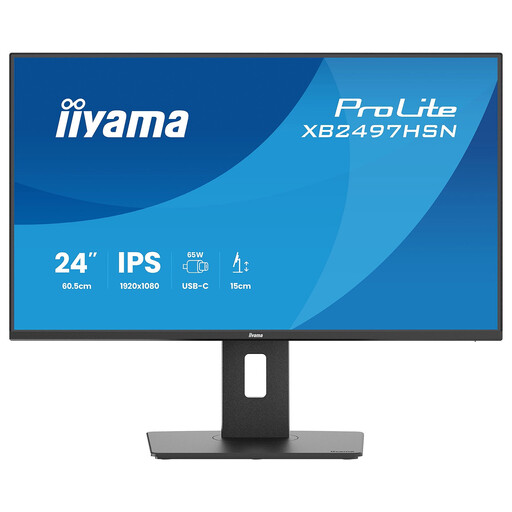 Image unavailable
A compact Full HD monitor for working with documents and a USB-C dock setup.
23.8 inches; IPS; 1920 × 1080; USB-C docking up to 65 W, USB hub and Gigabit Ethernet. The stand offers height, tilt, swivel and pivot adjustment.
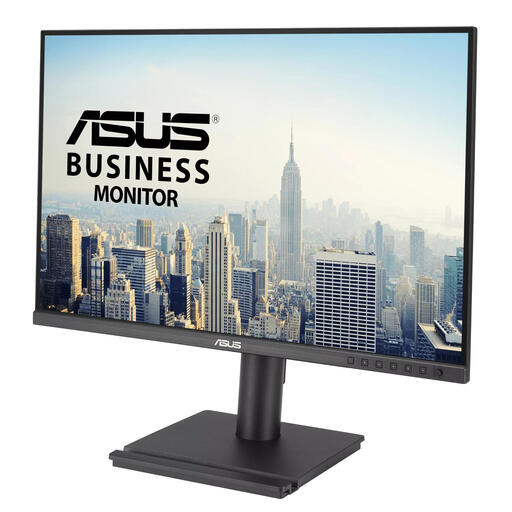 Image unavailable
A WUXGA monitor for anyone who wants extra vertical screen space when working with documents.
24.1 inches; 1920 × 1200; 16:10; IPS and VESA 100 × 100 mm. The description lists height, tilt, swivel and pivot adjustment.
 Image unavailable
A compact QHD monitor for anyone who wants to arrange documentation and other windows side by side.
23.8 inches; IPS; 2560 × 1440; USB-C hub with up to 90 W power delivery and an RJ45 port. Check that the text size you want is comfortable to read.
 Image unavailable
A portable Full HD monitor for a compact workspace, with an adjustable viewing angle.
15.6 inches; 1920 × 1080; USB-C video input and a kickstand that rotates through 360°.
Choose the option that suits the window layout and text size you find comfortable. Compact examples include 1920 × 1080, 1920 × 1200 and 2560 × 1440. If you’re considering QHD, test your preferred scaling: having more pixels doesn’t automatically mean the text will be the right size for you.
No. First check the functions supported by both devices. See whether your laptop’s USB-C port outputs video, and compare its charging requirements and cable with those of the specific monitor model. Dell describes the USB-C port on the P2425 as data-only, unlike the P2425E and P2425DE hub models.
Adjust the screen position and ambient lighting to suit your workspace, and minimise glare. For employees who work at a screen for more than 2 hours a day, Arboportaal lists requirements including an adjustable monitor and using a separate screen or keyboard with a laptop. These aren’t general requirements for every personal monitor purchase.
For online consumer purchases, you generally have a 14-day cooling-off period; check the terms for the specific purchase. According to the Dutch government, there is no fixed statutory warranty period in the Netherlands. The seller must offer a solution if a product doesn’t do what you could reasonably expect it to do. A manufacturer’s warranty doesn’t replace these rights.