
Animator with a narrow desk
You want to leave room for your input devices and position your screen comfortably. So compare the width and stand depth of the complete monitor, not just its diagonal measurement.


Start by measuring the usable width and depth of your desk, allowing space for a keyboard or drawing tablet. Then work out how much screen space your animation software needs. An adjustable 24–25-inch monitor can make for a more compact setup; a 27-inch 4K monitor gives you more pixels, but needs more width. Check the colour specifications for the exact model and make sure its connections are compatible with your computer.
You want to leave room for your input devices and position your screen comfortably. So compare the width and stand depth of the complete monitor, not just its diagonal measurement.
You pay close attention to colour and want to compare the colour gamut, colour settings or calibration options of the specific model.
You want to keep your preview, timeline and tools visible at the same time, and weigh up the extra pixels against the space the monitor takes up on your desk.
First, measure how much desk space the monitor and stand take up, then decide how many pixels you need. Next, check that the colour features and connections suit your work and computer.
| What to consider | What should you check? | Who is this important for? |
|---|---|---|
| Desk space | Measure the available surface area and compare it with the monitor’s dimensions, including the stand. Also check the height adjustment and, if you plan to use a monitor arm, the model’s mounting specifications. | If I need room for input devices, I want to know whether both the screen and stand will fit on my desk. Around 36% of consumers put desk fit first. |
| Colour management | First, identify the colour space for your output, then compare the stated coverage and calibration options for that exact model. | If colour consistency is my priority, I compare model-specific specifications and don’t treat manufacturer claims as independent measurements. Around 29% of consumers prioritise colour management. |
| Room for the timeline and preview | Compare both resolution and screen width, and consider how you want to arrange the panels in your animation software. | If I want to see the timeline, tools and preview at the same time, I weigh up the extra pixels against the desk space available. Around 21% of consumers choose mainly for the room available for these panels. |
| Connections | Check the video and power connections on both the monitor and computer, including any USB-C video support and the power delivery required. | If I want to connect my laptop easily, I check whether one suitable connection can provide both video and power. Around 14% of consumers put ease of connection first. |
Monitors with similar diagonal measurements can have different widths and depths once the stand is included. That can leave you with less room for your input devices.
Measure your available workspace and compare the full dimensions before choosing a monitor or separate arm.
Colour gamut coverage, factory calibration and subsequent hardware calibration are different features.
First, decide which colour space suits your output, then compare the specifications and calibration options for the exact model variant.
Available connections and power options vary by model. BenQ lists USB-C with 65 W Power Delivery for the PD2506Q; LG lists no USB-C for the 27UP650K-W reviewed here.
Check the ports and power requirements of both devices. Depending on the connection, you may need a different cable or a separate power supply.
The PD2506Q reviewed here is a 25-inch creative monitor with QHD resolution and USB-C.
The ProArt PA248QV reviewed here is a 24,1-inch model with a 16:10 workspace.
The ColorEdge CS2400S reviewed here is a 24,1-inch graphics monitor for anyone who prioritises colour management.
The 27UP650K-W reviewed here is a 27-inch 4K model for anyone with more screen width to spare.
The UltraSharp U2424H reviewed here is an adjustable 23,8-inch Full HD model for anyone looking for a smaller screen.
This selection of Joybuy products includes compact monitors and larger models with more pixels. Check the dimensions and connections for each screen before you choose.
 No image available
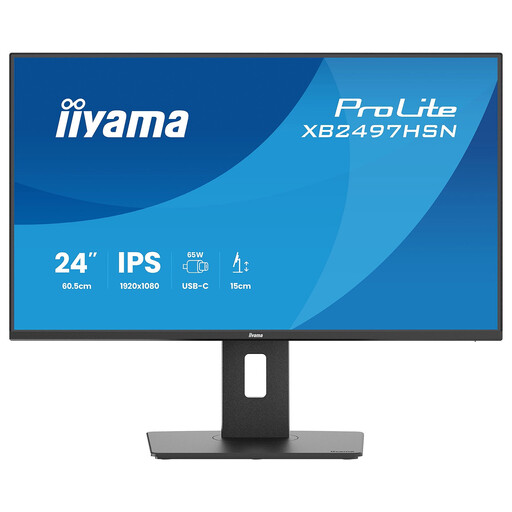
A 24-inch monitor to consider if you’re looking for a compact screen with an adjustable stand.
The product information lists Full HD, an IPS panel and USB-C with up to 65 W Power Delivery.
The stand can be adjusted for height, tilt, swivel and pivot.
 No image available
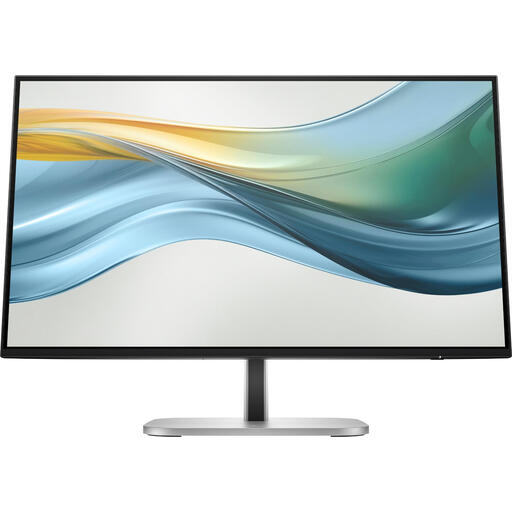
A 23,8-inch option to consider if a compact size and USB-C suit your setup.
The product information lists 100% sRGB and an adjustable stand with height, tilt and swivel adjustment.
According to the product information, USB-C supports up to 100 W Power Delivery. A charger isn’t included as standard and must be bought separately.
 No image available
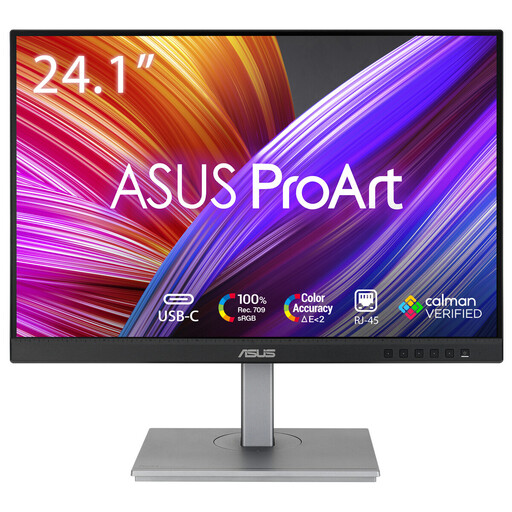
A 24,1-inch 16:10 option to consider if you’re looking for a compact screen with room for creative work.
The product information lists 1920 × 1200 pixels, 100% sRGB, 100% Rec.709 and factory calibration.
According to the product information, USB-C supports up to 90 W Power Delivery. The stand can be adjusted for height, tilt, swivel and pivot.
 No image available
A 27-inch option to consider if you want more pixels and have enough desk width.
The product information lists 3840 × 2160 pixels, factory calibration, 97% DCI-P3 and 94% Adobe RGB.
According to the product information, USB-C supports up to 98 W Power Delivery. The stand can be adjusted for height, tilt and swivel.
 No image available
A 27-inch model to consider if you’re looking for more pixels and have room for its width on your desk.
The product title lists 3840 × 2160 pixels. The product information lists 99% DCI-P3 and Display P3.
According to the product information, the stand is height-adjustable.
No. Compare the available width and depth with the dimensions of the monitor, including its stand. BenQ lists 570,0 × 256,9 mm for the PD2506Q, while LG lists 613,5 × 239,3 mm for the 27UP650K-W. Also check that you can position the screen at a suitable height.
Place the screen directly in front of you and adjust it so the top is slightly below eye level. Arboportaal also recommends tilting the screen appropriately and changing your posture regularly. An adjustable stand can help you find a comfortable viewing position.
Choose the colour mode that suits your intended output and check the settings for the specific model. ASUS and BenQ list factory calibration for the models reviewed here; EIZO lists hardware calibration for the CS2400S. These manufacturer specifications don’t prove how accurately an individual screen will perform over time.
For a standard online consumer purchase, you generally have a statutory cooling-off period of up to 14 days after delivery, subject to applicable exceptions; ACM ConsuWijzer explains this period. If a product is faulty, the seller is responsible for the statutory guarantee. How long a product should last depends on what you could reasonably expect from it, not on a single fixed period under Dutch law.
Compare the energy label for the exact model; the European Commission sets out energy-labelling rules for electronic displays. According to the Dutch government, when buying a similar new appliance, private consumers can return their old one free of charge under the take-back scheme, including when buying online.