Choose a desktop HDD if your archive is mainly kept in one place, a portable HDD if volunteers need to carry copies, or an SSD if they regularly transfer or work with large project files. First, work out how much space you need for the projects and each separate copy. The Library of Congress advises keeping digital files on different storage media and in separate physical locations. Also check the connection and file system, and, if files contain personal data, access security.
Who is this guide for?
Manager of a growing archive
You want to keep project folders and finished files organised, plan for growth and avoid having just one copy on a single drive. The Library of Congress and the KB, the national library of the Netherlands, provide guidance on digital preservation.
Animator with active projects
You regularly move or edit large working files and compare the stated transfer speed with the capacity of a separate archive copy. Samsung publishes specifications for the portable SSD reviewed here.
Volunteer transferring files
You carry a copy or transfer files between computers, so you need to organise the connection, file system and access. Toshiba describes the format of the Canvio Basics reviewed here, while the Dutch Data Protection Authority provides information on security when personal data is processed.
What should you consider when choosing?
Desktop HDD for a fixed archive
Best for: collections kept mainly in one place, where room to grow is important.
Keep in mind: the desktop models reviewed here use a power adapter. Also check the file system on the computers you use.
Portable HDD for a copy you can take with you
Best for: volunteers carrying files between locations, if the collection fits within the chosen capacity.
Keep in mind: the Canvio Basics reviewed here is formatted as NTFS by default. Toshiba says it needs reformatting for the macOS versions listed.
Portable SSD for active projects
Best for: regularly transferring large project files or editing them directly from external storage.
Keep in mind: stated maximum speeds are not a measure of the speed you’ll get with every project. Your computer, connection and workload all play a part.
| Consideration |
What to look for when buying |
Who should pay particular attention? |
| A separate archive copy |
Decide where a second copy will be kept and who will check that the files can still be opened. |
As the person managing the archive, I don’t want one drive to be the only place where project folders are stored. Around 31% of consumers put keeping a separate copy first. |
| Room to grow |
Check the size of your project folders and work out how much space you’ll need for each planned copy. |
With a growing collection, I want enough space for projects we’re keeping. Around 25% of consumers make archive capacity their top buying priority. |
| Transferring large files |
Check the ports on your computer and drive. Don’t treat stated maximums as measured project speeds. |
If I regularly work with large, active files, transfer speed matters a lot. Around 19% of consumers prioritise speed for active work. |
| Using different computers |
Check the ports and file system, and keep an existing copy before reformatting. |
When volunteers switch between Windows and Mac computers, I want to know whether the file system suits the way they work. Around 13% of consumers start by considering compatibility. |
| Access to files |
Check whether project folders contain personal data, who needs access and what safeguards are appropriate. |
If files include identifiable people, I want to manage access carefully. Around 12% of consumers make access management their top priority. |
Common pitfalls
-
Assuming a large drive is a complete preservation strategy
A drive can fail, and file formats can become outdated. An extra drive only helps if you actually copy files to it and check them.
Choose the capacity once you’ve decided which files to keep and how many separate copies you need.
Separate copies need extra storage space and management.
-
Focusing only on the USB connection or interface speed
The HDDs reviewed here differ in their power requirements and in what their manufacturers say about using them with macOS. An interface specification also doesn’t tell you how fast animation projects will transfer.
Check the ports, power supply and file system on the computers your volunteers actually use.
Reformatting and copying files again can add to the set-up time.
-
Using a rugged or password-protected SSD as your only copy
Protective features or a password setting don’t replace a separate archive copy. Password management also doesn’t automatically control who in your organisation can access the files.
Use an SSD for work that calls for speed and portability, and manage copies and suitable access controls separately. The Dutch Data Protection Authority outlines security measures for organisations that process personal data.
Relevant brands to consider
Western Digital
The 12 TB Elements Desktop reviewed here is an example of a drive for a large collection kept in one place.
- Western Digital specifies USB 3.2 Gen 1 and an AC adapter for this model.
- Western Digital says the drive needs reformatting for macOS. Its capacity doesn’t make it a complete archive copy on its own.
Seagate
The Expansion Desktop STKP8000400 reviewed here is an 8 TB option for a fixed archive set-up.
- Seagate lists USB 3.0 and a power adapter for this model.
- Check the terms for the specific version you’re buying. Any recovery services don’t replace separately stored copies.
Toshiba
The 4 TB Canvio Basics HDTB440EK3CA reviewed here is a portable HDD for a copy that fits within its capacity.
- Toshiba lists USB-powered operation and the NTFS format by default for Windows.
- Toshiba says the drive needs reformatting for the macOS versions listed. The interface specification of around 5.0 Gbit/s is not a measured file transfer speed.
Samsung
The 4 TB Samsung T7 Shield MU-PE4T0S/EU reviewed here is the Dutch version, a portable SSD for active projects.
- Samsung specifies USB 3.2 Gen 2, sequential maximum speeds of 1.050 MB/s read and 1.000 MB/s write, IP65 and software-based password protection.
- These are the manufacturer’s specifications and maximum speeds, not independent tests of archival durability or performance with every project.
Joybuy products for archives and active projects
This selection includes portable HDDs for copies on the go, a desktop HDD for a fixed archive and portable SSDs for active project files.
 No image available
WD Elements Portable 5TB USB-C, Graphite Black
A portable HDD for volunteers who want to take a copy with them; the stated capacity is 5 TB.
The product description lists USB-C and USB 3.2 Gen 1.
Don’t use this drive as your only archive copy. The Library of Congress advises keeping copies on different storage media and in separate physical locations.
View at Joybuy
 No image available
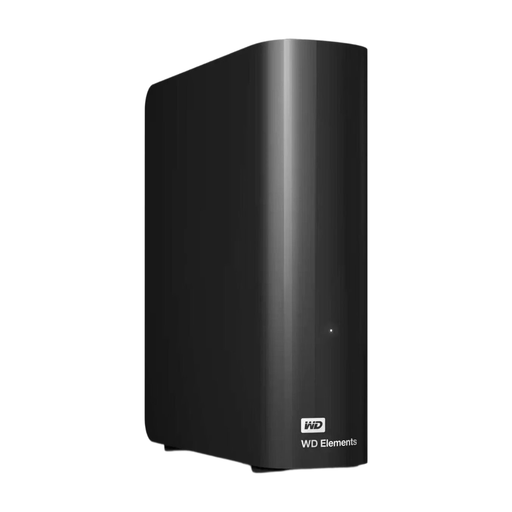
WD Elements Desktop 16TB USB 3.0
A desktop HDD for a growing collection kept mainly in one place.
The product description lists 16 TB, USB 3.0 and an AC adapter.
Plan separate archive copies too; a large capacity doesn’t make this drive your only place to keep files.
View at Joybuy
 No image available
Toshiba Canvio Basics 4TB, USB Type-A
A portable HDD for a copy you can take with you, if the collection fits within its 4 TB capacity.
The product description lists USB 3.2 Gen 1 and a USB Type-A connection.
The product description says the drive needs reformatting for macOS; save existing files somewhere else first.
View at Joybuy
 No image available
Samsung MU-PG2T0B 2TB USB Type-C 3.2 Gen 2x2, black
A portable SSD with 2 TB of storage for regularly transferring large project files.
The product description lists USB 3.2 Gen 2x2 and stated maximum speeds of up to 2.000 MB/s read and 1.950 MB/s write. These aren’t measured speeds for every project.
View at Joybuy
 No image available
Samsung MU-PE2T0R 2TB USB Type-C 3.2 Gen 2, blue
A portable SSD for active project files that need to travel between workspaces.
The product description lists 2 TB, USB 3.2 Gen 2 and stated sequential maximum speeds of up to 1.050 MB/s read and 1.000 MB/s write.
The description lists IP65 and drop resistance from heights of up to 3 metres; the drive must not be submerged. Don’t use this SSD as your only archive copy either.
View at Joybuy
Frequently asked questions
Is one external drive enough to preserve an animation archive long term?
No. Don’t use one drive as your only copy. The Library of Congress advises keeping copies on at least two different storage media and in separate physical locations, and regularly transferring them to current media. This is preservation guidance, not a Dutch legal minimum for this community archive.
Can a volunteer use the drive straight away on Windows and Mac?
Not without checking the specific model and how it will be used. Toshiba says the Canvio Basics reviewed here uses the NTFS format and needs reformatting for the macOS versions listed. Western Digital also says the Elements Desktop reviewed here needs reformatting for macOS. Save existing files somewhere else before reformatting.
What should the archive consider in addition to the first drive?
Plan for the storage and management of separate copies. The WD Elements Desktop and Seagate Expansion Desktop reviewed here also use a power adapter. A manufacturer’s warranty or any recovery service doesn’t guarantee that lost files can be recovered; check the terms for the version you choose.
Does the GDPR apply to animation files in a community archive?
It depends on the content and how it is processed. According to the Dutch Data Protection Authority, identifiable people in images count as personal data. Organisations processing personal data must choose appropriate security measures based on the risks. Not every animation project contains this kind of data. The Dutch Data Protection Authority’s information on the Archives Act concerns government organisations and does not automatically apply to this community archive.


