Choose an all-in-one if you want a single, tidy workstation and its built-in screen suits your layout work. Choose a desktop with a separate monitor if you want to choose the screen yourself or already have a suitable one. Above all, compare the software you use with the computer’s memory, storage and screen, and decide separately who can access pupil materials on a shared computer.
Who is this choice relevant to?
Yearbook editor working with lots of photos
You lay out pages and edit photos on the same computer. Compare your software’s requirements with the memory, SSD and screen. Adobe recommends 16 GB of RAM for InDesign and Photoshop; this is not a universal requirement for every yearbook.
Editorial team using a shared computer
Several people work on the same yearbook and may come across pupil data. So also consider access permissions, managed storage and who is allowed to view or edit photos. The Dutch Data Protection Authority stresses that schools must handle personal data carefully.
Team with a dedicated desk
You want to review pages and photos on a suitable screen without an awkward setup. An all-in-one combines the computer and screen; check the resolution, adjustability and connections of the specific model.
What should you look for when choosing?
All-in-one desktop
Choose this option: if you want a dedicated workstation and the built-in screen is suitable for viewing pages and photos side by side.
Trade-off: the computer and screen come as one model, so you have less freedom to choose the screen than you would with a separate monitor.
Desktop with a separate monitor
Choose this option: if you already have a suitable monitor or want to choose the computer and screen separately.
Trade-off: you’ll need to check that the monitor and connections work with the computer; an existing monitor isn’t automatically suitable for the job.
| What to consider |
What should you check? |
Who should give this more weight? |
| Layout and photo editing |
Check the software version, operating system, installed RAM and available SSD space. Adobe lists 8 GB of RAM as the minimum and 16 GB as the recommended amount for InDesign; for Photoshop, Adobe recommends 16 GB or more. |
I want to edit large layout and photo files, so I’ll match the configuration to my software. Around 33% of consumers put software and files at the top of their list when choosing. |
| Access to pupil photos |
Agree with your school’s IT team who should have access, how accounts and storage will be managed, and who will check permission for publication. The computer itself won’t take care of this. |
On a shared computer, I want to be able to restrict who can open pupil photos. Access management is the top priority for around 27% of consumers. |
| Screen and desk setup |
For the exact model, compare the screen size, resolution, adjustability and connections. If you’re using a separate monitor, also check that it connects to the computer. |
If we take turns using the same desk, I want to be able to review pages and images comfortably. For around 20% of consumers, the screen and desk setup is the most important factor when choosing. |
| Complete workstation |
Work out whether you’ll need to arrange a monitor, software licences, storage or backup, and servicing. Compare the included configuration with what the editorial team actually uses. |
I want to know in advance which components we need for the complete yearbook workstation. For around 20% of consumers, the complete setup is the first consideration. |
Common buying mistakes
-
Focusing only on the processor
Software requirements and the screen also help determine whether a configuration is suitable for layout work. Adobe, for example, distinguishes between minimum and recommended memory.
Compare the installed specifications of the full model number with the requirements of the programmes the editorial team uses.
-
Assuming a shared account provides sufficient access control
A shared login doesn’t automatically make it clear who can access personal data. The Dutch Data Protection Authority points out that schools must take appropriate measures and be able to account for how they handle personal data.
Agree with your school’s IT team who needs access and how accounts, storage and access permissions will be set up.
-
Comparing an all-in-one with a desktop without a screen, without considering the whole workstation
With an all-in-one, the screen is part of the model you choose; with a separate desktop, you’ll need to work out which monitor and connections you need.
Compare the complete setup and, before buying, check that the computer and monitor have compatible display connections.
Brands to compare
HP
HP OmniStudio all-in-ones are worth considering if you’re looking for a dedicated, integrated workstation; specifications vary by model.
- HP Netherlands lists a 27-inch QHD screen, 16 GB of RAM and a 512 GB SSD for the OmniStudio 27-cy0670nd.
- Check the full model number; screen and memory specifications may differ on other models.
Apple
The iMac is an integrated macOS workstation if the yearbook software and peripherals you need are compatible with macOS.
- For the 24-inch iMac with M4 reviewed, Apple specifies a 4.5K screen and models starting with 16 GB of unified memory.
- Storage and ports vary by model; check compatibility with your software and peripherals.
Lenovo
IdeaCentre all-in-ones are an option to compare for a dedicated workstation, but the specifications depend on the model.
- Lenovo’s PSREF platform specification for the IdeaCentre AIO 27IRH9 lists HDMI-in, HDMI-out and Ethernet, among other features.
- Platform capabilities don’t mean every model has the same configuration or connections; check the exact model.
MSI
The Modern AM273QP AI 1UM range includes 27-inch all-in-ones with QHD screens.
- MSI specifies a resolution of 2560 × 1440 pixels for the range, with scope for different memory and storage configurations.
- Processor, graphics and operating system vary across the range; don’t assume the configuration based on the product name alone.
ASUS
The ExpertCenter P400 AiO is worth comparing if adjustability and a dedicated workstation are important to you.
- For the Dutch model reviewed, ASUS lists an adjustable stand, a 27-inch Full HD screen, 32 GB of RAM and a 1 TB SSD.
- The screen resolution and configuration need to suit the work; ASUS’s security claims alone don’t prove that a school complies with the GDPR.
Joybuy products for this workstation
The options below include an iMac all-in-one and desktops for which you’ll need to arrange a separate screen. For each model, check that its configuration and the software you use are suitable for yearbook work.
 No image available
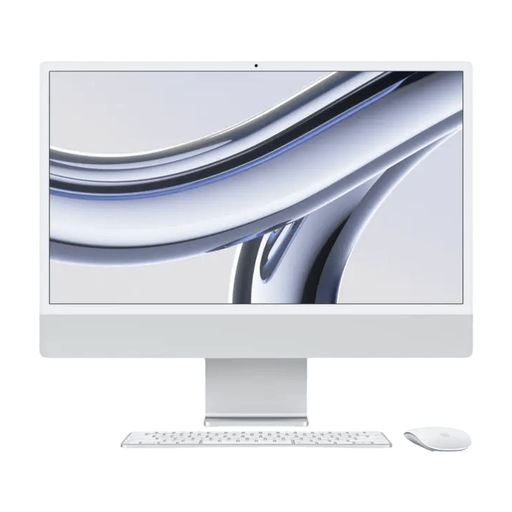
Apple iMac 24-inch M3, 16 GB, 512 GB, Silver (2023)
An integrated workstation to consider if an all-in-one suits your shared desk.
Listed configuration: 4.5K screen with 4480 × 2520 pixels, 16 GB of RAM and a 512 GB SSD. Adobe recommends 16 GB of RAM for InDesign and Photoshop; check that your software version is compatible with macOS.
View at Joybuy
 No image available
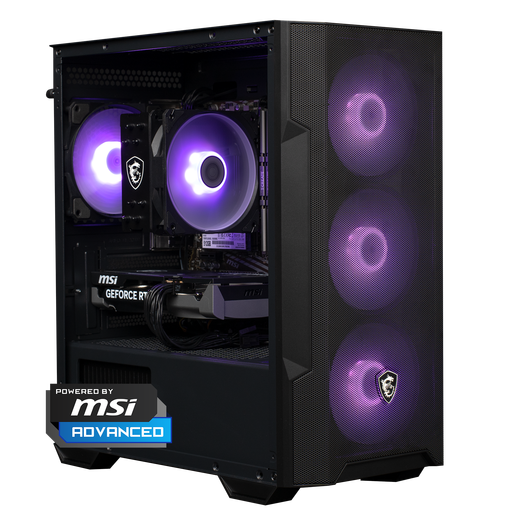
Shark Max Bite R500 Gaming PC, RTX 5060, R5, 16 GB, 500 GB
A desktop to compare if you want to choose the monitor separately for your shared workstation.
The product information lists 16 GB of DDR4 memory and a 500 GB NVMe SSD; you’ll need a separate monitor. Adobe recommends 16 GB of RAM for InDesign and Photoshop. Check the other requirements of the software you use.
View at Joybuy
 No image available
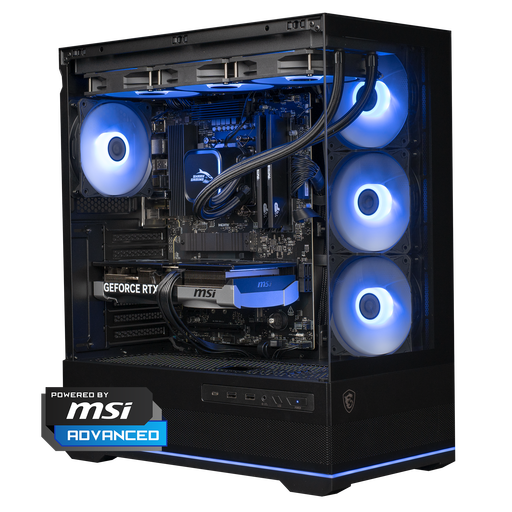
Shark Ultimator R700 Gaming PC, RTX 5070, R7, 16 GB, 1 TB
A desktop without an integrated screen to consider if you want to choose the computer and monitor separately.
The product information lists 16 GB of DDR5 memory and 1 TB of NVMe storage; you’ll need to arrange a separate monitor. Adobe recommends 16 GB of RAM for InDesign and Photoshop. Check that the other specifications suit the software you use.
View at Joybuy
 No image available
RGB Gaming PC, RTX 5060, Ryzen 5, 16 GB, 480 GB SSD, Wi-Fi
A desktop with a separately connected monitor to include in your comparison for a shared workstation.
The product information lists 16 GB of DDR4 memory and a 480 GB SSD; the setup instructions mention connecting a monitor. Adobe recommends 16 GB of RAM for InDesign and Photoshop. Check the full configuration against the software requirements.
View at Joybuy
 No image available
Panoramic Gaming PC, AMD Ryzen 7 5700X, GeForce RTX 5060 Ti 8GB, 16GB DDR4 RAM, 480GB NVMe PCIe SSD
A desktop without an integrated screen to compare if you want to choose a suitable monitor yourself.
The product information lists 16 GB of DDR4 RAM and a 480 GB NVMe PCIe SSD; you’ll need to arrange a separate monitor. Adobe recommends 16 GB of RAM for InDesign and Photoshop. Also check the other requirements of the programmes the editorial team uses.
View at Joybuy
Frequently asked questions
Does the yearbook need to be created on a computer with 16 GB of RAM?
Not for every yearbook; it depends on the software you use. For the versions of InDesign and Photoshop reviewed, Adobe lists 8 GB as the minimum and 16 GB as the recommended amount. Check the requirements for your software version and how much RAM is installed.
What should you arrange before editors use a shared computer?
Agree who can access photos and other pupil data, how access will be restricted and where files will be stored. The Dutch Data Protection Authority calls for appropriate technical and organisational safeguards; the right setup depends on the processing involved and the risks.
How should you send a laid-out yearbook file to the printer?
First, ask your chosen printer for its submission specifications. If you use InDesign, run a preflight check before handing the file over to find any missing fonts or linked images. Adobe explains how to package the document, linked images and fonts, along with a report for handover.
Can a school include identifiable photos of pupils in the yearbook without further ado?
No. The Dutch Data Protection Authority says that consent is needed to use identifiable images in education: pupils aged 16 or over give consent themselves, while parents give consent for younger pupils. Check that consent is specific, informed and freely given, and covers the intended use in the yearbook.
Is a second-hand Windows 10 PC still an obvious choice for this shared desk?
No. Standard support for Windows 10 ended on 14 October 2025. Microsoft describes separate options for Extended Security Updates, subject to conditions that depend, among other things, on the edition and how it is used. Ask your school’s IT team to assess which supported setup applies.


