Who is this choice relevant to?

Occasional form printer

You mainly print black-and-white order forms now and then, and also want to be able to scan or copy. First choose between laser and inkjet, then check the features of the exact model. The Consumers' Association explains why inkjet printers that are rarely used may consume ink during cleaning or suffer from dried-out ink.

Housemates who print frequently

You share the printer and want to weigh the purchase price against the cost of ink or toner when everyone uses it. The Consumers' Association points out that consumables can be a significant expense, so compare the supplies required for the specific model.

Colour printing and form scanning

You need colour prints or regularly scan several paper forms. Canon distinguishes between features such as the automatic document feeder and other functions on models such as the TR4755i, so check separately whether your model has a document feeder.

What should you consider?

All-in-one mono laser printer

A good fit when: order forms are mostly black text and the printer may go unused for longer periods.

Trade-off: this option does not print in colour. The Consumers' Association explains that toner does not carry the same risk of drying out as inkjet ink; check the scanning and copying features of your chosen model.

Colour inkjet printer with cartridges

A good fit when: you need colour and expect to print relatively few pages.

Trade-off: compare the cartridges required and bear in mind that ink may be used even when the printer is rarely used. If you need to scan several paper forms, a model with an automatic document feeder may be more convenient than a scanner that requires you to place each sheet on the glass individually.

Colour inkjet printer with an ink tank

A good fit when: several housemates print in colour regularly and the level of use justifies the initial outlay.

Trade-off: refillable ink changes the type of consumable, but the printer still uses inkjet technology. Epson lists print, scan and copy functions, as well as automatic double-sided printing, for the ET-2950. Manufacturer claims about savings are not a personalised cost calculation.

Consideration What to look for Who is this most relevant to?
Printing after a break Check whether you need colour and compare laser and inkjet printers for your expected usage. If I mainly print text forms now and then, I want the printer to be ready to use again after a break; around 36% of consumers prioritise occasional black-and-white printing.
Ongoing printing costs Estimate how much everyone will print and compare the cartridges, bottles or toner required for the model. For our shared household, consumables matter as well as the purchase price; around 29% of consumers say ongoing printing costs are their main concern.
Printing in colour Consider whether you need colour on paper and check the colour-printing function and its associated consumables. If I need forms or other documents in colour, I want to keep that option; around 21% of consumers say colour is their main requirement.
Scanning several forms Check for an automatic document feeder, scanning function, space to place the printer and compatibility with housemates' devices. When I have a stack of paper forms, I don't want to place each sheet on the scanner glass individually; around 14% of consumers prioritise scanning multiple pages and shared use.

Common buying mistakes

  • Looking only at the purchase price

    Printing costs also depend on how often your housemates print and which cartridges, ink or toner the model requires. The Consumers' Association notes that consumables can be a significant expense.

    For the exact model, compare the compatible refills with how much you expect everyone to print. Don't assume that manufacturer claims about savings will reflect what you personally spend.

    If an inkjet printer is rarely used, allow for replacement cartridges or ink used during cleaning.

  • Assuming an all-in-one printer automatically scans a stack of pages

    Scanning and having an automatic document feeder are two different features. Without a feeder, digitising several sheets may involve more manual work.

    Check explicitly whether the exact model has an automatic document feeder and whether it is suitable for the forms you want to process.

    If you have to place each sheet on the scanner glass individually, processing a stack takes extra time.

  • Confusing manual double-sided printing with automatic printing

    Canon lists automatic double-sided printing for the PIXMA TR4755i, but manual double-sided printing for the TS3750i. This affects how much work is involved when printing forms on both sides.

    Check the duplex function of the exact model before choosing it for forms that are often printed on both sides.

    With manual double-sided printing, you have to feed the paper through again.

Brands to compare

Brother

The DCP-L2627DWE is an example of an all-in-one mono laser printer for text-based forms.

  • Brother lists A4 printing, automatic double-sided printing, Wi-Fi, and scanning and copying functions for this model.
  • This model does not print in colour. Brother says that EcoPro is optional and that the printer also works without the service.

Canon

The PIXMA TR4755i and TS3750i models illustrate different options for colour printing and document handling.

  • Canon lists an automatic document feeder and automatic double-sided printing for the TR4755i.
  • Double-sided printing is manual on the TS3750i. Check these features for each model rather than assuming they apply to every PIXMA printer.

Epson

The EcoTank ET-2950 is an example of an all-in-one colour printer with refillable ink tanks.

  • According to Epson, the ET-2950 can print, scan and copy, and print automatically on both sides.
  • Epson's ink-saving claims apply under the manufacturer's stated conditions and do not automatically indicate how much a household will save.

HP

HP describes its LaserJet 100 series as a range of compact printers for occasional black-and-white printing.

  • HP lists printing, copying, scanning and wireless functions for the series.
  • The series description does not confirm that every individual model has the same features or connections, so check the specific version.

Joybuy printer options

This selection includes all-in-one inkjet options for handling forms. If you mainly print black-and-white documents irregularly, you could also consider a mono laser printer. Check the paper size, scanning function and connection you need for each model.
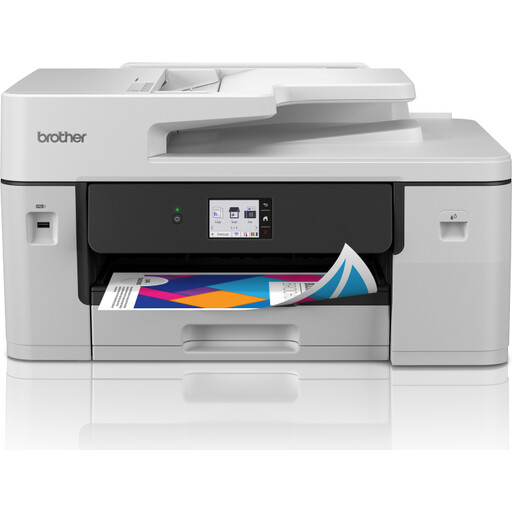
Brother MFC-J6760DW A3 inkjet printer

Brother MFC-J6760DW A3 inkjet printer

An inkjet option for shared form printing when you need colour, scanning and copying; bear in mind the risk of ink drying out during long periods of non-use.

The product title lists A3, Wi-Fi, 31 ppm and 1200 × 4800 dpi. Check which paper size is suitable for your forms.

View at Joybuy

Canon PIXMA MG2556S A4 inkjet printer

Canon PIXMA MG2556S A4 inkjet printer

An A4 inkjet option for printing forms; check that the features of this version meet your colour and connectivity needs.

The product title lists A4 and 4800 × 600 dpi. If you print infrequently, it is worth considering potential ink use and maintenance.

View at Joybuy

Epson WorkForce Pro WF-C5390DW colour inkjet printer

Epson WorkForce Pro WF-C5390DW colour inkjet printer

This colour inkjet option suits shared form printing when you need colour and wireless printing; inkjet maintenance remains relevant during long periods of non-use.

The product title lists A4, Wi-Fi and 4800 × 1200 dpi. Check that it supports connections to your housemates' devices.

View at Joybuy

HP Smart Tank 7305 wireless all-in-one colour printer

HP Smart Tank 7305 all-in-one colour printer

An ink-tank option for housemates who want to print in colour and copy or scan too. If it is rarely used, bear in mind that inkjet technology requires maintenance.

The product title lists wireless use and double-sided printing. This version has a flatbed scanner and no automatic document feeder, so you will need to process forms one sheet at a time.

View at Joybuy

Frequently asked questions

What if we sometimes go weeks without printing a form?

In that case, compare mono laser and inkjet printers in particular. The Consumers' Association explains that infrequent inkjet use can consume ink during cleaning, and that ink can dry out and cause blockages. If you need colour, that remains a separate consideration.

Does an automatic document feeder also scan both sides automatically?

Don't assume so without checking. Canon lists an automatic document feeder and automatic double-sided printing as separate features for the TR4755i. Check the scanning function of the exact model if you want to process double-sided forms.

Do we need a printing subscription?

Not necessarily: Brother says that the DCP-L2627DWE also works without EcoPro. Compare the subscription terms with the option of buying toner separately and with how much you expect to print.

How should we handle completed forms on a shared printer?

Don't leave forms containing personally identifiable information where unauthorised people can access them. The Dutch Data Protection Authority explains that processing personal data covers a range of activities, from collecting it to destroying it, and highlights risks such as the loss or theft of paper documents. The specific GDPR obligations that apply depend on who is processing the data and why.

Where can we hand in an old printer in the Netherlands?

When they buy a new, similar device, private consumers can return their old printer to the retailer free of charge under Dutch Government rules, including after an online purchase. The Dutch Government also lists collection points and local authority options; the old-for-new scheme does not apply to commercial equipment.
