For regularly processing batches of maintenance forms, an automatic document feeder is useful. If your forms have information on both sides, check that automatic double-sided scanning is explicitly listed for the exact model. Then choose the printing technology based on whether you need colour and how often you print, and check in advance where you’re allowed to store work documents.
Who is this relevant to?
Anyone processing batches of forms
If you regularly scan several maintenance forms in one go, an automatic document feeder (ADF) can make it easier than loading sheets one at a time. Brother lists a 50-sheet ADF for the MFC-L2800DW, while Canon specifies a capacity of 35 A4 sheets for the MAXIFY GX4050.
Anyone processing double-sided documents
If forms often contain information on both sides, check whether the exact model can scan both sides automatically. Epson lists this feature for the EcoTank ET-4950, as does HP for the OfficeJet Pro 9132e. Double-sided printing is a separate feature.
Occasional black-and-white printing
If you mainly scan and only print text now and then, consider whether you need colour and how much you’ll use the printer. The Consumers’ Association notes that an inkjet printer may use ink for cleaning if you print infrequently; a black-and-white laser printer cannot print in colour.
What should you look for when choosing?
Start by thinking about how you scan your forms: check the feeder and double-sided scanning features first, then decide which printing capabilities you actually need.
| What to consider |
What to look for |
Who it matters to |
| Feeding batches of forms |
Check whether the exact model has an ADF, which paper sizes it can handle and how many sheets it holds. |
If I regularly scan a batch of loose forms, I don’t want to place each sheet on the scanner glass separately. Around 36% of consumers say feeding batches is their top consideration. |
| Double-sided scanning |
Look specifically for automatic double-sided scanning or a duplex ADF. Double-sided printing doesn’t confirm that this scanning feature is included. |
If forms contain information on both sides, I don’t want to keep turning pages over by hand. Around 29% of consumers rank double-sided scanning as their top priority. |
| Occasional black-and-white printing |
Decide whether you need colour, then compare the toner or ink that suits your needs and any separate replacement parts. |
If I mainly scan and only print text now and then, I don’t want to choose a colour feature I don’t need. Around 21% of consumers prioritise occasional black-and-white printing. |
| Regular colour printing |
Compare the ink bottles or cartridges that suit your printing volume, and check any subscription or cartridge conditions. |
If I regularly print colour charts or forms, I want to take consumables and terms into account. Around 14% of consumers prioritise regular colour printing. |
Common pitfalls
-
Assuming ‘automatic double-sided’ covers scanning too
Automatic double-sided printing and automatic double-sided scanning are different features. If you’re scanning double-sided forms, not having the scanning feature may mean you have to turn the pages over yourself.
Check the specifications for the exact model variant and look for ‘double-sided scanning’ or a duplex ADF.
Turning pages over by hand adds extra steps when scanning double-sided batches.
-
Comparing only the purchase price
Consumables and terms vary by technology and model. If you print infrequently, an inkjet printer may also use ink for cleaning, as the Consumers’ Association points out.
Compare options that suit your printing volume, and don’t treat quoted page yields as a prediction of your own usage.
Also factor in replaceable parts such as toner and drums, as well as any services or subscriptions.
-
Assuming cloud scanning is suitable for work forms
Maintenance forms may contain personal data. The Dutch Data Protection Authority advises storing sensitive work documents on your work server.
Before processing documents, ask the relevant organisation which scan destination and retention period are permitted.
Relevant brands to compare
Brother
The MFC-L2800DW is an example of a black-and-white laser printer with an ADF for processing batches of forms.
- Brother lists a 50-sheet ADF and separate toner and drum units.
- This model doesn’t print in colour. Automatic double-sided printing doesn’t confirm that it can scan both sides automatically.
Epson
The EcoTank ET-4950 combines a refillable colour ink tank with a duplex ADF.
- Epson lists double-sided printing, scanning and copying for this model.
- The quoted ink yields and savings are Epson’s claims and depend on the terms and how you use the printer.
Canon
The MAXIFY GX4050 is a colour ink tank model with an ADF and network connectivity.
- Canon specifies a 35-sheet A4 ADF, Ethernet and a replaceable maintenance cartridge.
- The model specifications consulted don’t confirm automatic double-sided scanning.
HP
The OfficeJet Pro 9132e is a colour inkjet example with an ADF and double-sided scanning.
- HP lists an automatic document feeder and double-sided scanning for this model.
- HP says its dynamic security can block cartridges without a suitable HP chip. Also check any HP+ or subscription terms.
Joybuy products for scanning forms
These models are suited to digitising maintenance forms at home, with a range of scanning options and black-and-white or colour printing choices.
 No image available
Canon PIXMA MG2556S A4 Inkjet Printer
An option to consider if you want to scan forms at home, as well as print and copy.
The product information lists software-based scanning and a USB 2.0 connection.
View at Joybuy
 No image available
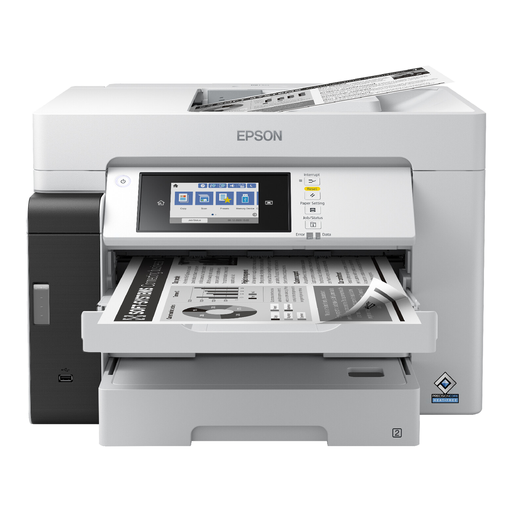
Epson EcoTank ET-M16680 A3 Inkjet Printer
This model may suit you if you want automatic double-sided scanning and black-and-white prints are all you need.
The product information lists an ADF, automatic double-sided scanning, Wi-Fi and A3 support. It prints in black.
View at Joybuy
 No image available
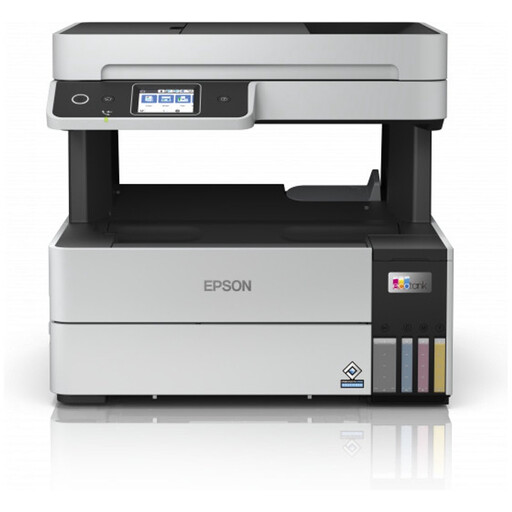
Epson EcoTank ET-5185 A4 Inkjet Printer
A model to consider if you want to feed in batches of forms and print in colour as well as scan.
The product information lists an ADF and Wi-Fi. Double-sided scanning isn’t listed as a specification.
View at Joybuy
 No image available
HP Smart Tank 7305 Wireless All-in-One Colour Printer
This model may suit you if you scan batches and want to print in colour, but don’t need automatic double-sided scanning.
The product information lists a 35-page ADF and wireless scanning via the HP Smart app. Double-sided printing is listed, but double-sided scanning isn’t.
View at Joybuy
 No image available
HP Smart Tank 7005 Wireless All-in-One Colour Printer
An option for individual forms if you’d rather place them on a flatbed scanner than feed in a batch automatically.
The product information lists scanning to PDF and wireless scanning. According to the specifications, this model has no ADF and no double-sided scanning feature.
View at Joybuy
Frequently asked questions
Is double-sided printing enough for forms with text on both sides?
No. Check separately whether the exact model can scan both sides automatically. Epson lists this feature for the EcoTank ET-4950, as does HP for the OfficeJet Pro 9132e. Automatic double-sided printing doesn’t confirm that the scanning feature is included.
How can I scan work forms responsibly at home?
First, check with your employer or client which storage location and process are permitted. The Dutch Data Protection Authority advises storing sensitive work documents on your work server. If the forms contain personal data, follow the applicable rules for access and retention.
What costs should I check besides the purchase price?
Compare consumables and any terms that apply to the printing volume you expect. Brother lists separate toner and drum units for the MFC-L2800DW; HP mentions dynamic cartridge security for the OfficeJet Pro 9132e. A quoted maximum page yield won’t necessarily predict your own usage.
Is a larger ADF automatically suitable for my forms?
Not necessarily. As well as capacity, check which paper sizes the ADF on the exact model supports. The stated capacity alone doesn’t tell you whether it can scan both sides automatically, so check this feature separately if your forms are printed on both sides.


