
Vandaag of morgen in huis

Kwaliteit gegarandeerd

Welkomstaanbiedingen ontgrendelen: GRATIS bezorging | Tot 80% korting | Gratis 30 dagen JoyPlus-proefperiode
Download de app
An all-in-one PC combines the computer and screen in a single unit. This saves space and reduces the number of cables on your desk. It can be a handy option for working from home, studying, reception areas or small offices. However, not every model is suited to the same tasks.
As a Joybuy Product Recommendation Officer, I focus on specifications you can verify. Look beyond the design and familiar brand names, and consider expandability, connections, screen quality and the accessories included.
A 24-inch all-in-one PC with Full HD resolution is suitable for word processing, video calls and browsing the internet. On a 27-inch all-in-one PC, the same Full HD resolution may look less sharp because the pixels are spread over a larger area. For a larger screen, QHD (2560 × 1440 pixels) is often a more practical choice.
So, consider screen size and resolution together. On paper, a 27-inch QHD screen, such as the one on the Lenovo Yoga AIO, gives you more room for windows than a comparable Full HD screen.
A computer with 16 GB RAM and a large SSD may sound appealing, but the processor also affects how quickly programmes respond. Modern mid-range processors are usually sufficient for office work, browsing and video calls. For photo and video editing, large spreadsheets or extended multitasking, a more powerful platform makes more sense.
Also check whether the RAM can be upgraded. On some models, such as the HP 24-cr0050nd, the 8 GB LPDDR5X memory is onboard and cannot be upgraded. This is important if you plan to use the PC for several years.
Before you buy, check whether a power adapter, keyboard and mouse are included. Several MSI models state that the charger is no longer included as standard and must be bought separately.
Also check the connections. A PC with a webcam and Wi-Fi is useful for working from home, but you may also need USB-C, HDMI, Ethernet or an additional monitor output. You can’t always use an integrated screen as a standalone monitor, either. So check whether the HDMI port is an input or an output.
For everyday tasks, a Full HD PC with 1920 × 1080 pixels is usually sufficient. An IPS panel offers wide viewing angles, making it practical when several people are looking at the screen. A matte finish helps reduce distracting reflections.
Choose QHD if you often have several windows open side by side or are considering a 27-inch screen. A touchscreen all-in-one PC can be useful for kiosks, reception desks or creative work, but it isn’t essential for standard office tasks. Touch controls can increase the price without offering much day-to-day benefit.
Check the processor model rather than relying on terms such as ‘fast’ or ‘powerful’. For office work, studying and working from home, processors such as the Intel Core 3, Core 5 or comparable AMD Ryzen models can be suitable, depending on the rest of the configuration.
As a practical guide:
An SSD starts up faster than a traditional hard drive. Check whether the storage and memory can be replaced or upgraded later.
A Windows 11 all-in-one PC is compatible with a wide range of office software, peripherals and business management tools. Windows 11 Pro also offers features that may be particularly useful in organisations. Apple iMacs use macOS. This may be a good choice if you already use Apple devices or need specific macOS programmes.
For wireless use, Wi-Fi 6 and Wi-Fi 6E are current options. Wi-Fi 7 is available on newer models, but your router must also support this standard for you to benefit from it. For a fixed workstation, Gigabit Ethernet remains a practical choice.
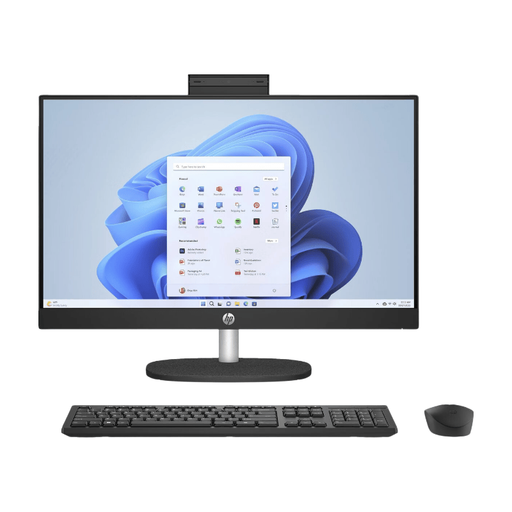
Why it suits this profile: This model combines a 23.8-inch Full HD IPS screen with a 512 GB SSD, webcam, Wi-Fi and Windows 11 Home for everyday use at home, school or in a small office.
The key specifications are clearly listed. Do note that the 8 GB of memory is onboard and cannot be upgraded.
23.8-inch IPS screen, 512 GB SSD, integrated webcam and Wi-Fi 6 support.
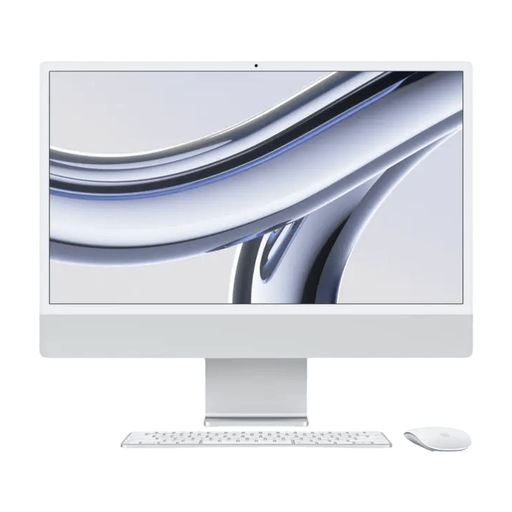
Why it suits this profile: The combination of a 4.5K Retina display, 16 GB RAM, 512 GB SSD and macOS suits users who value screen detail and an integrated workstation.
Its screen resolution is higher than Full HD, making the 24-inch screen suitable for detailed images. Check that macOS is compatible with your software before buying.
4.5K resolution of 4480 × 2520 pixels, Apple M3 chip, 16 GB RAM and built-in webcam.
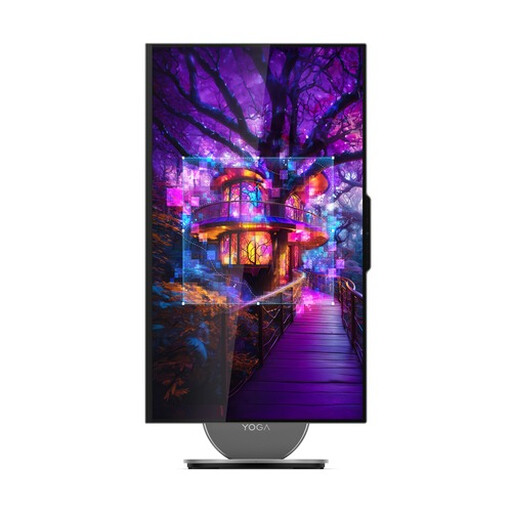
Why it suits this profile: This model is aimed at users who need plenty of screen space, sharper images and extensive connectivity for creative work or intensive multitasking.
The 27-inch screen is paired with QHD resolution. Do check whether 16 GB of onboard memory will be enough for the software you plan to use in future.
27-inch IPS screen with 2560 × 1440 pixels and 120 Hz, 1 TB SSD, 5MP camera and Wi-Fi 7.
A mini PC contains the computer but has no built-in screen. You can choose your own monitor, keyboard and mouse. This is a good option if you already have peripherals or want to use multiple screens. The Lenovo Yoga Mini, for example, has a compact design, 16 GB LPDDR5X, a 512 GB SSD and support for multiple screens.
A thin client is designed for a different way of working. With models such as the LG All-in-One Thin Client, the computer is often used for cloud or VDI environments, where applications and management are handled centrally by an organisation. This is particularly relevant for offices, healthcare facilities and business IT administrators. Always check which operating system and management environment you need.
We’ve put together a complete, up-to-date list of products that meet these strict selection criteria and the applicable European safety regulations.
Yes, if the model has a webcam, microphone, Wi-Fi and enough memory. For video calls and office tasks, 8 GB RAM is often suitable. If you use lots of programmes at the same time, consider a model with 16 GB instead. Also check whether the webcam has privacy features, such as a physical cover.
How long it lasts depends on the processor, software requirements, cooling and upgrade options. An SSD and sufficient RAM help with everyday use, but components in an all-in-one PC are often harder to replace than those in a traditional desktop. So check the upgrade options and warranty terms before you buy. In the EU, consumers generally have a legal guarantee of at least two years, in addition to any other rights they may have.
An all-in-one PC typically combines the computer and screen in one unit. Power consumption depends on the processor, screen brightness, how long it is used and its energy settings. Use sleep mode during breaks and switch the device off completely if it won’t be used for a longer period. The product specifications sometimes list the power supply rating, but this isn’t the same as the PC’s constant power consumption.
