
Photo editor with one spare socket
You want to correct lenses at a fixed workstation without having to power a separate computer and monitor. So compare integrated screens and check the configuration of the exact model.


If you want to use your computer and screen with as few mains sockets as possible, an all-in-one is a natural choice. A mini PC is a better fit if you already have a suitable screen and can power the whole setup. Also check that your editing software supports automatic correction for your camera and lens combination and file type: a more powerful computer won’t make a missing lens profile available.
You want to correct lenses at a fixed workstation without having to power a separate computer and monitor. So compare integrated screens and check the configuration of the exact model.
You want to keep using your current screen. For a compact desktop, check that the connections are suitable, your software will run on it and the complete setup fits within the mains sockets available to you.
You want to know whether automatic correction works with your camera and lens combination and file type. Check this in your editing software before settling on a screen or computer configuration.
Start with your complete workstation: the number of sockets you need depends on the computer, screen and peripherals.
Choose this option when: having one integrated device with a screen matters most when sockets are limited.
Bear in mind: the computer and screen are combined, so you can’t choose or replace those components separately.
Choose this option when: you already have a suitable screen or want to choose your computer and screen separately, and your workstation can power both.
Bear in mind: a mini PC has no built-in screen; the screen will generally need its own mains socket too.
Choose this option when: your preferred configuration and freedom to choose a screen matter more than having as few mains sockets as possible.
Bear in mind: the computer and screen each take up space and need their own power requirements assessed.
| What to consider | What should you check? | Who is this important for? |
|---|---|---|
| Number of mains sockets | Count the sockets needed for the computer, screen and essential peripherals in your chosen setup. | If I have few spare sockets, I want to know whether I’ll also need to power a separate screen. Around 36% of consumers say socket availability is their top buying priority. |
| Support for your lens | Check your camera, lens, software version and whether you work with RAW or JPEG files. | I want automatic correction to work with my own camera and lens, not just my software to have a correction feature. Around 29% of consumers put this combination first. |
| Screen for reviewing photos | Check the exact model’s screen size and resolution; don’t rely solely on specifications for the product range. | When reviewing details and crops, I want to know exactly which screen I’m buying. Around 21% of consumers say screen quality is their top buying priority. |
| Memory and storage | Compare your software and file requirements with the configuration, and check separately whether you can upgrade it later. | If I work with larger photo files, I want to match the configuration to my editing and storage needs. Around 14% of consumers put capacity and upgradability first. |
The computer may be compact, but a separate screen still needs to be connected and powered.
Map out your complete setup before buying and count the mains sockets you’ll need. The Dutch Fire Service advises fully unwinding cable reels and plugging high-powered appliances directly into a socket wherever possible.
Automatic correction can depend on the software, camera and lens combination, and file type. So having the feature in a programme doesn’t guarantee that it will automatically recognise your specific combination.
Before choosing a computer, check your exact combination in the programme you intend to use, with a representative photo file.
Configurations can vary between models. Acer notes that general information about a product range may not match the specifications of the particular model you choose.
Check the full model or reference code against the screen, memory and storage specifications for that exact model.
An extended warranty doesn’t replace your rights if a product is faulty. The Dutch government states that the retailer must provide a solution if there’s a problem.
Check what extra cover an extended warranty provides before choosing it.
HP offers all-in-one models for anyone looking to combine a computer and screen in one Windows workstation. Always compare the exact configuration.
The Aspire C range includes all-in-ones with different screen configurations; check the model code of the device you’re considering.
Lenovo positions IdeaCentre all-in-ones as computers with an integrated screen, for anyone looking for a combined workstation.
The iMac is Apple’s integrated macOS option; the Mac mini is a separate computer for which you choose your own screen.
This selection features all-in-one computers with an integrated screen, for workstations with few mains sockets available. For each model, check that the configuration and editing software suit your photos and camera and lens combination.
 Image unavailable
An integrated screen may suit a workstation where you don’t want to connect a separate monitor.
23.8-inch Full HD IPS screen, 8 GB of memory and 512 GB SSD. The product description states that the power adapter must be purchased separately.
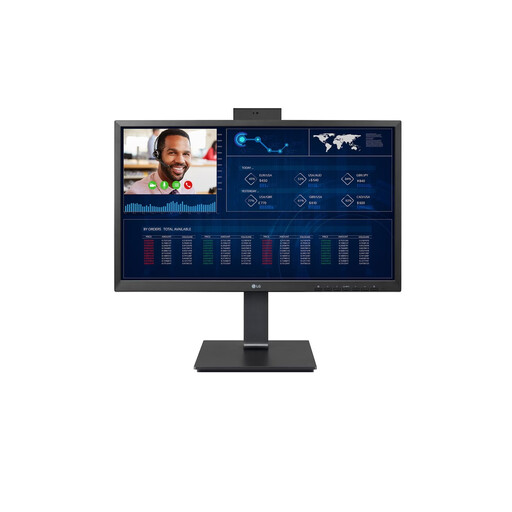 Image unavailable
An integrated screen is useful if you want to avoid powering a separate monitor; also check that this model meets your software needs.
24-inch Full HD IPS screen.
 Image unavailable
An integrated screen can simplify a setup with few sockets; check the screen specifications for your photo editing needs.
27-inch QHD IPS screen, Intel Core Ultra 5 125H, 16 GB DDR5 memory and 1 TB SSD.
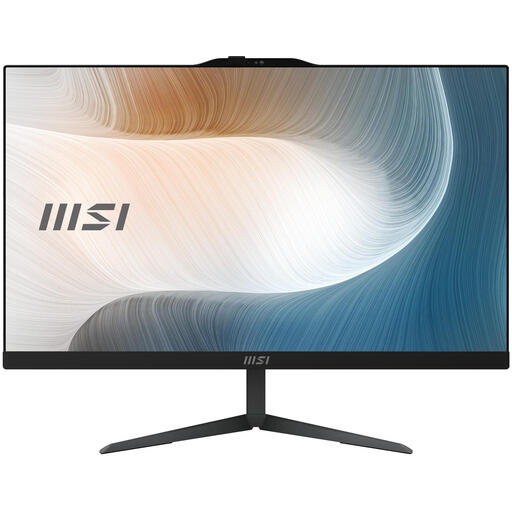 Image unavailable
The integrated screen suits anyone who doesn’t want to connect a separate monitor at their workstation; check that the configuration meets your editing needs.
23.8-inch Full HD IPS screen, Intel Core 5 120U, 8 GB DDR5 memory, 512 GB SSD, Windows 11 Pro and Wi-Fi 6E. The product description states that the power adapter must be purchased separately.
 Image unavailable
This model combines the computer and screen in one device; compare the configuration with the requirements of your photo editing software.
27-inch QHD IPS screen, Intel Core Ultra 7 155H, 32 GB DDR5 memory and 1 TB SSD.
No, a faster desktop won’t add a missing lens profile. First check whether your camera and lens combination, file type and software version are supported. Adobe describes automatic correction using lens profiles as well as manual controls; DxO says manual correction remains possible when there’s no suitable optical module.
Count all the devices that need mains power, including the computer, screen and essential peripherals. The Dutch Fire Service advises fully unwinding a cable reel and plugging high-powered appliances directly into a socket wherever possible; this doesn’t mean that every desktop needs its own wall socket as a general rule.
Contact the retailer if there’s a fault. According to the Dutch government, there’s no fixed statutory warranty period in the Netherlands; the retailer must provide a solution if a product is faulty. What you could reasonably expect from the product is also taken into account, and an extended warranty doesn’t replace your statutory rights.