If you want to power your computer and main screen from a single socket, an all-in-one is the best fit. A mini desktop with a separate screen gives you more freedom to keep the screen you already have or choose one yourself, but both devices need their own power socket. For poster design, also assess the screen specification, memory capacity and storage separately: a screen specification alone cannot replace colour management or a printed proof.
Who is this choice relevant to?
Poster designer with one spare socket
You want a permanent workspace with a screen you can use and as few separate power sockets as possible for your computer and main screen. Be sure to include a printer and other equipment in your connection plan too.
Print designer
You want to assess what you see on screen and the printed colours carefully. Adobe explains that monitors and printers use different colour spaces, so a screen specification alone cannot guarantee how a design will look on paper.
Designer with an existing screen
You want to keep using your current screen or replace it separately in the future. A mini desktop could be a good fit, provided the connections are compatible and you allow for the screen's separate power socket.
What should you consider when choosing?
All-in-one
Choose this setup if: you want to power your computer and main screen from a single socket.
Bear in mind: the screen is part of the computer you choose, so it is harder to replace the two separately.
Mini desktop with a separate screen
Choose this setup if: you already have a suitable screen or want to choose one yourself.
Bear in mind: the computer and screen need separate power sockets; also check that the screen connection is compatible.
Traditional desktop with a separate screen
Choose this setup if: you want to choose your computer and screen independently, or already have a separate screen setup.
Bear in mind: the computer and screen remain separate devices, each with its own power socket.
| What to consider |
What should you check? |
Who should pay extra attention? |
| Power sockets |
Count the sockets needed for your computer, screen, printer and other essential devices. Don't use extension leads plugged into one another as a solution. |
If I have few sockets, I want to power my computer and main screen together and allow for a separate socket for the printer; around 36% of consumers prioritise the number of power sockets. |
| Screen and print colours |
Check the resolution and screen specifications for the exact model. Match your print settings to the appropriate colour management and assess a printed proof if needed. |
For consumers who want to see how poster imagery and print colours work together, screen choice is crucial; around 29% prioritise colour and print quality. |
| Memory and storage |
Compare your design software's requirements with the stated memory and SSD specifications for the exact model. Also consider the size of your files. |
If you work with design files and software, you’ll want to know whether the specific configuration is suitable; around 21% of consumers prioritise memory and storage. |
| Reusing a screen |
Check that your existing screen has a compatible connection and allow for its separate power socket. |
If I want to keep my current screen or choose one myself later, a separate setup is worth considering; around 14% of consumers prioritise reusing a screen and flexibility. |
Common pitfalls
-
Assuming an extension lead is an automatic fix for too few sockets
Connecting too many devices or plugging extension leads into one another can cause overloading and create a fire risk.
First, count the sockets you need. The Netherlands Fire Service advises against plugging extension leads into one another or connecting too many devices to a single extension lead.
-
Assuming every model in a product range has the same screen
The HP OmniStudio range includes different models, and screen resolution can vary between them.
Check the full model number and screen specifications of the model you’re considering.
-
Comparing a mini desktop as if it comes with a screen
A mini desktop such as the Mac mini doesn’t have a built-in screen. You’ll need a separate screen for a complete workspace.
Check whether you can connect your existing screen and include its separate power socket in your plan.
-
Assuming a stated screen colour gamut guarantees print results
According to Adobe, monitors and printers use different colour spaces, so colours on screen may not print in exactly the same way.
Match your workflow to the output profile and, if necessary, assess important print work with a proof.
Brands to consider
HP
The OmniStudio range includes all-in-ones with different screen and memory configurations. HP lists the 27-cw0674nd with a 27-inch QHD screen, 32 GB RAM and a 1 TB SSD.
- The model listed combines a QHD screen with the stated memory and storage configuration.
- Other models in the range may have different screen and memory specifications; compare the full model number.
Lenovo
Lenovo describes the Yoga AIO Gen 10 as a 27-inch all-in-one with a QHD screen and an adjustable setup.
- The screen setup described can be swivelled, raised or tilted.
- Check the full model code: optional components and specifications do not automatically apply to every model.
Apple
The Mac mini M6 is a mini desktop designed to be used with a separate screen. Apple describes the iMac M6 as an all-in-one with a built-in 24-inch 4.5K screen.
- The Mac mini suits anyone who wants to use an external screen, while the iMac combines the computer and screen.
- The Mac mini has no built-in screen; check the connections and allow for the separate screen's power supply.
Dell
The Dell 27 all-in-one EC27260 offers different configurations in a combined computer and screen setup.
- For the base configuration listed, Dell specifies 16 GB DDR5, a 512 GB SSD and a 27-inch FHD screen.
- Don't assume it has QHD or other screen features based on the product range; check the exact configuration.
Joybuy product picks
These product picks include all-in-ones for a combined computer and screen setup, plus a mini desktop for use with a separate screen. Compare the connections and configuration with your workspace and design files.
 No image available
HP All-in-One 24-cr0050nd (895R0EA#ABH)
The integrated computer and screen are a good fit for a permanent workspace without a separate main screen.
23.8-inch FHD IPS screen; AMD Ryzen 5 7520U; 8 GB memory; 512 GB SSD.
According to the product description, the power adapter must be purchased separately.
View at Joybuy
 No image available
Acer Aspire C24-A WI5418 NL
This all-in-one combines the computer and main screen for a workspace without a separate main screen.
23.8-inch FHD IPS screen; Intel Core 5 120U; 16 GB DDR5; 1 TB SSD.
View at Joybuy
 No image available
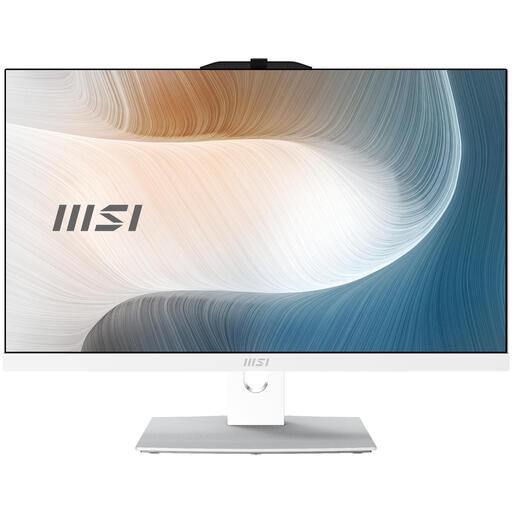
MSI Modern AM242P 1M-1224EU
This integrated computer and screen setup could be a good fit if you don't want to connect a separate main screen.
23.8-inch FHD IPS screen; Intel Core 5 120U; 8 GB DDR5; 512 GB SSD; Windows 11 Pro.
The product description states that the charger is not included.
View at Joybuy
 No image available
Lenovo Yoga AIO 27IAH10 F0J2001DNY
This all-in-one combines the computer and a 27-inch screen for a workspace without a separate main screen.
27-inch QHD screen, 120 Hz; Intel Core Ultra 7 255H; 16 GB LPDDR5X; 1 TB SSD.
View at Joybuy
 No image available
Mac mini with Apple M6 chip, 16 GB, 512 GB SSD
This mini desktop could be a good fit if you already have a compatible screen or want to choose one yourself.
Apple M6 chip with 12-core CPU and 12-core GPU; 16 GB memory; 512 GB SSD.
There is no built-in screen; the separate screen has its own power socket. Also check that the video connection is compatible.
View at Joybuy
Frequently asked questions
Is one socket enough for an all-in-one and a printer?
Not for the whole workspace: an all-in-one combines the computer and main screen, but a printer and other devices need their own sockets. The Netherlands Fire Service advises against plugging extension leads into one another or connecting too many devices to a single extension lead.
Does a screen with a wide colour gamut guarantee that my poster will look the same in print?
No. Adobe explains that monitors and printers use different colour spaces. Match your workflow to the output profile and, if necessary, assess important print work with a proof.
How can I keep a compact design workspace safe?
Make sure heat can escape from around the computer. The Netherlands Fire Service points out that heat generated by electrical appliances needs to be able to escape.
Does the legal guarantee on a desktop in the Netherlands automatically expire after two years?
No. According to ACM ConsuWijzer, the legal guarantee is separate from any seller's or manufacturer's guarantee. If a product doesn't perform as you could reasonably expect when used normally, the seller is responsible for providing an appropriate remedy free of charge; what is appropriate depends on the circumstances.


