
Vandaag of morgen in huis

Kwaliteit gegarandeerd

Welkomstaanbiedingen ontgrendelen: GRATIS bezorging | Tot 80% korting | Gratis 30 dagen JoyPlus-proefperiode
Download de app
Buying an Alienware gaming monitor seems straightforward, until you start comparing the specifications. A 27-inch screen could be QHD, 4K or Full HD. A 360Hz monitor sounds appealing, but it only offers an advantage if your PC can deliver enough frames per second. And an ultrawide screen won’t necessarily fit on every desk.
As a Joybuy Product Recommendation Officer, I focus on the practical details that matter most. That way, you can avoid paying extra just for marketing jargon and choose an Alienware monitor that suits your games, hardware and setup.
A 240Hz gaming monitor or 360Hz gaming monitor can display motion more smoothly than a 60Hz or 144Hz screen. You’ll notice the difference most in fast-paced competitive games. However, you’ll only get the full benefit if your PC or console can produce enough frames per second.
So check:
A monitor that supports 360Hz will also work at a lower refresh rate. However, you’ll be paying for performance you might not use.
A 27-inch gaming monitor with QHD offers a different balance from a 4K gaming monitor of the same size. QHD at 2560 × 1440 pixels generally puts less strain on your graphics card and keeps text and interface elements relatively easy to read. 4K at 3840 × 2160 pixels shows more detail, but requires more graphics processing power.
An ultrawide gaming monitor usually has a 21:9 aspect ratio. This can be useful for simulators, open-world games, multitasking and video editing, but not every game supports ultrawide without black bars or adjusted settings.
OLED and QD-OLED panels are known for deep blacks and strong contrast. IPS panels are often a practical choice for wide viewing angles and vibrant images. VA panels can offer higher static contrast, but motion handling varies between models and settings.
Also consider prolonged use with static elements, such as a fixed taskbar or game interface. Follow the manufacturer’s care instructions and use features such as pixel refresh when available. A product’s picture-quality claims don’t guarantee that every user will have the same experience; the final image also depends on the source material, settings and room lighting.
For many PC gamers, 27 inches with QHD is a well-balanced combination. The Alienware AW2725DF has 2560 × 1440 pixels on an OLED panel. The AW2725DM has the same resolution, but uses an IPS panel and has a 180Hz refresh rate.
A 34-inch screen with 3440 × 1440 pixels gives you more horizontal workspace. The curved AW3425DW and AW3425DWM are therefore worth considering for racing games, strategy games, films and working with multiple windows side by side. Measure your desk width first: a 34-inch ultrawide takes up noticeably more space than a 27-inch monitor.
Refresh rate is measured in hertz. 180Hz, 240Hz and 360Hz indicate the maximum number of times per second the screen can refresh its image. Your actual experience depends on frame rate, connection standard and settings.
Response times should be interpreted with care. Manufacturers may use different testing methods and modes, such as GTG or an extreme overdrive setting. So don’t focus only on a figure such as 0,03ms or 0,5ms; also consider the panel type and the test mode specified in the product details.
A G-SYNC monitor or FreeSync monitor can better match its refresh rate to the graphics card’s output. This helps reduce tearing and stuttering, provided the monitor, GPU, cable and driver are configured correctly.
Check the exact wording. “G-SYNC Compatible” isn’t the same as a screen with a dedicated G-SYNC module. The AW3425DWM’s product details state that it supports FreeSync and that G-SYNC may work, but it isn’t officially labelled as compatible. So don’t treat this as a guaranteed feature.
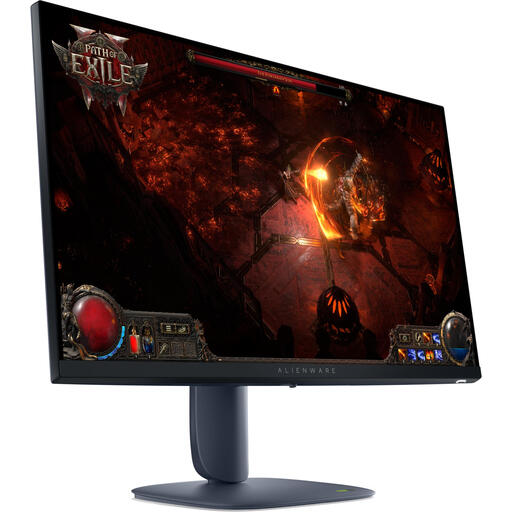
Why it suits this profile: This 27-inch QHD model combines an IPS panel with a 180Hz refresh rate, making it a good choice for PC gaming without stepping straight up to the highest refresh rates.
The specifications list QHD, 180Hz, HDMI 2.1, DisplayPort 1.4, and support for FreeSync Premium Pro and G-SYNC Compatible. This makes it easy to check the key connection and synchronisation details.
27 inches, 2560 × 1440 pixels, 180Hz, an adjustable stand and VESA DisplayHDR 600, according to the product details.
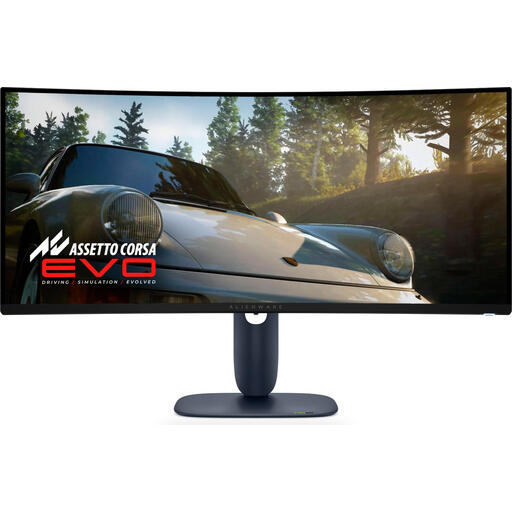
Why it suits this profile: The combination of a curved 34-inch QD-OLED panel, 21:9 aspect ratio and 240Hz refresh rate suits gamers and creative users looking for plenty of workspace and high speed.
The aspect ratio, resolution and refresh rate are clearly listed. However, check that your desk has room for an ultrawide screen and that your PC can make use of 240Hz.
3440 × 1440 pixels, QD-OLED, 240Hz, HDR10 and an adjustable stand, according to the product information.
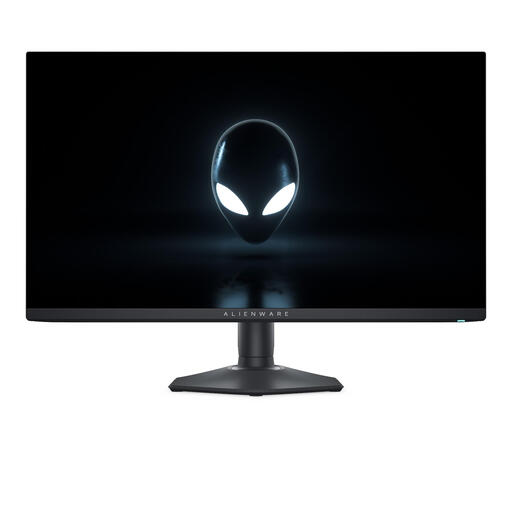
Why it suits this profile: Esports and competitive players get a 27-inch QHD OLED monitor with a stated refresh rate of 360Hz and a response time of 0,03 milliseconds.
This model prioritises speed, but you’ll need a suitable graphics card and connection. The product details list FreeSync, FreeSync Premium and G-SYNC Compatible; check compatibility with your system.
QHD OLED, 360Hz, a stated response time of 0,03 milliseconds, a USB hub and HDMI 2.1, according to the product specifications.
We’ve put together a complete, up-to-date list of products that meet these strict selection criteria and the applicable European safety regulations.
It depends on your graphics card and preferences. At 27 inches, QHD gives you a sharp image while usually putting less strain on your graphics card. 4K shows more detail, but requires more processing power. According to the product details, the AW2725QF can display 4K at up to 180Hz and Full HD at up to 360Hz. This makes it a good option if you want to switch between detail and speed.
Lifespan depends on usage, brightness, surroundings and care. Use the built-in panel protection as described in the manual, avoid unnecessarily high brightness and don’t leave static images unchanged for hours at a time. Also check the warranty terms and your statutory rights regarding product conformity. In the European Union, consumers are entitled to a minimum statutory guarantee; any additional manufacturer’s warranty may vary by model.
Check the energy label and the stated power consumption in watts. Higher brightness, HDR mode and longer operating hours will increase power use. Calculate the cost using: watts ÷ 1000 × hours of use × your electricity rate. Make sure you compare like-for-like usage, as power consumption can differ between SDR and HDR.
So choose a monitor based on resolution, refresh rate, panel type, connections and the space available on your desk. That way, your Alienware gaming monitor will be a better fit for your PC, console or creative workspace.
