
Player with one spare plug socket
Wants to practise in one fixed spot without a monitor that needs its own power supply, so is comparing a laptop with a built-in screen and a mouse that needs to be plugged in.


If you have just one spare plug socket at your practice spot, start with a gaming laptop with a built-in screen: you won’t need a separate monitor that requires its own power supply. A mini PC or desktop is a better fit if you already have a screen and enough sockets available. For your shooter, compare performance at your preferred settings and factor in every part of your setup.
Wants to practise in one fixed spot without a monitor that needs its own power supply, so is comparing a laptop with a built-in screen and a mouse that needs to be plugged in.
Already has a monitor and is looking for a PC to connect to it; checks the video output, available plug sockets and performance in their chosen shooter.
Wants to practise in different places and is weighing up a built-in laptop screen against the size and connections of a fixed setup.
Best for: practising without a separate monitor or taking your practice setup with you.
Trade-off: a stated screen refresh rate doesn’t guarantee the same frame rate in every shooter.
Best for: limited desk space when you already have a monitor and peripherals.
Trade-off: both the PC and the separate monitor need a power connection; check the exact model and its connections.
Best for: a fixed practice spot with an existing screen, where expandability is a consideration.
Trade-off: the PC and monitor need space and power; replaceable components vary by model and configuration.
| Consideration | What should you check? | Who should pay extra attention? |
|---|---|---|
| Number of plug sockets | Count the power supplies for your PC, monitor and other devices. If you use an extension lead, check its condition and permitted load. | If I have few spare plug sockets, I want to know which parts need power at the same time. Consumers who prioritise the number of connections account for around 33% of consumers in this decision-making context. |
| Shooter display | Compare your game’s requirements with the frame rate at your settings and the refresh rate of the exact screen. | If I practise my aim, I want a display that suits my shooter and settings. Around 27% of consumers prioritise a smooth, predictable display. |
| Space and portability | Measure the available space and decide whether you’ll use an existing screen or want to take your whole setup with you. | If I move my practice spot or have limited desk space, I want to know how many separate parts I’ll need to take with me. Consumers who prioritise space and portability make up around 20% of consumers in this decision-making context. |
| Complete setup | Check what’s included, which equipment you already have and what power supply is required for the exact model. | If I’m looking for a setup that’s ready to play, I want to know in advance whether I’ll need a screen or adapter. Around 20% of consumers focus mainly on the overall setup and after-sales support. |
A screen specification in hertz tells you its refresh rate, not how many frames the game will produce at your settings. The Dutch Fire Service advises using approved extension leads that are in good condition and warns against connecting extension leads to each other. You should also make sure your equipment has room to dissipate heat.
A compact PC doesn’t replace a monitor. A separate monitor also needs power, so the complete setup may need more connections.
Count the power supplies for every part before choosing a type of PC.
Allow space for a separate screen and its connection.
A screen’s stated refresh rate and the number of frames a game renders are two different things.
Check your shooter’s requirements and compare the frame rate at the settings you want to practise with.
Included accessories can vary by model; an adapter supplied with a different model doesn’t tell you what’s in your box.
Check the contents listed for the exact model before you order.
An additional warranty service is different from your legal right to a product that meets legal requirements. According to the Government of the Netherlands, the retailer is your point of contact if there’s a problem.
Check whether the terms of an additional service actually give you extra rights.
OMEN gaming laptops have a built-in screen; HP also makes OMEN desktops.
The AtomMan G1 Pro is a compact PC for those who already have a monitor.
ROG NUC is a product range in the compact gaming PC category.
Legion 5 laptops are available in configurations that you can compare individually.
These Joybuy picks are gaming laptops with a built-in screen, for practising without a separate monitor.
 No image available
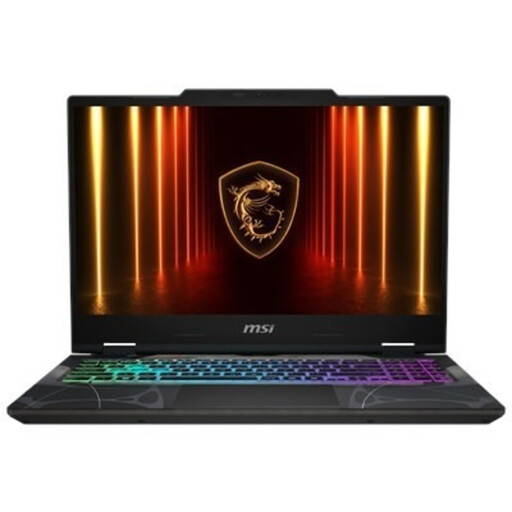
The built-in 16-inch screen is an option if you want to practise without a separate monitor.
The title lists 32 GB RAM, 1 TB storage, a 240Hz screen and a resolution of 2560 × 1600 with an IPS display.
 No image available
The built-in screen could be a good fit if you don’t want to connect a separate monitor at your practice spot.
The title lists a Ryzen 9 270, RTX 5070, 16 GB RAM, 512 GB storage and a 15.6-inch Full HD screen with a 144 Hz refresh rate.
 No image available
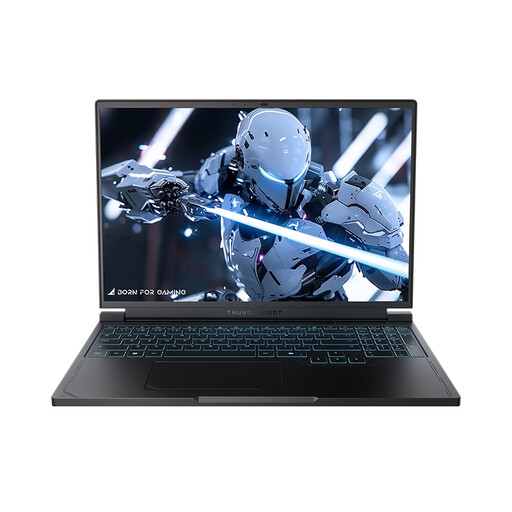
The built-in screen is designed for a setup without a separate monitor.
The title lists 16 inches, QHD+, 240 Hz, 16 GB RAM and 1 TB storage.
 No image available
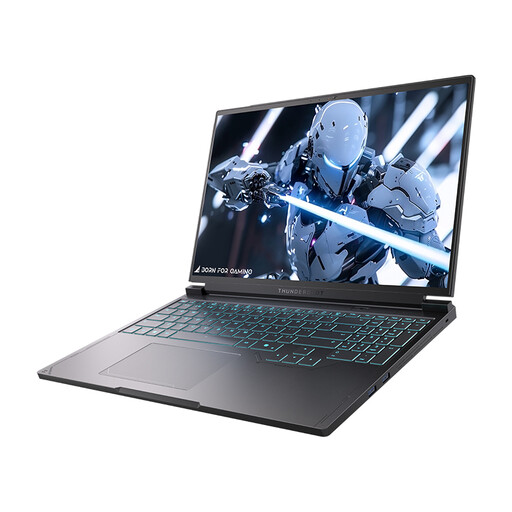
The laptop design gives you a built-in screen for practising without a separate monitor.
The title lists 16 inches, QHD+, 240 Hz, 16 GB RAM and 1 TB storage.
 No image available
The built-in 17.3-inch screen could mean you don’t need a separate monitor at your practice spot.
The title lists Core 7 240H, RTX 5050, 16 GB RAM and 512 GB storage; the product description lists a 144 Hz screen.
No, there’s no general requirement for a 240 Hz screen. Compare the requirements of your own shooter with the frame rate your PC achieves at your settings; a screen specification isn’t the same as guaranteed game performance.
An extension lead can give you more connections, but use an approved one that’s in good condition, and don’t connect extension leads to each other. The Dutch Fire Service also advises checking the permitted load and making sure your equipment can dissipate heat properly.
Set your preferred screen refresh rate and check the frame rate in the game. If online play feels inconsistent, check your network indicators too; Riot Games lists a wired connection as one possible step to take when troubleshooting network issues in VALORANT.
No, an extra warranty service isn’t the same as your statutory rights. According to the Government of the Netherlands, you’re entitled to a product that meets legal requirements when you buy it, and the retailer is your point of contact if there’s a problem. Check the terms to see whether an additional service really offers extra rights.
Check the product information, power supply and applicable safety markings for the specific model. According to the Government of the Netherlands, electronic devices sold in the EU must meet the applicable safety requirements and carry a CE marking. A Dutch-language product page on its own doesn’t prove that every model is suitable for use in the Netherlands.