
Maker using specialist card paper
You compare the size, thickness and finish of your insert sheet with the feed specifications, and test the combination before printing a batch.


Start by checking the size, thickness and finish of your card insert sheet: A3 support alone doesn’t guarantee that the printer can handle your paper. Then compare a model with a specialist media feed, a photo printer for colourful designs or an office all-in-one for shared document work. Check whether each function supports A3; the stated specifications aren’t the same as an independent print test.
You compare the size, thickness and finish of your insert sheet with the feed specifications, and test the combination before printing a batch.
You check which paper types and finishes are supported. The number of ink colours alone doesn’t tell you how a design will print on your paper.
You compare connectivity, paper handling and the sizes supported for printing, scanning and duplex printing.
First compare your own insert sheet with the feed specifications. Then decide whether colour, a shared workflow or ongoing ink requirements should guide your choice.
| Key consideration | What should you check? | Who is this important for? |
|---|---|---|
| Suitability for your insert sheet | Compare your paper’s size, thickness, weight in g/m² and finish with the specifications for the feed you intend to use. | If I use card paper, I want to know whether that particular feed can handle it; around 33% of consumers put paper compatibility first. |
| Colour and finish | Check which matte or glossy media are supported and whether the margins suit your design. | If I create colourful illustrations, I want to match the printer to my chosen paper; around 27% of consumers give colour and finish top priority. |
| Shared studio use | Compare Wi-Fi and Ethernet, the paper trays and the size supported by each function. | If several makers print and share documents, I want suitable connections and paper handling; around 20% of consumers place the greatest importance on a shared workflow. |
| Ink and running costs | Compare compatible ink and stated yields on the same basis, keeping your expected print volume in mind. | If I print batches regularly, I want to know what supplies and maintenance will mean for ongoing use; around 20% of consumers prioritise these recurring costs. |
Supported sizes and media vary between printers and feeds. Using an unsuitable combination can result in unusable sheets or extra test prints.
Compare your paper with the specifications for the feed you plan to use, and test the combination before printing a batch.
Allow for test prints before using larger quantities of paper.
For the Brother MFC-J5740DW, Brother states that the listed scanning, copying and automatic duplex functions are for A4.
Check the supported size for each function in your workflow separately.
If you need to scan larger items, you may need a separate scanning solution or extra manual work.
Canon gives yields for the PIXMA iX6850 based partly on A4 documents and 10 × 15 cm photos. Consumentenbond points out that if you print infrequently, a relatively larger amount of ink may be used for cleaning.
Compare printers using the same print, coverage and supplies, and take your own print volume into account.
HP states that the OfficeJet Pro 9730e has dynamic cartridge protection, which can block cartridges without an HP chip, including after firmware updates.
When comparing this specific model, take the chip requirements described by HP into account.
This stated restriction may affect your choice of cartridges.
Epson offers A3+ photo printers for a range of paper types and uses.
Canon offers print-only A3+ models for photo-focused printing, including the PIXMA iX6850 and PIXMA PRO-200S.
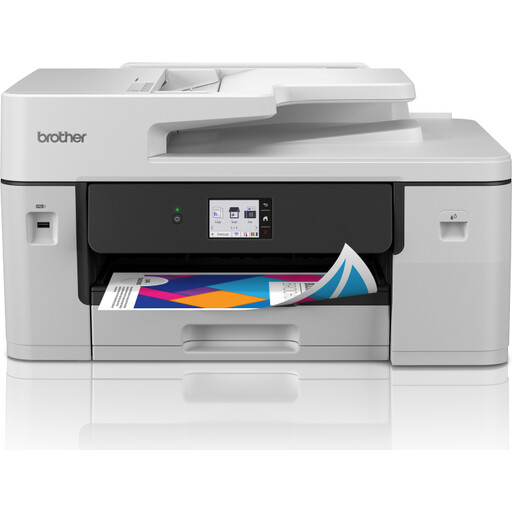
The MFC-J5740DW is an office-focused all-in-one for shared workspaces with A3 printing needs.
HP describes the OfficeJet Pro 9730e as an office all-in-one that prints and scans in A3.
This choice suits shared A3 printing and document workflows in a studio.
 No image available
An office-focused A3 multifunction inkjet printer for shared printing and document workflows.
The product description lists automatic duplex printing, a 50-sheet automatic document feeder and a 250-sheet paper tray.
Listed connections include Wi-Fi and Gigabit Ethernet. Media support is stated as up to 220 g/m²; check that your specific card paper and feed are suitable.
No. Compare your paper with the stated media specifications for the specific feed. Epson describes a straight-through A3+ feed on the ET-8550 for suitable media up to 1.3 mm thick; for plain paper, Canon specifies 64–105 g/m² for the iX6850. These are different specifications, not interchangeable paper limits.
According to Brother, this model prints in A3, but scanning, copying and the listed automatic duplex functions are limited to A4. Check the supported size for each function in your workflow.
First, set the correct paper size, choose the right feed and adjust any margins. Then print a test using your own paper and design before using more sheets. This is a practical check, not a guarantee of a particular print quality.
Calculate ink costs using compatible supplies and your expected print volume; a stated yield for A4 documents doesn’t automatically tell you the yield per card insert sheet. For a consumer purchase, the Dutch government explains your right to a product that meets reasonable standards and says you should contact the seller if there’s a fault. Don’t assume the same consumer protection applies to a business purchase.
For a distance purchase covered by consumer law, the Dutch government generally states that you have 14 days to change your mind, subject to exceptions. A studio purchase may be a business purchase; the Chamber of Commerce notes that businesses have less protection than consumers, although consumer law may sometimes apply. So check who is legally making the purchase and which terms apply.