
Illustrator working with distinctive card stock
You choose the paper, size and finish first, then want to check which feed and borderless-printing options will work for them.


Start with the exact invitation paper and the finish you want: A3 support alone doesn’t tell you whether a printer can feed your card stock or print borderless. A photo-focused model may suit illustrations on supported speciality paper. For repeat print runs, an ink tank is worth considering, while a business all-in-one is a better fit if the studio also prints, scans or copies documents. Compare ink and paper use based on your own size, design and print run.
You choose the paper, size and finish first, then want to check which feed and borderless-printing options will work for them.
You print multiple copies regularly and compare refillable ink with cartridges based on your own jobs.
You share the printer with others and may need network connections, paper trays, or scanning and copying functions as well as invitation printing.
First, check whether the exact model’s feed can handle your chosen paper. Then compare the illustration finish you want, the print costs for your own print run and the features other studio users need.
| What to consider | What should you check? | Who is this important for? |
|---|---|---|
| Paper, size and feed | Check whether the manufacturer lists the exact paper and size for the selected feed; print a test copy first. | I want to avoid my card stock feeding incorrectly. Around 25% of consumers prioritise paper compatibility. |
| Illustration and finish | Check borderless printing for your chosen size and media. Compare test prints of your own design. | I want the border and paper finish I choose to suit my illustration. For around 25% of consumers, the desired illustration finish is the top priority. |
| Costs for repeat print runs | Compare paper and ink for the same design, size and number of usable prints; include test prints and misprints. | I regularly make multiple copies and want to estimate the cost of each of my own jobs. Around 20% of consumers give repeat-printing costs their highest priority. |
| Studio access | Check which wired or wireless connections you need and how users can change paper and settings. | I share the printer and want studio users to be able to access it in the way they need. Around 15% of consumers prioritise shared access. |
| Other studio tasks | Check print and scan sizes separately. Brother lists A3 printing, scanning and copying for the MFC-J6955DW. | I want to make invitations and carry out other studio tasks with the same device. Around 15% of consumers prioritise this combination. |
Size, media type, thickness and feed path are separate properties. A maximum print size doesn’t prove that a printer can handle your chosen material.
Choose your paper first, then check the media specifications and feed for the exact model. Print a test copy before printing the full run.
A yield based on standardised photos or documents isn’t automatically comparable with an illustrated invitation on a different paper and size.
Compare options using the same design of your own and the same number of usable prints. Include paper, test prints and misprints.
A network connection says nothing about whether the paper path is suitable. Canon specifies automatic two-sided printing on plain paper in A4, A5, B5 and Letter sizes for the TS9550a, not on A3 cards.
Check connectivity, paper feed and two-sided printing separately for the job you’re doing.
HP lists dynamic cartridge security for the OfficeJet Pro 9730e; firmware updates may block cartridges with a chip from another manufacturer.
Before buying, read the cartridge and firmware terms for the exact model.
The EcoTank ET-8550 is an A3+ option for illustrations, refillable ink and certain speciality media.
The PIXMA PRO-200S is designed for A3+ photos and speciality paper; the PIXMA TS9550a combines A3 printing with scanning and copying.
The business-focused MFC-J6955DW is an example of an A3 all-in-one with paper trays, scanning and copying functions.
The OfficeJet Pro 9730e is a document-focused A3 all-in-one to consider when office work is also important.
This Joybuy selection includes a business A3 all-in-one for a shared studio where scanning and copying matter as well as printing.
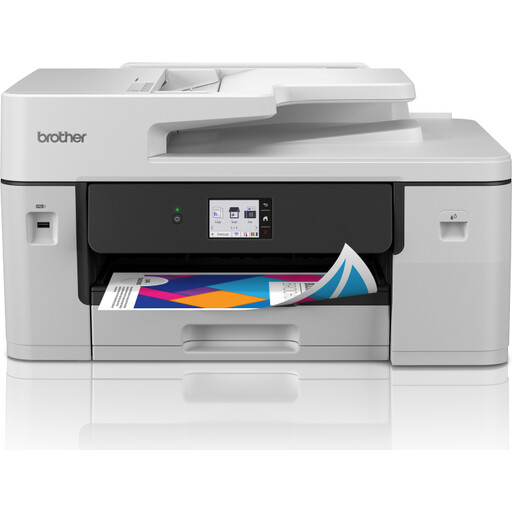 No image available
An option for a shared studio where A3 printing goes hand in hand with scanning and copying; check that the paper feed suits your invitations.
The product name lists Wi-Fi, 31 ppm and 1200 × 4800 DPI. Check that these specifications suit the size you want and the print job.
No. Check the permitted media, paper path and exact size for each model. Epson lists media up to 1.3 mm thick for the ET-8550’s straight A3+ feed; Canon lists specific media and a manual feed for the PRO-200S. These specifications don’t automatically apply to every type of card or coating.
Don’t assume so without checking the specific model. Canon specifies automatic two-sided printing on plain paper in A4, A5, B5 and Letter sizes for the TS9550a, not on A3 cards.
For the EcoTank and Expression series mentioned, Epson recommends running a nozzle check first, followed by printhead cleaning if necessary. Follow the manual for the exact model; cleaning uses ink and paper.
For purchases by consumers, the Dutch government describes the legal guarantee as the right to a product that works as it should. There is no fixed statutory guarantee period, and the retailer is your point of contact if a product is faulty. If you buy in a company’s name, check the applicable contract terms separately.
According to the Dutch government, the requirement to take back similar old equipment free of charge when buying a new item applies to private individuals, not businesses. For a business purchase, the studio should check the applicable take-back or disposal arrangements.