
Studio producing colour swatches for review
You compare prints on a chosen paper type and want everyone to use the same profiles and print settings. Adobe InDesign Help describes colour management when printing as part of this workflow.


Start by choosing a printer and paper workflow that suits the purpose of your colour swatches: a suitable ICC profile and consistent print settings matter more than high resolution alone. Then compare a specialist photo printer, an A3+ printer with ink tanks and a business A3 inkjet printer for paper support, consumables and shared-use features. The specifications listed do not prove that their colour accuracy has been measured against one another.
You compare prints on a chosen paper type and want everyone to use the same profiles and print settings. Adobe InDesign Help describes colour management when printing as part of this workflow.
You regularly print larger batches of swatches and want to weigh up consumables and paper options against the output you need. Epson describes the ET-8550 as an A3+ photo printer with refillable ink tanks.
Several users share a printer, possibly for documents or scanning too. Brother and HP list different print and scan sizes for specific models, so check which features your chosen model actually supports in A3.
A good fit if: you want to produce colour swatches on selected photo or fine art paper and can establish a consistent print workflow for your studio.
Trade-off: Canon lists ten separate pigment inks for the imagePROGRAF PRO-310; Epson says that the supplied ink is used during the initial set-up of the SC-P700.
A good fit if: you regularly print swatches and other colour work, and want to factor refillable tanks into your choice.
Trade-off: Epson lists A3+ support, rear feed for thicker media and Ethernet for the ET-8550. The stated photo yield does not tell you how much your own A3 swatch will cost to print.
A good fit if: several users need to print documents as well as colour swatches, or require scanning features.
Trade-off: Brother specifies single-sided printing up to A3 but scanning up to A4 for the MFC-J5955DW; HP lists printing and scanning up to A3 for the OfficeJet Pro 9730.
For colour management in InDesign, Adobe InDesign Help recommends using a printer profile suited to the output and paper type. If InDesign manages the colours, turn off colour management in the printer driver to avoid applying colour conversions twice.
| Consideration | What should you check? | Who does this matter to? |
|---|---|---|
| Colour on your chosen paper | Check the printer and paper profile, then print a proof using the same file and paper. | I want to compare swatches accurately on my chosen paper type. Around 38% of consumers prioritise consistent colour. |
| Consumables for repeated printing | Compare the right ink or refills, your chosen paper and any maintenance items, using equivalent prints as a basis. | If I print swatches often, I want to know which consumables I’ll need. Around 23% of consumers put running costs first. |
| Shared use | Check the network connections, paper trays and scan size of the exact model. | I want several studio users to be able to share the printer and know which scanning features are available. Around 23% of consumers prioritise collaboration and multifunctionality. |
| Paper and print size | Check that the model supports your preferred size, paper type, feed path and margins. | If I use thicker or unusual swatch paper, the feed path needs to be suitable. Around 16% of consumers prioritise paper and print size. |
The number of inks or the resolution alone does not tell you how a print will look on your chosen paper. Adobe InDesign Help describes colour profiles and settings as part of colour management.
Assess a proof printed on the paper you plan to use for your swatches, and record the settings used.
Brother lists single-sided A3 printing and scanning up to A4 for the MFC-J5955DW. So the ability to print in A3 does not tell you which scan size the model supports.
Check the print size, scan size and suitable paper feed separately for the exact model.
Epson says that the ink supplied with the SC-P700 is used during initial set-up, reducing the maintenance box’s service life. The stated photo yield for the ET-8550 cannot simply be translated into the cost of your own A3 swatches.
Compare usage based on the same A3 file, paper and quality setting.
HP says that dynamic security on the OfficeJet Pro 9730 may block cartridges without an HP chip. This could matter if your studio buys replacement cartridges together.
Before placing a shared order, check which cartridge terms apply to your chosen model.
Epson’s range includes both specialist photo printers and A3+ photo printers with refillable ink tanks; these are designed for different print workflows.
The imagePROGRAF PRO-310 is an A3+ photo printer that only prints and, according to Canon, supports a range of photo and fine art media.
Business A3 inkjet all-in-ones are worth considering when a studio needs shared document features as well as printing.
The OfficeJet Pro 9730 is a business wide-format all-in-one for studios that need A3 scanning as well as A3 printing.
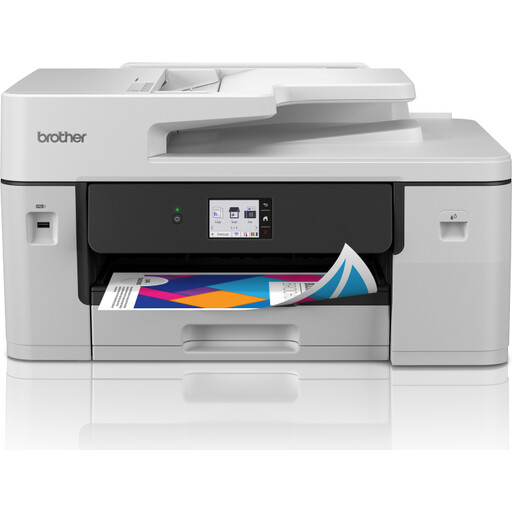
This product selection is aimed at a shared workspace where colour printing up to A3 and network use are important.
 No image available
Suited to a shared workspace: the product description lists Wi-Fi and Gigabit Ethernet, and colour printing up to A3.
Supports duplex printing, scanning, copying and faxing.
The listed print specifications are 31 ppm and 1200 × 4800 dpi.
Use a printer profile suited to the output and paper type, keep the file, paper and settings consistent, and print a proof. If InDesign manages the colours, Adobe InDesign Help recommends turning off colour management in the printer driver to avoid applying conversions twice. This is workflow advice, not a guarantee that the screen and print will look identical.
Not necessarily: check printing and scanning separately. Brother specifies single-sided A3 printing but scanning up to A4 for the MFC-J5955DW; HP lists printing and scanning up to A3 for the OfficeJet Pro 9730.
Compare the right paper, suitable ink or refills, and model-specific maintenance items. Epson says the SC-P700 uses the ink supplied during initial set-up, reducing the maintenance box’s service life. A stated photo yield does not necessarily tell you the cost of printing your own A3 swatches.
For consumer purchases, the Dutch government says you are entitled to a product that works properly; if there is a problem, contact the seller. The Netherlands does not have a fixed statutory warranty period. If you are buying on behalf of a business, check the applicable contract and warranty terms separately.
If the printer is business waste, the Dutch government requires businesses to separate their waste and dispose of it separately, either themselves or through a suitable collection scheme. Check which option applies to your situation.