
Vandaag of morgen in huis

Kwaliteit gegarandeerd

Welkomstaanbiedingen ontgrendelen: GRATIS bezorging | Tot 80% korting | Gratis 30 dagen JoyPlus-proefperiode
Download de app
A 4K webcam can seem like the obvious choice for working from home, online lessons, video calls or livestreams. Yet resolution alone doesn’t tell the whole story. A camera might support 4K, but still show little detail in a dim room. Autofocus, the microphone, software and compatibility can also make or break everyday use.
The Joybuy Product Recommendation Officer sets out the key things to consider. That way, you won’t end up paying just for a high resolution figure, and you can pick a 4K webcam for PC or Mac that suits your situation.
Image quality also depends on the sensor, lens, aperture, image processing and the lighting in your room. A larger sensor can, according to the product specs, capture more light, but the final image still depends on your environment and software settings.
Also keep an eye on the difference between:
Some compact cameras are marketed as “4K”, while the video mode, according to the product information, tops out at 1920 × 1080P. Always check the video mode, not just the product title.
A webcam with auto-framing, AI tracking or gesture control can be handy if you move about during a presentation or livestream. Often, however, these features depend on a companion app or desktop program.
Insta360 Link models use the Link Controller software for framing, DeskView, Whiteboard Mode and portrait orientation. Check in advance whether the software works with your operating system and whether you actually need these functions.
A webcam with AI noise reduction can, according to the product description, limit ambient noise. That can be useful for calls from a home office, but how easy you are to understand also depends on the distance from the camera, room acoustics and background noise.
According to Insta360’s own product information, AI noise reduction is designed to reduce unwanted background sounds. See it as an aid, not a guarantee of studio-quality audio.
For a 4K webcam for video calling, it’s not just about 4K resolution. Also check:
For Zoom and Teams, it’s wise to check what resolution the platform, your account and your internet connection actually support. A camera that can record in 4K won’t always broadcast in 4K during a call.
A webcam with autofocus is useful when you change posture regularly or show something to the camera. Phase Detection Autofocus, or PDAF, is listed on Insta360 Link models as a feature for fast focusing.
Auto-framing can adjust the camera or crop to keep people in shot. That’s useful for presentations, online teaching and streaming. Do watch the chosen crop: automatic zooming can lose detail when you sit further from the camera.
Before buying, check:
A physical cover or switch is tangible and means you don’t rely solely on software privacy settings.
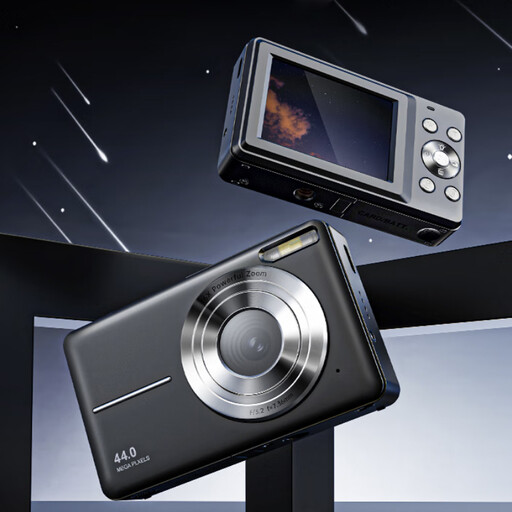
Why this suits the profile: An accessible option for users who want a straightforward webcam function for occasional video calls or streaming. Note: according to the product information, the maximum video resolution is 1920 × 1080P, not 4K.
The listed video mode makes it clear this isn’t a true 4K webcam. That lets you align your choice with Full HD use rather than just the product title.
Autofocus, webcam function, 16x digital zoom and support for removable storage, according to the product description.
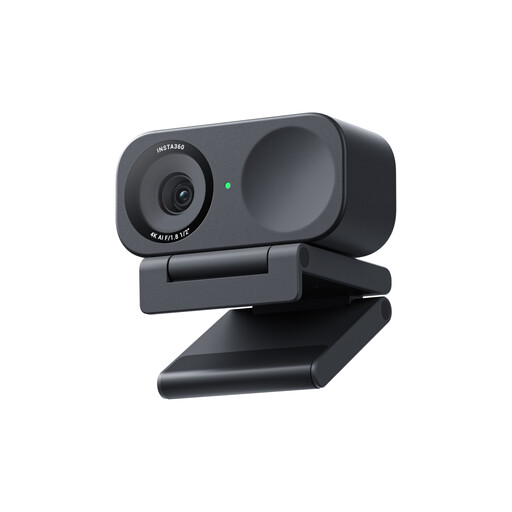
Why this suits the profile: Ideal for business professionals, content creators and users who want to combine 4K video, automatic framing and privacy features in a single webcam for PC or Mac.
The product information lists a 1/2‑inch sensor, HDR, PDAF autofocus and a physical privacy switch. Do check software and platform compatibility in advance.
4K video, HDR, auto-framing, DeskView, Whiteboard Mode and a microphone with AI noise reduction as stated by Insta360.
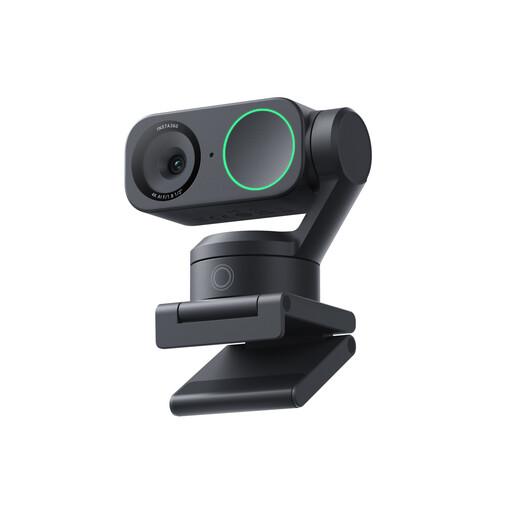
Why this suits the profile: A fitting choice for streamers, gamers, presenters and content creators who want to use tracking, gesture control and different image modes.
The stated 4K resolution is complemented by a 1/2‑inch sensor, PDAF autofocus and AI tracking. Before buying, check that your computer and chosen streaming software support the features.
4K video, HDR, AI tracking, auto-framing, PDAF autofocus and support for, among others, Zoom, according to the product information.
Place the webcam roughly at eye level and point the lens straight ahead. A monitor clip works for most desks; check the camera is stable before you start a call. Ideally, use even lighting in front of your face rather than a bright window behind you.
Then open the settings of Zoom, Teams or your streaming software and select the webcam and microphone separately. Check:
A webcam for Mac can be recognised straight away over USB, but extra settings may still require the Link Controller software. Also check that your computer has sufficient USB bandwidth and a current version of the operating system.
We’ve put together a complete, up-to-date list of products that fully meet these strict selection criteria and comply with current European safety regulations.
Not always. For standard video calls, Full HD is often enough. 4K can be useful when you want to crop a larger image, showcase products or record video locally. The actual broadcast quality depends on the platform, subscription, computer and internet connection.
Lifespan depends on use, storage, cable quality and software support. Keep the webcam dry, clean the lens with a soft dry cloth and avoid drops or pressure on the casing. Periodically check whether firmware and software are still available.
Most USB webcams don’t need a separate subscription for basic use. Extra software features can take up system space. Also check whether cloud storage or additional services are needed; for the webcams mentioned, the basic connection over USB is the starting point.
