
Editor dealing with lots of revisions
Wants to keep the preview, timeline and editing panels organised as a project changes, while weighing up screen size against the desk space available.


Start with what you most often run short of during revisions: space for your timeline and preview, a suitable colour workflow or a straightforward laptop connection. Also check whether you deliver in SDR or HDR; 4K resolution, a wide colour gamut or an HDR label alone doesn’t prove that a screen is suitable for colour assessment.
Wants to keep the preview, timeline and editing panels organised as a project changes, while weighing up screen size against the desk space available.
Wants a suitable SDR colour setting and a verifiable calibration process for successive versions. So, first decide which output colour space you’re working towards.
Wants to connect the display and peripherals, and possibly supply power, through a suitable connection. Check your laptop port, cable and the power delivery required.
First, choose the priority that suits your editing work. Then check the output colour space and your computer’s connections.
| What to consider | What to look for | Who is this most relevant to? |
|---|---|---|
| Workspace for revisions | Compare 27 and 31.5-inch screens at 3840 × 2160 pixels; also check the stand’s footprint and adjustability. | If I want to see the timeline, preview and panels together, the screen layout is my first concern. Around 36% of consumers give workspace their highest priority. |
| Colour control between versions | Decide on SDR or HDR output, then look at suitable colour modes and the calibration process. | If I’m comparing colour corrections across successive versions, I want to know which colour space and settings I’m assessing. Around 29% of consumers put colour control first. |
| Connecting and powering a laptop | Check video output through your laptop’s port and cable, and make sure the power delivery is suitable for your laptop. | If I use a laptop for my editing setup, I want to know whether one suitable connection can provide both a display signal and enough power. Around 21% of consumers give laptop connectivity their highest priority. |
| Intended HDR finish | Decide on the delivery format and compare the required brightness, black levels and colour performance. | If my film is delivered in HDR, I want to assess the screen against the requirements of that finish, not just an HDR label. Around 14% of consumers choose HDR finishing as their first priority. |
Resolution and the stated colour gamut don’t, by themselves, tell you how the screen displays your chosen output colour space.
Check whether you’re delivering in SDR or HDR, which colour mode is suitable and how you’ll calibrate or check the screen.
Remember to allow time to set up and check your colour workflow, too.
VESA distinguishes between performance levels with different requirements, including those for brightness and black levels. An HDR label alone doesn’t show whether the screen meets the requirements for your final assessment.
Distinguish between an HDR preview and the performance you need for the final HDR finish.
A USB-C port on the monitor doesn’t confirm that your laptop outputs video through the port you’re using or receives enough power.
Compare your laptop port and cable, and the wattage required, with the specifications for the exact monitor variant.
Depending on your setup, you may need a suitable cable or a separate power adapter.
In the Netherlands, statutory protection applies alongside a manufacturer’s warranty or a separately purchased warranty. The statutory warranty doesn’t have a fixed two-year term.
Check what additional protection an extra agreement actually provides. If a product is faulty, the retailer is your point of contact.
The PD3225U is a 31.5-inch 4K option for editors who want to use editing panels side by side.
The 27-inch ProArt PA279CRV combines 4K with colour modes and USB-C, making it suitable for a compact editing setup.
The ColorEdge CS2740 is aimed at editors who want to include hardware calibration in their colour workflow.
The 27-inch UltraSharp U2723QE is a 4K option for anyone looking for several connections and a USB-C hub.
The UltraFine 27UP850K-W is a 27-inch 4K option with USB-C and an adjustable stand.
These are 31.5 or 32-inch 4K screens for an editing setup where space for the timeline and preview matters. Check colour workflow and connections separately against your equipment.
 Image unavailable
The 32-inch size gives you room to arrange your timeline, preview and editing panels.
3840 × 2160 pixels, 60 Hz, VA panel, 300 cd/m², 2 HDMI connections and DisplayPort.
 Image unavailable
The 32-inch model is an option if you’re looking for a larger physical workspace for revisions.
4K UHD resolution, 120 Hz and QD-OLED, according to the product title.
 Image unavailable
The 32-inch screen gives you physical space to arrange the preview and editing panels.
VA panel, 3840 × 2160 pixels, 3000R curvature, HDR10 and stated 100% sRGB colour space. Colour space alone doesn’t establish a calibration result.
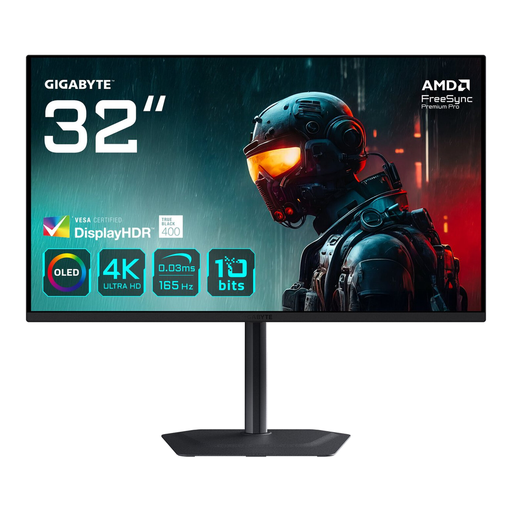 Image unavailable
The 31.5-inch size could suit an editing layout with several panels side by side.
3840 × 2160 pixels and OLED technology.
 Image unavailable
The 32-inch screen gives you room to arrange the timeline and preview during revisions.
3840 × 2160 pixels and Thunderbolt 3 with up to 85 W power delivery. Check that this is enough for your laptop.
No. First decide whether you’re delivering in SDR or HDR. Adobe describes separate settings for Rec.709 SDR and HDR in Premiere. Match your screen choice to the actual output, and don’t rely on an HDR label as your only check.
Only if the laptop port supports video over the connection you’re using and provides enough power. The ASUS and LG models reviewed list up to 96 W; check the cable, too. LG specifies using the supplied USB-C cable for best performance.
Record your output colour space and screen settings, and use a suitable calibration process if needed. EIZO describes hardware calibration for the CS2740, but that capability doesn’t mean the screen stays calibrated without actually being calibrated.
No. According to the Dutch government, the Netherlands has no fixed statutory warranty period; what you can reasonably expect from the product is what matters. If a product is faulty, the retailer is your point of contact. A separate manufacturer’s warranty or an extended warranty is independent of this.
For an applicable distance purchase by a consumer, you generally have a 14-day cooling-off period after delivery, according to ACM ConsuWijzer. Check whether those rules apply to your specific purchase; consumer rules don’t automatically apply to business purchases.
The European Commission states that computer monitors have an energy label on a scale from A to G. Compare the label for the model variant on offer; the energy rating says nothing about colour accuracy.