
Editors who assess colour
If you assess colour as you edit, check the colour space and settings for your intended output. Adobe explains colour management in Premiere; BenQ and EIZO list colour modes or calibration features for specific models.


Choose a 27-inch 4K monitor if detail and colour assessment are your priorities. A 34-inch ultrawide offers a different balance if you want to view your timeline and panels side by side. The BenQ and Dell models mentioned here illustrate the difference, but resolution or a colour mode alone won’t tell you whether a screen suits your output colour space, shared workspace and connections.
If you assess colour as you edit, check the colour space and settings for your intended output. Adobe explains colour management in Premiere; BenQ and EIZO list colour modes or calibration features for specific models.
If you want to keep clips, tools and the preview visible at the same time, compare the screen width with its vertical resolution and the space available on your desk. Dell lists the U3425WE as offering 3440 × 1440 pixels on a 34.1-inch screen. That gives you a different layout from 27-inch 4K.
If several people share the same monitor or computer station, adjustability, reflections and connectivity are practical things to consider. Arboportaal discusses screen-based work for employees who spend more than two hours a day working at a screen; BenQ highlights USB-C port compatibility as a factor when transferring video.
| What to consider | What to look for | Who should prioritise this? |
|---|---|---|
| Viewing your timeline and preview | Compare the aspect ratio, resolution and screen width with your window layout and available desk space. | If you want to see clips, panels and the preview at the same time, horizontal space is important. Around 31% of consumers make timeline visibility their top purchasing priority. |
| Colour suited to your video output | Check your intended SDR or HDR output, relevant colour modes and whether calibration suits your workflow. | If you assess the colour of your video, you’ll want to match your monitor settings to the project’s output colour space. Around 31% of consumers prioritise colour assessment. |
| Adjustability and reflections | Check the height adjustment, screen coating and position in relation to windows and lighting. | An adjustable workstation is important when users or lighting conditions vary. Around 23% of consumers make workstation comfort their top purchasing priority. |
| Connecting and switching between computers | For each computer, check video output through the port, power requirements and the right cable. | If you want to connect different computers to the same monitor, check that the required features are compatible with every device. Around 15% of consumers prioritise easy connections when switching computers. |
A monitor’s product listing doesn’t determine which output colour space or settings are right for your editing project.
First, confirm the project’s delivery settings, then compare the relevant monitor features with that output.
The port, computer and cable all need to support the features you need; a USB-C connection alone doesn’t guarantee this.
Before relying on a single cable, check the computer’s video output, power requirements and cable specifications.
You may need a suitable cable or an additional connection solution to get the setup you want.
Extra horizontal space doesn’t automatically provide the same amount of vertical detail, and the monitor needs to fit on your desk.
Compare screen sizes and resolutions, and check the positioning, adjustability and potential for reflections in your workspace.
The PD2706U is a 27-inch 4K model for anyone who wants to use a specific colour mode while editing video.
The UltraSharp models mentioned offer different screen layouts: the U2725QE is 27-inch 4K, while the U3425WE is a 34.1-inch ultrawide.
EIZO positions the ColorEdge CS2740 for uses including video editing, post-production and colour grading.
The 27UP850K-W is a 27-inch 4K model with USB-C and an adjustable stand.
The 27E1N1900AE/00 is a 27-inch 4K IPS monitor with USB-C and a height-adjustable stand.
These models include 4K monitors for assessing detail and colour, as well as ultrawide monitors for anyone who prioritises timeline space. Compare the connections, adjustability and screen layout with the computers and workspace you use.
 No image available
The listed 4K resolution and built-in colourimeter suit anyone assessing detail and colour; Auto-KVM is included for use with multiple computers.
3840 × 2160 pixels; 120 Hz; QD-OLED; built-in colourimeter; Auto-KVM.
 No image available
The listed colour coverage, factory calibration and adjustable stand are useful if you assess visuals and share the monitor.
3840 × 2160 pixels; 97% DCI-P3; 94% Adobe RGB; factory calibration; USB-C with up to 98 W power delivery; KVM; height-adjustable stand.
 No image available
The 4K resolution and listed multi-source features are useful when assessing detail or sharing a workstation with other computer users.
3840 × 2160 pixels; IPS; 120 Hz; 100% sRGB; 99% Adobe RGB; USB-C with 90 W Power Delivery; PIP/PBP; 150 mm height adjustment.
 No image available
This ultrawide model is an option if you want to arrange your timeline and multiple windows side by side; check that the wide screen fits your shared workspace.
3440 × 1440 pixels; 21:9; 99% sRGB; 100 Hz; Picture-by-Picture. Its vertical resolution is lower than that of the 4K options mentioned.
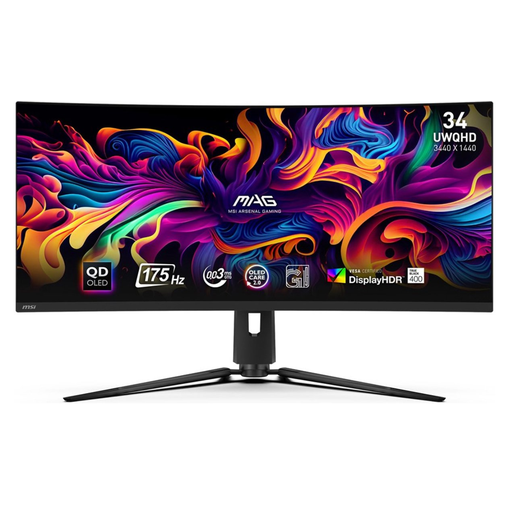 No image available
The wide layout is designed for anyone who wants to position their timeline and panels side by side; the adjustable stand can help you tailor a shared setup.
QD-OLED; 21:9; 3440 × 1440 pixels; 175 Hz; height adjustment. The screen is curved, so make sure it fits your shared desk.
No. First, decide whether your project will be delivered in SDR or HDR, then check the relevant colour settings. Adobe explains how colour management in Premiere relates to the sequence’s output colour space and display; an HDR label doesn’t confirm that your project settings are correct.
No, it depends on the computer, monitor and cable. Check that the computer supports video through the USB-C port you’re using, that the monitor provides enough power and that the cable is suitable. BenQ recommends checking for DisplayPort Alt Mode or a compatible Thunderbolt connection for USB-C video.
Check its position in relation to windows and lighting, and adjust the screen position or blinds if needed. For employee workspaces, Arboportaal recommends a non-reflective screen and sufficient lighting as considerations for screen-based work.
No. According to the Dutch government, there is no fixed statutory warranty period in the Netherlands; however, a product bought by a consumer must meet the standard you can reasonably expect. Distinguish this right from any additional manufacturer’s warranty, and don’t assume consumer rights automatically apply to business purchases.
According to the European Commission, computer monitors generally fall under the energy labelling rules for electronic displays. Check the label information for the exact model; some types of display are exempt.