What should you look for?
Choose a colour-focused 4K main display if photographic detail and precise colour settings are your priorities. Consider a QHD screen as a second display if you’ll mainly use it for references, text and data-entry fields. Either option requires your computer to support the complete two-screen setup.
Colour-focused 4K main display
A good fit if: you regularly examine small photographic details and colour settings are part of your workflow. ASUS specifies a resolution of 3840 × 2160 pixels and colour modes for the PA279CRV; EIZO describes the CS2740 as suited to a colour-managed workflow.
Consider: colour features won’t solve connection issues with a second screen, and not every plant observation requires them.
QHD screen for references and data entry
A good fit if: your second screen will mainly show identification references, reference material and observation fields. Philips specifies a resolution of 2560 × 1440 pixels for the 27E1N1600AE/00.
Consider: at the same screen size, QHD has fewer pixels than the 27-inch 4K models mentioned here.
| Point to consider |
What should you check? |
Who is this important for? |
| Connecting two screens |
Check the exact computer model, how many external displays it supports and the complete signal path. Dell states that daisy-chaining doesn’t work via HDMI; Apple Support advises checking the display limit for your specific Mac model. |
I want to view photos and identification information at the same time on separate screens, and I want to know before buying whether my computer can handle it. This is the main concern for consumers who prioritise two-screen compatibility; that’s around 33%. |
| Plant photo colours |
Compare the colour modes and stated colour gamut for the exact model. Also decide whether you need a calibration workflow. |
If I compare colours in photos carefully, I want to know which screen settings suit my workflow. Around 27% of consumers put colour assessment at the top of their list when buying. |
| Photo detail and room to read |
Compare the resolution and screen size, and check that photos and text are comfortable to read at your usual viewing distance. |
I want to examine fine details without making identification text and data-entry fields awkward to use. This is the main priority for consumers who value detail and readability; they make up around 20%. |
| Screen position |
Check the height adjustment, swivel and tilt options, and the space available on your desk. |
When working for long periods, I want to position both screens so they’re comfortable to view. A suitable setup is the main buying concern for around 20% of consumers. |
Monitors on Joybuy
These monitors are suited to a workstation where you view plant photos alongside identification references or data-entry fields. Check each model’s features against your screen layout and computer.
 Image unavailable
Philips 27E1N1800AE/00 27-inch 4K UHD IPS monitor
Could suit you if you want to examine fine photo details on your main screen.
27 inches; 3840 × 2160 pixels; 60 Hz; IPS; HDMI and DisplayPort.
The stand is height-adjustable.
View on Joybuy
 Image unavailable
AOC GAMING Q27G4ZDR 26.5-inch QHD QD-OLED monitor
Could suit you if you’re looking for a QHD screen for photos and work windows; check that its features meet your needs.
26.5 inches; 2560 × 1440 pixels; QD-OLED; 240 Hz; HDR10.
The product title positions this model as a gaming monitor.
View on Joybuy
 Image unavailable
Dell Plus S2725QC 27-inch 4K Ultra HD LCD monitor
Could suit you if you want to view fine image details alongside references and data-entry fields.
27 inches; 3840 × 2160 pixels; 4K Ultra HD; LCD.
View on Joybuy
 Image unavailable
ASUS ProArt PA278CV 27-inch QHD monitor
Could suit you if you’re looking for QHD to view photos alongside identification references.
27 inches; 2560 × 1440 pixels; Quad HD; LED.
View on Joybuy
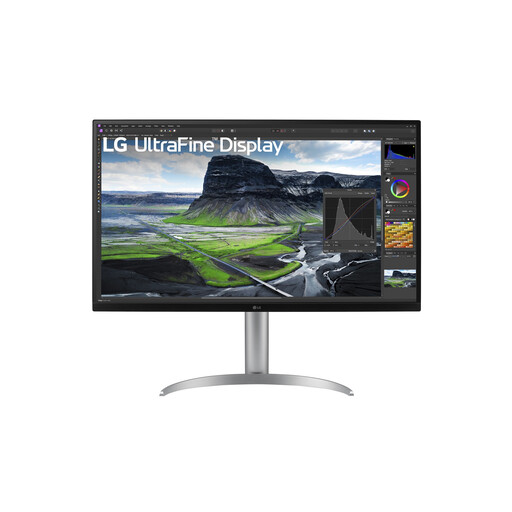 Image unavailable
LG 32UQ850V-W 31.5-inch 4K UHD monitor
Could suit you if you want a larger 4K screen for viewing images and work windows.
31.5 inches; 3840 × 2160 pixels; 4K Ultra HD; LED.
View on Joybuy
Frequently asked questions
Can I always connect a second screen via USB-C or a DisplayPort output on the monitor?
No, it depends on the computer, the ports and the connection you choose. Dell describes specific requirements for daisy-chaining and rules out HDMI for this; Apple Support notes that the number of external displays depends on the exact Mac model. Check the complete signal path before relying on a single cable or daisy-chaining.
How should I set up two screens for long periods of classification work?
Position the screen you look at most often comfortably in front of you, then adjust the height and viewing angle of both screens. In a task study involving ten participants, Nimbarte and co-authors found more head and neck rotation with the two-screen layout they studied than with a single screen; this is a point to consider when setting up your screens, not a prediction that you’ll experience discomfort.
Does a monitor’s energy label matter?
Yes. According to the European Commission, computer monitors are covered by the energy label for electronic displays, with ratings from A to G. Compare the labels of the exact models you’re considering, especially if both screens will be on for many hours.
What warranty and cancellation period apply to an online purchase in the Netherlands?
If there’s a problem with a product, the seller must provide a solution, according to the Dutch government; an additional warranty doesn’t replace this statutory right. For online consumer purchases, ACM ConsuWijzer generally states that the cancellation period ends 14 days after delivery. The cancellation period for a distance purchase and your statutory rights when a product is faulty are separate matters; check the terms and any exceptions that apply to your purchase.
Does every buyer have to choose a particular monitor model under the Working Conditions Act?
No. The requirement described by Arboportaal applies to employers and providing employees with a safe workplace; it isn’t a general model specification for every personal purchase. If you use this workstation for your job, discuss the setup with your employer.


