First, decide whether your showreel will be displayed in SDR or HDR, and check which connection your editing computer supports. Then choose a suitable colour mode, 4K workspace and, if needed, USB-C power delivery. For Rec.709 SDR, the right colour mode matters more than an HDR label alone. A wider colour gamut or larger screen should only take priority if your footage, output and workspace call for it. Manufacturer claims about colour coverage or calibration won’t automatically tell you how the picture will look in your workspace or on the display used to show your reel.
Who is this guide for?
Student assessing SDR colour
If you want to assess your showreel’s colour for an agreed SDR output, set the colour settings in your project and monitor to the same colour space. Adobe explains that sequences can have different colour management settings for different output destinations.
Editor with a busy timeline
If you want to keep the preview, timeline and tools visible side by side, compare the screen size and stand adjustability with the space available on your desk. A larger screen also needs a suitable spot.
Student editing on a laptop
If you want to send video and, possibly, power through a single USB-C cable, check that your laptop port supports video and that the charging power is right for your laptop. BenQ, ASUS and LG list different USB-C power outputs for the models discussed.
What should you consider when choosing?
First, decide on your output and check your editing computer’s connections. Then compare colour settings, screen space and what you need for your workspace.
| What to consider |
What should you check? |
Who should give this extra thought? |
| Colour for the agreed output |
Check that the exact model’s colour mode is suitable for SDR or HDR and the colour space of your editing project. |
If I need to deliver my showreel in Rec.709 SDR, I want to assess its colour accordingly; around 33% of consumers make colour assessment their top priority. |
| Timeline and preview at a glance |
Compare the screen size and adjustability with the space and setup available on your desk. |
If I want to see the preview and timeline clearly at the same time, the available screen and desk space matter; around 25% of consumers prioritise this workspace. |
| Connecting and powering a laptop |
Check video support on the laptop port, the cable, and the charging power of the laptop and monitor. |
If I edit on a laptop, I want to know whether my connection can handle video and the power I need; around 25% of consumers prioritise laptop connectivity. |
| Cost of a practical setup |
Allow for any cables and calibration equipment you may need, and check the energy label. |
If I don’t want to spend money on features my project won’t use, I compare what my setup really needs; around 17% of consumers prioritise a practical basic setup. |
Common buying mistakes
-
Assuming an HDR label means the monitor is right for colour assessment
An HDR label doesn’t determine which colour space has been agreed for the finished showreel. Adobe explains that colour management settings can vary between sequences.
First, confirm the delivery settings, then match your editing project and monitor settings to them.
-
Assuming every USB-C monitor powers a laptop through a single cable
USB-C connections and specified charging power vary by model. The laptop port, monitor port and cable all need to support the connection you need.
Before buying, compare the specifications for your laptop port, monitor port and cable with your laptop’s video and power requirements.
Brands to consider
BenQ
The PD2705U is a 27-inch 4K option with a dedicated Rec.709 mode.
- BenQ specifies 99% Rec.709 and sRGB, a factory calibration report and 65 W USB-C for this model.
- The stated typical brightness is 250 nits. Factory figures aren’t an independent measurement of the individual monitor in your workspace.
ASUS
The ProArt PA279CRV is a 27-inch 4K model with a Rec.709 mode and stated coverage of a wider colour gamut.
- ASUS specifies 99% DCI-P3 and 96 W USB-C for the PA279CRV.
- A stated wider colour gamut doesn’t replace choosing the right settings for your project’s output.
LG
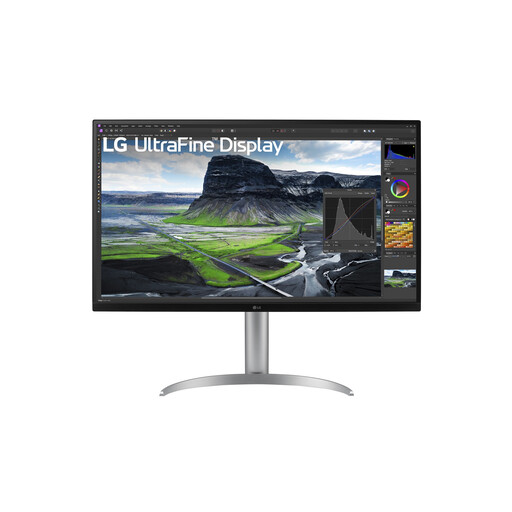
The 27UP850K-W is a 27-inch 4K option for an adjustable workspace and a compatible USB-C laptop.
- LG states typical DCI-P3 coverage of 95% and up to 96 W via USB-C.
- LG notes that Calibration Studio software isn’t included. Also check that the SDR colour setting suits your needs.
Dell
The UltraSharp U2723QE is a 27-inch 4K model with a USB-C hub and an IPS Black panel.
- Dell specifies 90 W USB-C and 100% Rec.709 for this model.
- These specifications apply to the U2723QE and don’t necessarily apply to other Dell monitors.
4K monitors at Joybuy
This selection focuses on 4K monitors for editing where a wider colour gamut is one of the factors to consider. For your workflow, also check the colour mode and connections on the exact model.
 No image available
Dell UltraSharp U3226Q 32" 4K UHD 120Hz QD-OLED monitor
Worth considering if you’re looking for a 4K screen with a wider colour gamut for editing; match the colour setting to your intended output.
32 inches, 4K UHD, 120 Hz and QD-OLED, as stated in the product name.
View at Joybuy
 No image available
MSI Modern MD272UPHG 27-inch 4K UHD monitor
This could suit you if you’re looking for a 4K monitor for editing and a wider colour gamut is one of your considerations.
27 inches, 3840 × 2160 pixels and 4K Ultra HD, as stated in the product name.
View at Joybuy
 No image available
INNOCN CB27U1 27-inch 4K UHD monitor
A possible editing option if you’re considering 4K workspace and a wider colour gamut; check the colour mode for your output.
27 inches, 3840 × 2160 and IPS, as stated in the product name.
View at Joybuy
 No image available
Dell UltraSharp U2725QE 27-inch 4K UHD monitor
Worth considering if you’re looking for a 27-inch 4K monitor for editing and also want to factor in a wider colour gamut.
27 inches, 3840 × 2160 pixels and 4K Ultra HD, as stated in the product name.
View at Joybuy
 No image available
LG 32UQ850V-W 31.5-inch 4K UHD monitor
This could suit you if a larger 4K screen and a wider colour gamut matter for editing; check that the size will fit your desk.
31.5 inches and 3840 × 2160 pixels, as stated in the product name.
View at Joybuy
Frequently asked questions
Should you choose an HDR monitor for this showreel?
Not until you know the delivery requirements. Adobe describes Rec.709 SDR output, among other options, and different colour management settings for each sequence. Match the monitor settings to your chosen workflow. An HDR label doesn’t determine the display standard.
How do you connect a 4K monitor to your editing laptop?
First, check which video output your laptop supports. For video over USB-C, the laptop port, monitor port and cable all need to be compatible. Also compare the monitor’s charging power with your laptop’s power requirements.
What should you check before assessing colour?
Confirm the output colour space for your editing project and choose the matching monitor mode. Also check which calibration software and equipment your workflow requires; a factory specification doesn’t verify your entire setup.
Does the Dutch statutory guarantee end when the manufacturer’s warranty expires?
No. ACM ConsuWijzer describes the statutory guarantee as your right to a product that meets what you could reasonably expect from it. According to the Netherlands Authority for Consumers and Markets, there is no fixed duration for the statutory guarantee in the Netherlands. If a product develops a fault during normal use, the seller must offer a solution.
What is the energy label for a monitor used for?
According to the European Commission, computer monitors are covered by the energy labels for electronic displays, with a scale from A to G. The label helps you compare energy efficiency, but it doesn’t tell you whether a monitor is suitable for colour assessment.


