
SDR video reviewer
You review footage for Rec.709 SDR output and want to match the colour settings to your project. Adobe describes Rec.709 as the standard output for a new Premiere sequence.


Start by matching your choice to your video output: for Rec.709 SDR, suitable colour settings and a well-configured workflow matter more than an HDR logo alone. Adobe describes Rec.709 as the standard output colour space for a new Premiere sequence. If you share your desk with other laptop users, also compare each laptop’s USB-C video connection, power delivery, any hub or KVM features, and adjustability; HDR requires a separate check of the entire workflow.
You review footage for Rec.709 SDR output and want to match the colour settings to your project. Adobe describes Rec.709 as the standard output for a new Premiere sequence.
You share a desk and peripherals, and want to switch between computers without a tangle of cables every time. Check which USB-C features and power capacity your laptops need.
You want to organise a video timeline clearly and reposition the screen when someone else uses the desk. An adjustable stand may be useful.
First decide whether you’ll be reviewing SDR or HDR, then consider which connections, screen layout and adjustments suit the people using the desk.
| What to consider | What should you check? | Who is this important for? |
|---|---|---|
| Colour for SDR | Check your project’s output colour space and the Rec.709 settings in your software and monitor. Treat factory calibration as a model specification, not a guarantee for your entire workflow. | If I’m reviewing Rec.709 SDR, I want the settings to match my intended output. Consumers who prioritise colour matching would represent around 33% of consumers in this guide. |
| Connecting and switching | For each laptop, check whether USB-C supports video, data and power, how much power it needs, and whether you want KVM or a hub. | When several people share laptops and peripherals, I want to switch quickly without reconnecting everything each time. Consumers who prioritise connecting and switching would represent around 25% of consumers. |
| Timeline and adjustability | Consider screen size, desk space, scaling settings, height adjustment and reflections in your workspace. | When I’m working between panels and preview footage, I want to arrange the timeline so it’s easy to read and reposition the screen. Consumers who prioritise this layout and adjustability would represent around 25% of consumers. |
| HDR review | Establish whether the final output is HDR, then check the video application settings and the display performance required for that workflow. | When my project is intended for HDR output, I want to configure the entire workflow accordingly; an HDR label alone isn’t enough. Consumers whose main concern is HDR review would represent around 17% of consumers. |
The video output setting and the display’s capabilities are separate considerations. An HDR label alone doesn’t show that a screen is suitable for every type of HDR review.
First establish whether your project uses SDR or HDR. For HDR, check the required settings and display performance against your actual workflow.
Video, data and power must be supported by both the right monitor port and the laptop. The stated power delivery also varies by model.
Compare the monitor port’s features with the connections and power requirements of each laptop. Depending on the combination, you may need a separate adapter, dock or cable.
A paid extended warranty or limited manufacturer’s warranty is separate from your statutory rights. The Dutch consumer advice service ACM ConsuWijzer explains that there is no fixed period for the statutory guarantee in the Netherlands: it depends on how long you can reasonably expect the product to last with normal use.
Check what additional cover actually provides and compare it with your statutory rights.
The PD2705U is worth considering if Rec.709 SDR and sharing peripherals at a single desk are important to you.
The ProArt PA279CV is a 27-inch 4K model to compare if Rec.709 and an adjustable workspace are priorities.
The UltraSharp U2723QE is a hub monitor to consider if connectivity and laptop charging at your desk matter.
The 27UP850K-W is a 27-inch 4K IPS model with USB-C and an adjustable stand.
The 27E1N1800AE/00 is a 27-inch 4K IPS model with a height-adjustable stand.
These models are for anyone looking for a 4K screen to review a video timeline at a desk. Check colour settings, the HDR workflow and laptop connections separately against your own equipment and output format.
 No image available
The 27-inch 4K format is worth considering if you want to review a video timeline on a desk monitor; check the colour workflow and connections separately.
27"; 4K; IPS.
 No image available
This 27-inch 4K model is suited to anyone who wants to review a video timeline on a desk monitor; check colour requirements and laptop connections separately.
27"; 4K UHD; 120 Hz; QD-OLED.
 No image available
The 32-inch size may suit anyone looking for a larger desk screen for their timeline; consider your available space and preferred screen layout.
32 inches; curved, 3000R; VA panel; 3840 × 2160; HDR10; Adaptive Sync; 100% sRGB.
 No image available
This 32-inch 4K model is worth considering as a desk screen for your video timeline; check separately that its connections suit your shared workspace.
32"; 4K Ultra HD; 165 Hz; OLED.
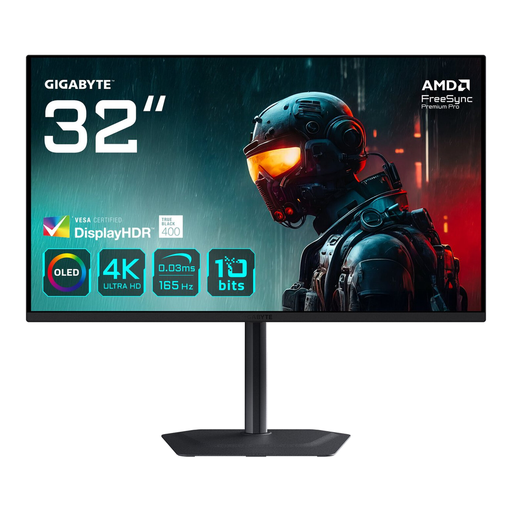 No image available
The 31.5-inch 4K format is worth considering if you’re looking for a larger screen for a video timeline; check the required connections and colour workflow separately.
31.5 inches; 4K Ultra HD; 3840 × 2160; OLED.
No. 4K alone doesn’t determine whether the colour reproduction matches your output. Check your intended colour space and the settings in your software and monitor. Adobe describes Broadcast 709 (SDR) and Rec.709 as the default output colour space for a new Premiere sequence.
No, that depends on the monitor port and the laptop. Check that both support video, data and the power delivery you need. BenQ lists USB-C with 65 W Power Delivery and KVM for the PD2705U; Dell lists up to 90 W for the USB-C video input on the U2723QE.
Check that different users can position the screen comfortably and look out for reflections. Arboportaal sets out regulations for display screen work in employees’ workplaces; these do not automatically apply in the same way to every home workspace.
No. The Dutch consumer advice service ACM ConsuWijzer explains that there is no fixed period for the statutory guarantee in the Netherlands: what matters is how long you can reasonably expect the product to last with normal use. An additional manufacturer’s warranty does not limit that statutory right.
Online consumer purchases are generally covered by a statutory cooling-off period. According to ACM ConsuWijzer, the 14-day period ends 14 days after the product is delivered; also check which exceptions apply to your order.