
Editor with a packed timeline
This user wants to see the timeline, preview and tools all at once. If you’re considering a larger screen, make sure you have enough desk space.


Start by choosing a screen size that lets you view your timeline, editing panels and preview comfortably side by side. Then decide which colour settings suit your SDR or HDR delivery. If you regularly switch between computers or peripherals, check the connections, power delivery and any KVM functionality too. HDR support alone isn’t enough to tell you whether a monitor is suitable for critical HDR grading.
This user wants to see the timeline, preview and tools all at once. If you’re considering a larger screen, make sure you have enough desk space.
This user switches between delivery formats and benefits from settings suited to the version being assessed. Adobe explains that colour settings can vary between Premiere sequences.
This user regularly switches between projects, computers or peripherals, so they want to know in advance which ports, power delivery and controls will work with their computer.
| What to consider | What to look for | Who is this important for? |
|---|---|---|
| Space for your timeline and preview | Compare the screen size, resolution, stand dimensions and layout you want for your panels. | If I want to see my timeline and preview at the same time, I need enough workspace without losing sight of how much desk space I have. Around 33% of consumers give workspace the highest priority. |
| Colour suited to your delivery | Decide on your delivery format and check the colour presets and any calibration options. | When I’m assessing colour versions, I want settings that match the delivery format and my editing project. Around 27% of consumers put colour consistency first. |
| Connecting and switching | Check video support through the port, the power your laptop needs and whether you need KVM. | If I regularly switch between computers or peripherals, I want to know which connections and controls my workstation can support. Around 20% of consumers give switching between setups the highest priority. |
| Features and equipment you need | Compare the features you’ll actually use and check what calibration equipment or software you need. | When my main aim is to finish editing, I don’t want to pay for features I won’t use, and I want to know what else my chosen workflow requires. Around 13% of consumers put this consideration first. |
| HDR assessment | Confirm the HDR format and check the relevant display performance and settings across your entire workflow. | If HDR is a requirement for my delivery, I want to assess more than just an HDR label on the box. Around 7% of consumers give HDR assessment the highest priority. |
An HDR label alone doesn’t tell you whether a screen meets your delivery requirements. VESA distinguishes between different performance levels for HDR displays, while Adobe describes separate SDR and HDR output settings.
First decide on your delivery format, then check the relevant display performance and settings throughout your editing and viewing chain.
Video transmission and power delivery vary between monitor models. Check that your computer supports video through the relevant port and that its power output meets your laptop’s requirements.
If the screen can’t supply enough power to your laptop, you may still need a separate laptop charger.
According to the Dutch government, the Netherlands has no fixed statutory warranty period. The retailer is your point of contact if a product is faulty; a manufacturer’s warranty is separate.
Keep your purchase and product information, and distinguish between additional warranty terms and your statutory rights.
The Creative Pro PD3225U is a 31.5-inch 4K option for anyone looking to combine workspace with the ability to switch between sources.
The ProArt PA279CRV is a 27-inch 4K option for a more compact workspace, with colour presets and USB-C.
The UltraSharp U2725QE is a 27-inch 4K Thunderbolt hub for a laptop-focused editing setup.
The ColorEdge CS2740 is a 27-inch 4K option for anyone who needs repeatable colour checks.
The UltraFine 27UP850K-W is a 27-inch 4K IPS option featuring a preview display, adjustability and USB-C.
This selection focuses on 4K monitors for an editing workstation, with an emphasis on a generous viewing area and models suited to different setups.
 No image available
A good fit if you’re looking for a large 4K workspace for your timeline and preview.
3840 × 2160 at 60 Hz; 300 cd/m² brightness; two HDMI ports and DisplayPort; tilt-adjustable stand and speakers.
 No image available
A 32-inch 4K model for anyone looking for space on one screen for both the preview and editing panels.
The product name specifies 120 Hz.
 No image available
A good fit if you’re looking for a large, curved 4K screen for an editing workstation.
The product name specifies 3000R curvature, HDR10, Adaptive Sync and 100% sRGB.
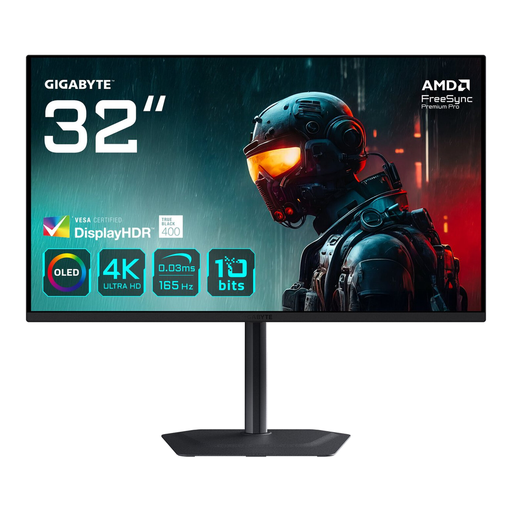 No image available
A 31.5-inch 4K screen for anyone looking for a generous editing workspace.
The product name specifies a resolution of 3840 × 2160 pixels.
 No image available
A good fit if you want a generous 4K workspace and the ability to switch between computers or input sources.
According to BenQ, this model has KVM and Thunderbolt 3 with up to 85 W power delivery. Check that the connection and power output suit your computer.
Not without checking your laptop’s connection and power requirements. Compare the supported video connection and required charging power with the specifications of the exact screen. ASUS lists DisplayPort Alt Mode and 96 W for the PA279CRV; BenQ lists Thunderbolt 3 and 85 W for the PD3225U.
Not necessarily. First decide whether you’re delivering SDR, HDR or both. Adobe explains that you can change colour settings for each sequence in Premiere, for example by setting Rec.709 as the output colour space for an SDR version. Also check your display settings.
Yes. Adobe explains how Premiere can send video to a connected second monitor using the Mercury Transmit playback preference. Check that your computer supports the second-screen connection you want to use.
No. According to the Dutch government, the Netherlands has no fixed statutory warranty period. You’re entitled to a product that works properly, and the retailer is your point of contact if there’s a valid fault. A manufacturer’s warranty is separate.
You can’t tell from an HDR label alone. First confirm the format you’re delivering, then check the relevant display performance and settings throughout your editing and viewing chain. VESA distinguishes between different performance levels for HDR displays.