A larger 4K screen can be useful if you want to view your source footage and a long timeline at the same time. Prioritise colour modes and calibration if you need to match footage from different sources carefully. Also check that the video connection and any laptop charging requirements are compatible with your computer. A monitor won’t speed up large files: Adobe identifies proxies and fast storage as relevant workflow choices for video editing.
Who is this for?
Editor with a large archive of footage
You want to view source footage and a long editing timeline side by side. Large files also require you to consider storage and, potentially, proxies; a larger screen won’t make the editing process itself faster. Adobe describes proxies as a way to make editing smoother and recommends fast storage for video production.
Creator who colour-grades footage
You’re combining footage from different periods or cameras and want to assess the colour using your chosen project settings. Adobe describes Direct Rec.709 as the default setting for SDR colour management in Premiere, so tailor your workflow to your intended output format.
Laptop editor working with external files
You want to connect your monitor, power supply and peripherals without hassle. Check whether your computer and monitor support video over USB-C, and whether the power delivery is sufficient. For example, ASUS and EIZO list different maximum power delivery for the models mentioned here.
What should you look for when choosing?
First, decide how much space you need for footage and your timeline, and what colour target your project has. Then check the connection. Adobe lists fast storage and proxies as workflow tools for large source files, not a different monitor.
| What to consider |
What should you look for? |
Who is this for? |
| Keeping an eye on a long edit |
Compare the physical screen size and 4K resolution with the space on your desk and how you want to arrange your source footage and timeline. LG and BenQ list 27- and 32-inch 4K models. |
If I want to keep source footage, the programme image and a long timeline side by side, physical workspace matters a lot. Around 29% of consumers make editing space their top priority. |
| Colour-checking footage from different sources |
Check the colour modes and calibration options available on the exact model, and match them to your project’s colour settings. ASUS lists a Rec.709 preset for the PA279CRV, while EIZO lists hardware calibration for the CS2740. |
When I want to match footage from different periods or cameras, I consider both the project settings and the monitor. Around 29% of consumers prioritise colour checking. |
| Connecting your computer and peripherals |
Check that your computer can output video through the port you’ve chosen, what features the monitor port offers, and whether the power supply and cable are suitable. |
If I want to connect my laptop and editing equipment easily, I want to know in advance what my computer and monitor support through the same connection. Around 24% of consumers prioritise workstation connectivity. |
| Choosing features to suit your needs |
Decide which screen size, colour features and inputs you need; also check the energy label for the screen you choose. The European Commission states that energy labelling rules also cover standard computer monitors. |
I don’t want to choose features I won’t use for this project; first, I work out what my project actually needs. Around 18% of consumers prioritise avoiding unnecessary features. |
Avoid common buying mistakes
-
Choosing a more expensive screen to fix stuttering files
A monitor doesn’t change how quickly large source files are processed. Adobe identifies fast storage and a proxy workflow as useful tools for video editing.
First, check your storage and whether a proxy workflow is suitable for your editing software. Then choose a screen based on its display and the workspace it offers.
-
Assuming an HDR logo or wide colour gamut means a complete colour workflow
Your output colour target and project settings help determine the colour display you need. A monitor’s stated coverage or calibration features don’t, by themselves, tell you how your entire editing and export workflow is configured.
Decide whether you’re working in SDR or HDR, then check the colour mode and calibration options on the exact model. Depending on your approach, you may need additional calibration equipment for a controlled workflow.
-
Assuming every USB-C port supports video, data and sufficient power
The features available and the amount of power delivered vary from one monitor to another. If the connection isn’t compatible with your computer, you may need a separate power supply or a suitable cable.
Compare your laptop port, monitor port, cable and power requirements before choosing a model.
You may need a separate power supply or suitable cable as well as the monitor.
Brands to compare
LG
Compare the 27-inch 4K models 27US550-W and 27UP850K-W if you want to weigh up colour and connectivity features.
- LG lists typical DCI-P3 coverage of 90% for the 27US550-W and 95% for the 27UP850K-W. These are specifications for separate models.
- LG lists USB-C with up to 96 W power delivery for the 27UP850K-W.
- Check the connections and settings on the exact version; these details don’t automatically apply to other LG models.
ASUS
The ProArt PA279CRV is a 27-inch 4K model worth considering if colour presets and USB-C matter to you.
- ASUS lists a Rec.709 preset, 99% DCI-P3 and USB-C with 96 W Power Delivery for the PA279CRV.
- Check that your laptop outputs the required video signal over USB-C. The stated colour values are ASUS specifications.
BenQ
The Creative Pro PD3225U is a 32-inch 4K model with Thunderbolt 3 and colour features, according to BenQ.
- BenQ lists 99% Rec.709, 98% P3 and factory calibration for the PD3225U.
- Check that the screen fits on your desk and that the connection is compatible with your computer; these details don’t automatically apply to other BenQ models.
EIZO
The ColorEdge CS2740 is a 27-inch 4K model to compare if hardware calibration is part of your workflow.
- EIZO lists ColorNavigator hardware calibration and 100% Rec.709 for the CS2740.
- EIZO lists maximum USB-C power delivery of 60 W. Compare this with your laptop’s power requirements.
Joybuy monitors for editing
The models below are 27- and 32-inch 4K monitors for editing. Choose a screen size based on the workspace you need.
 No image available
Dell UltraSharp U3226Q 32-inch 4K UHD 120Hz QD-OLED monitor
The 32-inch screen is an option if you want more physical space for your footage and timeline; a larger screen won’t speed up file processing.
32 inches; 4K UHD; 120 Hz; QD-OLED.
View at Joybuy
 No image available
MSI Modern MD272UPHG 27-inch 4K Ultra HD monitor
The 27-inch size is an option if you’re looking for a smaller 4K workspace for your editing set-up.
27 inches; 3840 × 2160 pixels; 4K Ultra HD.
View at Joybuy
 No image available
BenQ PD3225U 32-inch 4K Ultra HD monitor
The 32-inch screen may suit you if you want more space for source windows and your timeline.
32 inches; 3840 × 2160 pixels; 4K Ultra HD.
View at Joybuy
 No image available
Dell UltraSharp U2725QE 27-inch 4K Ultra HD LCD monitor
This 27-inch model is an option if you’re looking for a smaller screen for a 4K editing set-up.
27 inches; 3840 × 2160 pixels; 4K Ultra HD LCD.
View at Joybuy
 No image available
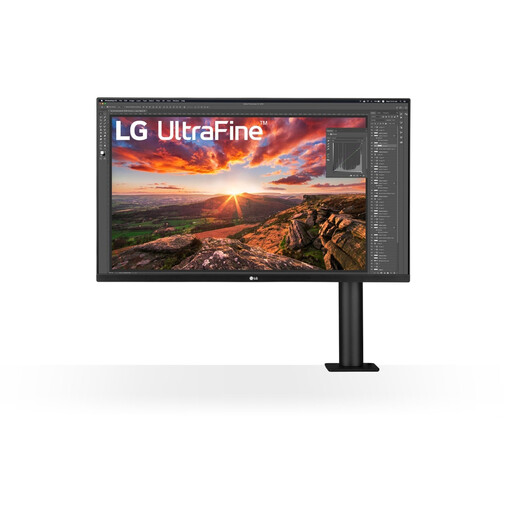
LG 32UN880K 32-inch 4K Ultra HD monitor
The 32-inch screen is an option if you want more physical space for your source footage and timeline.
32 inches; 3840 × 2160 pixels; 4K Ultra HD.
View at Joybuy
Frequently asked questions
Does a 4K monitor make large source files quicker to edit?
No, a monitor doesn’t determine how quickly your files are processed. Adobe describes proxies as lighter editing copies and recommends fast storage for video production; keep access to the original media for the final export.
Do I always need to work in a wide HDR colour gamut for a community film?
No, first decide on your intended output format and set up your project’s colour management accordingly. Adobe describes Direct Rec.709 as the default setting for SDR, alongside separate wide-gamut workflows. An HDR label on a monitor doesn’t determine which setting your project needs.
Can I connect my laptop to the monitor with a single USB-C cable?
Only if both your laptop and the monitor port you’ve chosen support the required video connection, and the monitor provides enough power. ASUS lists 96 W Power Delivery for the PA279CRV, while EIZO lists a maximum of 60 W for the CS2740; also check that your cable is suitable.
What are my rights when buying online in the Netherlands?
For a standard online consumer purchase, you generally have up to 14 days after delivery to change your mind, subject to legal exceptions. ACM ConsuWijzer also makes clear that your statutory guarantee is separate from any manufacturer’s guarantee: if a product doesn’t perform as you could reasonably expect during normal use, the seller is your point of contact.
Is an energy label relevant for a computer monitor?
Yes, the European Commission states that energy labelling rules also cover standard computer monitors. The label includes an efficiency class from A to G and information to help you compare similar screens; exceptions apply to certain specialist display types.


