
Timeline editor
You want to see your walking footage, preview and editing timeline on one screen, so the amount of physical screen space available is an important consideration.


If you want to keep your preview, timeline and panels on screen while editing, prioritise a larger 4K display. A more compact model may be a better fit if space is limited or you mainly review a Rec.709 SDR version. Also decide which colour space you use for each export version, and check that the monitor connection is compatible with your computer. A monitor won’t save project versions: if you use Adobe Premiere, set up version management separately in the software.
You want to see your walking footage, preview and editing timeline on one screen, so the amount of physical screen space available is an important consideration.
You compare lighting between scenes or create different SDR and colour versions. In that case, the output colour space and a suitable monitor mode matter more than an HDR label alone.
You connect your laptop at a dedicated editing station and want to check that the video connection, ports and power delivery are compatible with your computer.
Start with the export versions you create and the space you need for your preview and timeline. Then check that the monitor mode and connection you choose work with your software and computer.
| What to consider | What should you check? | Who is this important for? |
|---|---|---|
| Space for preview and timeline | Compare 27 and 31.5-inch screens at the same resolution of 3840 × 2160 pixels. Also measure the space available for the screen, stand or arm. | If you want to see your footage, preview and timeline at the same time, workspace comes first; around 36% of consumers put having everything in view top of their list. |
| Colour for your export | Set the output colour space in your editing software and compare the corresponding monitor modes. Check whether your workflow requires hardware calibration. | If you want to assess the colour of scenes and different export versions, focus on suitable settings; around 29% of consumers put colour consistency first. |
| Connecting and powering your laptop | Check whether your computer supports video over the port you plan to use and whether the specified power delivery is suitable for your laptop. | If you work from a laptop at a dedicated desk, consider the display connection, ports and power supply; around 21% of consumers prioritise connectivity. |
| Running costs, versions and aftercare | Compare the EU energy label for the exact model. Manage project versions in your software and check who the seller is. | If you’re considering energy information, project retention and service, you’ll want to check each point separately; around 14% of consumers put these considerations first. |
More screen space makes it easier to oversee your edit, but it won’t create project copies or save earlier versions.
Choose a screen to suit your workspace, and manage versions separately in your editing software.
You’ll also need to save and manage project and source files separately.
An HDR specification doesn’t determine which colour space your edit or export uses.
First decide on your export settings, then compare the relevant monitor mode. Only consider calibration options if they suit the way you work.
Specified power delivery varies between models, and your laptop must be able to output video over the connection you choose.
Check your computer’s video capabilities, the cable and the power delivery you need.
Depending on your laptop, you may still need a separate power supply.
The PD2705U is a 27-inch 4K option for an SDR editing workflow focused on Rec.709.
The ProArt PA279CRV is a 27-inch 4K model for comparing different colour modes and laptop connections.
The UltraFine Ergo 32UN880P-B is designed for a larger 4K workspace and flexible positioning.
The ColorEdge CS2740 is a 27-inch 4K model for those who use hardware calibration in their colour workflow.
The UltraSharp U2725QE is a 27-inch 4K model for comparing hub features at a dedicated workstation.
This selection features 4K monitors around 32 inches for anyone looking for a larger workspace. The models vary in panel type, connections and listed colour features, so check which ones suit your editing workflow.
 No image available
The listed 32-inch size and 3840 × 2160 pixel resolution make it a suitable choice for a 4K editing setup.
The product information lists a VA panel, 60 Hz, 300 cd/m², two HDMI connections and DisplayPort.
 No image available
This model is an option to compare if you’re looking for a larger 4K screen with listed colour features for your editing setup.
The product information lists 31.5 inches, 3840 × 2160 pixels, 120 Hz and QD-OLED. It also lists sRGB, DCI-P3 and Adobe RGB coverage, automatic calibration and Thunderbolt 4.
 No image available
The 32-inch size and listed resolution of 3840 × 2160 pixels are suited to a larger 4K workspace.
The product information lists a VA panel, 3000R curvature, HDR10, Adaptive Sync, 100% sRGB, HDMI and DisplayPort.
 No image available
The 32-inch size and 3840 × 2160 pixel resolution make this model worth considering if you’re looking for a larger workspace.
The product information lists Thunderbolt 3, 85 W power delivery, a KVM switch, and Calman and Pantone validation.
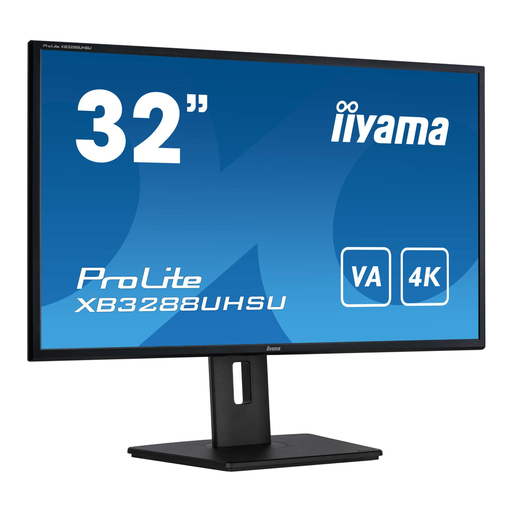 No image available
The product information lists a 32-inch screen with 3840 × 2160 pixels for a larger editing workspace.
It also lists a VA panel, HDMI, DisplayPort, built-in speakers and a height-adjustable stand with pivot function.
No. You manage versions in your editing software and storage, not on the monitor. If you use Adobe Premiere, check the Auto Save settings. Adobe also describes Project Manager as a way to copy projects and the media used in them.
Match your review settings to your project’s output colour space. Adobe describes Rec.709 for the SDR setting mentioned in Premiere; other export versions may require different sequence settings. This is software-specific information, not a general rule for every editing app.
Not without checking that your computer and monitor are compatible. The listed power delivery for the models mentioned ranges from 60 W to 96 W. Also check that your laptop port supports video output and that your cable is suitable.
Compare the EU energy label for the exact model. The European Commission says that labels for electronic displays provide information about energy efficiency and HDR use; your actual costs also depend on how long you use the screen and your electricity tariff.
For a standard online consumer purchase, you generally have a statutory cooling-off period of up to 14 days after delivery, subject to possible exceptions. Your statutory guarantee is separate from a manufacturer’s warranty: if a product doesn’t meet the standards you were entitled to expect, the seller is responsible for providing an appropriate solution under the applicable terms.