
Editor working on a single screen
You want to view your timeline, tools and preview side by side, and have room for a larger screen.


Choose according to the way you work: a larger screen gives you more physical space for your timeline and preview, while the right colour-space modes and calibration options may matter more for colour-critical work. Also check that the video input and, if you’re using a single cable, the power delivery are suitable for your computer. An HDR label alone doesn’t tell you whether a monitor is suitable for critically assessing HDR content.
You want to view your timeline, tools and preview side by side, and have room for a larger screen.
You also assess the colour of your finished video and are looking for suitable colour-space modes and a way to calibrate the screen.
You regularly connect a laptop at home and want to check in advance that video output, peripherals and power delivery are all compatible.
First decide whether screen space or colour assessment has the biggest impact on the way you work. Then check the connection and power delivery; assess HDR separately if it’s part of your workflow.
| What to consider | What to look for | Who is this important for? |
|---|---|---|
| Space for your timeline and preview | Compare the screen size and how much room the stand takes up, and check how readable your editing interface is at 4K. | If I want to see my timeline, tools and footage on one screen, I look at the available workspace. Around 31% of consumers put this space first. |
| Colour that matches your output | Decide whether you’re delivering in SDR or HDR, then check the colour-space modes and calibration options on the exact model. | When the colour of my finished video is a priority, I want to be able to match the monitor mode to it. Around 31% of consumers put colour assessment first. |
| Connecting and powering a laptop | Check whether your laptop outputs video through the port you plan to use, and compare its power requirements with the monitor’s specifications. | If I want to connect my laptop and peripherals at one workstation, I check both video and power. Around 25% of consumers see laptop connectivity as their main priority. |
| Assessing HDR content | Check the HDR settings in your editing software and look for an assessment of the HDR performance of the exact model. | If HDR output is an important part of my work, I want to know how the specific screen displays HDR. Around 13% of consumers put HDR assessment at the top of their list. |
A stated colour gamut or factory calibration doesn’t, on its own, tell you how your particular monitor is set up for your intended SDR or HDR output.
First decide on your output format, choose a suitable monitor mode and consider whether you’ll want to calibrate it later.
Setup and calibration can take extra time and may require calibration equipment.
In a 2024 test, PRAD found the HDR effect of the LG 32UQ850V-W to be limited. That test result applies to this model and doesn’t prove anything about other screens.
If HDR is your main task, compare tests of the exact model with your workflow requirements; don’t judge HDR performance by a label alone.
Video output and available power delivery depend on the combination of computer and monitor. The stated power delivery varies by model.
Before buying, check your laptop’s video output and compare its power requirements with the monitor’s specifications.
If the power delivery isn’t sufficient, you may need a separate power adapter.
The ProArt PA279CRV is a 27-inch 4K option for anyone looking for colour features and USB-C in one screen.
EIZO positions the 27-inch ColorEdge CS2740 with 4K UHD for tasks including video editing and colour adjustment.
The 32UQ850V-W is a 31.5-inch 4K option if you want more physical space for your timeline.
The 27-inch UltraSharp U2725QE is a 4K Thunderbolt hub monitor for a workstation where connectivity matters.
The PD2725U is a 27-inch 4K option with Thunderbolt 3 for a compatible laptop setup.
This selection includes 4K monitors for anyone who wants to view their timeline and preview at home, consider colour features or connect a laptop. Compare the screen size, connections and model-specific limitations with the way you work.
 No image available
The 31.5-inch 4K format is an option if you want to view your timeline and preview on one screen.
The product name mentions QD-OLED and USB-C. Check separately that the connection and power delivery are suitable for your computer.
 No image available
The 27-inch size is an option if you’re looking for a more compact screen for a 4K timeline.
The product name mentions USB-C with 90 W Power Delivery. Also check that your laptop outputs video through the connection you plan to use.
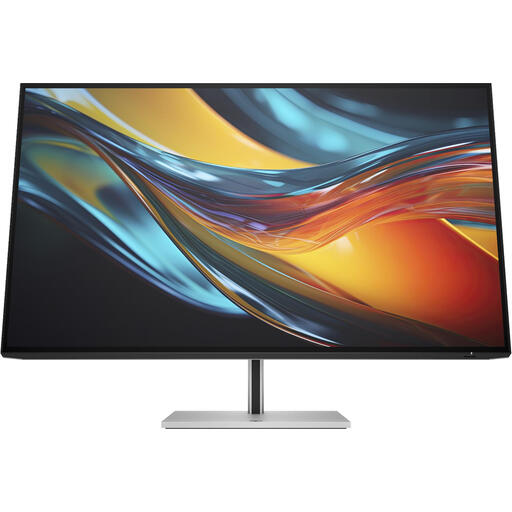 No image available
The 31.5-inch 4K screen is an option if you want to view your timeline and preview on one monitor.
The product name mentions Thunderbolt 4. According to the product information, a charger isn’t included as standard; check what power supply you’ll need.
 No image available
This 27-inch 4K model is an option if you’re looking for a more compact screen with hub features. Dell lists IPS Black, 3000:1 contrast and 120 Hz for the U2725QE.
These specifications don’t automatically make the model suitable as an HDR reference monitor; assess HDR performance separately.
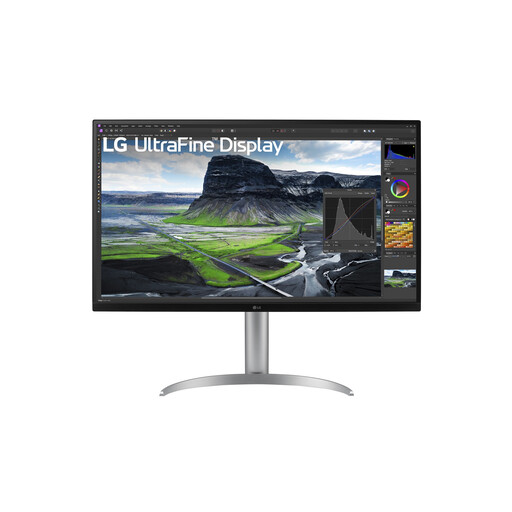 No image available
The 31.5-inch size is an option if you’re looking for more physical space for your timeline and preview.
LG lists an IPS screen and USB-C with 90 W Power Delivery. In a 2024 test, PRAD found the HDR effect of this exact model to be limited; don’t choose it solely on the basis of HDR support if assessing HDR is your main goal.
No. Resolution and HDR performance are separate features. Match your editing software settings to your SDR or HDR output, and check the HDR performance of the exact screen. In a 2024 test, PRAD found the HDR effect of the LG 32UQ850V-W to be limited.
Adobe explains how to send video output to a second monitor in Premiere, so you can play footage full-screen while editing. Also check the colour settings for your sequence; this guidance applies to Premiere and not necessarily to every editing program.
Only if you want to use the monitor to charge it. Compare your laptop’s power requirements with the specifications of the exact model, and also check that the laptop outputs video through that connection. BenQ lists 65 W for the PD2725U, ASUS 96 W for the PA279CRV and LG 90 W for the 32UQ850V-W.
For many eligible online consumer purchases in the Netherlands, a statutory 14-day cooling-off period applies; the Dutch government lists some exceptions. This is separate from your rights if a product is faulty or not of satisfactory quality: the Dutch government says you should contact the seller to resolve the issue. A commercial manufacturer’s warranty doesn’t replace those statutory rights.