For vector work with a laptop, choose a 4K monitor with a USB-C port that supports video and provides enough Power Delivery for your laptop. This could mean you can leave the separate laptop charger unplugged. The monitor will still need mains power. Then match the colour mode to your digital or printed output: a wider stated colour gamut doesn’t, on its own, prove more accurate colour reproduction.
Who is this relevant to?
Laptop user with just one spare socket
You want to view vector work in 4K and, if your laptop and monitor support it, charge your laptop through the monitor. VESA/DisplayPort describes video and system power over a single USB-C connection as a possible setup; check that both devices and the cable support it.
Digital illustration designer
You assess lines, text and colours for digital output and want a colour mode to suit your work. BenQ Netherlands describes matching ICC profiles as part of colour management.
Designer who also checks print work
As well as a sharp display, you need a colour workflow suited to your intended output. A stated colour gamut alone doesn’t tell you whether the file, software and screen settings are correctly matched.
What should you look for?
First, check that your laptop can output video through the connection you plan to use and that the power delivery is suitable. Then compare the resolution, colour settings and adjustability with the way you assess your vector work.
| What to consider |
What should you check? |
Who should pay extra attention? |
| Laptop power |
Check video support through the USB-C port, your laptop’s power requirements, and the specifications of the monitor port and cable. |
If I work with few sockets available, I want to know whether the monitor can charge my laptop and make a separate charger unnecessary. Around 36% of consumers say avoiding the laptop charger is their top priority. |
| Digital colour |
Check whether there’s a suitable sRGB mode and review the colour profiles for your file, operating system and design software. |
When I assess illustrations for digital output, I want to match the colour settings to that output. Around 29% of consumers put digital colour assessment first. |
| Detail and workspace |
Compare the resolution and screen size, and consider whether the scaling and viewing distance work well for your needs. |
If I want to assess fine lines and tools, I consider both detail and usable workspace in my own setup. Around 21% of consumers name this combination as their main consideration. |
| Print colour |
Check which colour space and profiles your print workflow uses, and which colour management options the screen and software offer. |
When checking print work, I want to know whether the screen settings match the required profile, not just how wide the stated colour gamut is. Around 14% of consumers give print colour top priority. |
Common pitfalls
-
Assuming USB-C always supports video and laptop charging
USB-C alone doesn’t guarantee that your laptop can output video through the port or that the monitor provides enough power to charge it.
Check the laptop port, monitor port, power requirements and cable as one complete setup.
You may still need a separate laptop charger or a suitable cable.
-
Confusing a wide colour gamut with proven colour accuracy
A stated coverage percentage doesn’t tell you whether the source profile, screen mode and software settings are all matched.
Choose a mode to suit your output and check the colour management settings for your files and system.
Brands to compare
BenQ
According to BenQ Netherlands, the BenQ PD2706U is a 27-inch 4K model with stated sRGB and P3 modes and USB-C power delivery of up to 90 W.
- BenQ cites factory calibration and an average Delta E of no more than 3 for this model.
- These are manufacturer specifications, not an independent test of an individual unit. Check that 90 W is suitable for your laptop; the monitor itself still needs mains power.
ASUS
According to ASUS, the ProArt PA279CRV is a 27-inch 4K model with colour modes, stated sRGB and Adobe RGB coverage, and USB-C power delivery of up to 96 W.
- The stated colour coverage may be relevant when comparing colour settings for digital and print work.
- The manufacturer’s specifications don’t confirm how an individual unit performs. Also check that the ports and power delivery suit your laptop and workflow.
LG
According to LG Netherlands, the LG 27UP850K-W is a 27-inch 4K model with USB-C for video, data and power delivery of up to 96 W; LG cites typical DCI-P3 coverage of 95%.
- USB-C’s combination of features may be useful for a laptop setup with few spare sockets.
- The typical colour gamut figure isn’t a measurement of every unit and, on its own, says nothing about the colour settings for your files.
Dell
Dell describes the UltraSharp U2723QE as a 27-inch 4K monitor with a USB-C hub and power delivery of up to 90 W.
- A USB-C hub may be useful if you want to connect peripherals as well as your laptop.
- The stated colour coverage and calibration are Dell’s specifications for this model; check that the connections and colour workflow suit your equipment.
Joybuy products
These Joybuy products are 4K monitors to compare for vector work. Check that each model’s connections, colour settings and power delivery suit your laptop and intended output. For the specific product listing, also check the product identity and the accompanying CE marking and documentation.
 No image available
Dell UltraSharp U3226Q 32-inch 4K UHD 120Hz QD-OLED monitor
An option to compare if you want to assess vector work on a 4K screen.
32-inch; 4K UHD; 120 Hz; QD-OLED.
Joybuy
 No image available
INNOCN CB27U1 27-inch 4K UHD monitor
An option to compare if you want to view vector work on a 27-inch 4K screen.
27-inch; 3840 × 2160; IPS; 120 Hz; USB-C 90 W PD.
Joybuy
 No image available
ASUS ProArt OLED PA32UCDM 31.5-inch 4K Ultra HD monitor
An option to compare if you want to assess vector illustrations on a larger 4K screen.
31.5-inch; 3840 × 2160; QD-OLED.
Joybuy
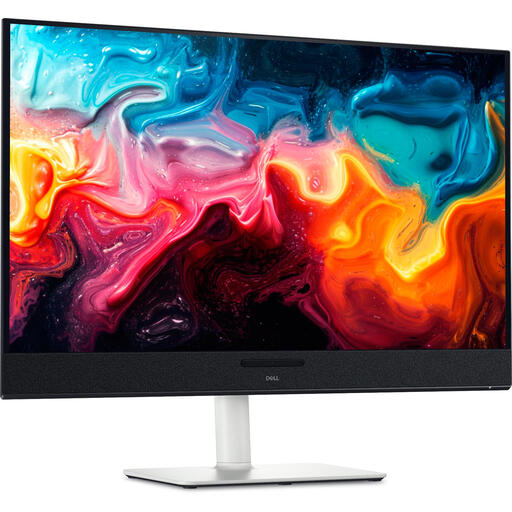 No image available
Dell Plus S3225QC 31.6-inch 4K Ultra HD QD-OLED monitor
An option to compare if you want to view vector work on a larger 4K screen.
31.6-inch; 3840 × 2160; QD-OLED.
Joybuy
 No image available
Dell Plus S2725QC 27-inch 4K Ultra HD LCD monitor
An option to compare if you want to assess vector work on a 27-inch 4K screen.
27-inch; 3840 × 2160; LCD.
Joybuy
Frequently asked questions
Will a USB-C monitor really free up a socket?
It may free up the socket used by your separate laptop charger, provided your laptop can output video through the port and the monitor supplies enough Power Delivery. VESA/DisplayPort describes video and system power over a single USB-C connection; the monitor itself still needs mains power.
How do I set up the screen for digital vector colours?
Choose a colour mode that suits your output and check the ICC profiles for your file and system. BenQ Netherlands describes profile matching as part of colour management; a stated wide colour gamut doesn’t replace this step.
What should I consider when it comes to a monitor’s power consumption?
Compare the EU energy label for the exact screen. The European Commission describes a scale from A to G for electronic displays; to estimate electricity costs, you’ll also need the power consumption and how long you use the screen.
Who can help if a monitor bought in the Netherlands is faulty?
For a consumer purchase, the seller must provide a remedy under the legal guarantee; any manufacturer’s guarantee is in addition to this. The Dutch government states that a 14-day cooling-off period applies to many distance purchases, subject to legal exceptions.
Which safety marking should I check when buying a monitor?
For the specific product listing, check the product identity and the applicable CE marking and documentation. The Dutch government states that electrical appliances placed on the EU market must meet the applicable product safety requirements; a brand name alone doesn’t confirm the marking on the specific item being offered.


