
Image editor checking fine mask edges
Wants to assess hair, leaves and other tricky edges on the main screen while keeping the overall image in view. Adobe notes that soft edges, such as hair, may need refining.


Choose a 4K screen that lets you assess fine mask edges at a comfortable size. Then prioritise colour management, screen space or connectivity with your laptop, depending on your workspace. A second monitor can help you view detail and the overall image side by side, but check first that your computer supports the screen setup you want. Adobe describes using multiple windows at different zoom levels, while Apple Support recommends checking your Mac’s ports and the number of supported displays.
Wants to assess hair, leaves and other tricky edges on the main screen while keeping the overall image in view. Adobe notes that soft edges, such as hair, may need refining.
Considers display calibration, workspace lighting and the colour space suited to the intended output, as well as resolution. Adobe identifies calibration and ambient light as parts of colour management.
Wants to check in advance which video connections are available and how many external displays the computer supports. Apple Support explains how to check this on Macs.
| Consideration | What to look for | Who is this important for? |
|---|---|---|
| Fine mask edges | Check that the native resolution is 3840 × 2160 pixels, and that the screen size and zoom level work comfortably for you. | If I want to refine hair, leaves or other tricky edges without losing sight of the overall image, I look at both detail and scaling. Around 31% of consumers prioritise assessing mask details above all else. |
| Detail and overview side by side | Check how many displays your computer supports at the resolutions you want, and whether its available ports and connections will support your setup. | If I want to see details and the full image at the same time, I need a supported display setup as well as a suitable monitor. Around 31% of consumers prioritise having an overview on screen at the same time. |
| Colour assessment | Match the colour space to your intended output, and check calibration options, display settings and lighting. | If colour matters for my finished images, I look beyond the stated colour gamut and also take calibration and ambient light into account. Around 23% of consumers prioritise colour assessment above all else. |
| Connectivity and workspace | Compare your laptop’s ports and required charging capacity with the monitor. Also consider cables, adapters and available desk space. | If I want a practical way to connect my laptop and two screens, I check that my computer supports the chosen connection and displays. Around 15% of consumers prioritise easy connectivity and a workspace that suits their needs. |
A stated colour gamut coverage does not automatically make a selection accurate. Calibration and ambient light also play a part in achieving predictable colour.
Assess selection edges against different backgrounds. Set up displays for your intended output when working with colour-critical images, and allow extra time to configure your workspace.
A port on the monitor does not, by itself, prove that your computer supports the two external displays you want to use.
Before buying, check your computer’s specifications and the entire video connection. You may need additional cables or adapters.
Specifications can vary between versions. For example, LG lists 95% DCI-P3 (typical) for the 27UP850K-W and 90% DCI-P3 (typical) for the 27US550-W. These figures are not independent measurements.
Compare the full model number and the specifications for the version you’re considering.
The PD2706U is a 27-inch 4K option with specifications geared towards colour management.
According to ASUS, the ProArt PA279CRV combines a 27-inch 4K panel with a DisplayPort connection for daisy chaining.
The UltraFine 27UP850K-W and 27US550-W are two different 27-inch 4K models.
The UltraSharp U2723QE is a 27-inch 4K hub monitor with DisplayPort output and USB-C power delivery.
The 27E1N1800A/00 is a 27-inch 4K IPS option for anyone mainly looking for an extra 4K display.
These 4K monitors are options to consider when choosing a main screen for image editing and a two-screen workspace. Check the connections and compatibility of your complete setup before choosing.
 No image available
A 27-inch 4K monitor to consider when choosing a main screen for a two-screen setup.
27 inches; 4K; IPS.
 No image available
The 31.5-inch screen size could suit you if you’re looking for a larger 4K main display for your workspace.
31.5 inches; 4K UHD; QD-OLED; 165 Hz; USB-C.
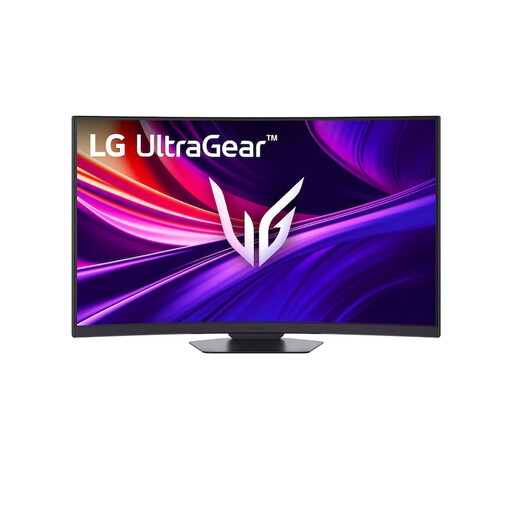 No image available
This 37-inch curved model needs enough desk space and a suitable viewing distance.
37 inches; 4K UHD; 165 Hz; curved VA panel.
 No image available
A 32-inch 4K screen to consider if you want a larger main display in your two-screen setup.
32 inches; 4K UHD; 120 Hz; QD-OLED.
 No image available
This 32-inch curved model is worth weighing up against the available desk space and viewing distance.
32 inches; curved VA panel; 3000R; 3840 × 2160; HDR10; Adaptive Sync; 100% sRGB.
No, not necessarily for this workflow. You can pair a 4K main screen for checking images with another display for panels or an overview. If you want to assess colour on both screens, check their calibration separately.
In Photoshop, you can open an additional window for the same image and view the windows at different zoom levels. Then arrange the detected displays in your computer’s display settings. Microsoft explains how to do this in Windows.
No. Check your exact computer model, the number of external displays it supports, its video ports and any cables or adapters you’ll need. Apple Support recommends that Mac users check these points in advance.
For predictable colour, Adobe identifies calibration and ambient light as parts of your workspace setup. A stated colour gamut alone doesn’t confirm how the screen is calibrated in your situation.
According to ACM ConsuWijzer, ordinary online consumer purchases generally come with a cooling-off period of up to 14 days after delivery, subject to legal exceptions. Check the terms that apply to your purchase.