What should you look for?
For a compact editing setup, consider the screen layout, stand dimensions, colour settings and connectivity. First check what your desk and computer can accommodate, then choose the features that suit the way you edit.
| What to consider |
What should you look for? |
Who should pay particular attention? |
| Sharpness and editing space |
Compare the 3840 × 2160 pixel resolution and screen size with how clearly you can read your usual window layout. |
If I want to see the tutorial footage, subtitles and timeline at once, readability matters. Around 31% of consumers put an editing overview and readable subtitles at the top of their priorities. |
| Desk space |
Measure the available width and depth, and check the stand’s dimensions and adjustability. |
At a small desk, I want to leave enough room for my keyboard and controls. Around 25% of consumers prioritise a compact setup. |
| Colour assessment |
Check whether the exact model has a suitable Rec.709 setting, and compare it with your editing and export workflow. |
If I want to assess the colour of tutorial videos carefully, I need to be able to match the monitor mode to my workflow. Around 25% of consumers make colour assessment their top buying criterion. |
| Laptop connectivity |
Check whether your laptop supports video output over USB-C, and compare the power it needs with what the monitor provides. |
I want to connect my laptop with as few separate cables as possible, but only if that connection handles both the display and power. Around 19% of consumers prioritise a straightforward laptop connection. |
BenQ Netherlands lists the PD2706U’s stand dimensions as 613,8 × 238,3 mm, including the base. ASUS describes the PA279CRV as having a compact base. Measure your desk and check the dimensions of the exact version before choosing a model or monitor arm.
BenQ lists a Rec.709 mode and 100% Rec.709 colour gamut for the PD2706U; ASUS lists a Rec.709 preset for the PA279CRV. These are manufacturer specifications, not independent test results for a particular monitor in your workspace. BenQ lists 90 W USB-C Power Delivery for the PD2706U, while ASUS lists 96 W for the PA279CRV. Also check that your laptop can output video through the relevant port and supports the power it needs.
Joybuy products
Joybuy products to consider when choosing a 4K monitor for editing tutorial videos at a compact desk.
 No image available
MSI Modern MD272UPHG
The stated 27-inch 4K resolution is suited to editing tutorial footage and subtitles on one screen.
27 inches; 3840 × 2160 pixels; 4K UHD.
Joybuy
 No image available
INNOCN CB27U1
This 27-inch 4K model is worth considering if you want to edit tutorial footage and subtitles on one screen.
3840 × 2160 pixels; IPS panel; 120 Hz.
Joybuy
 No image available
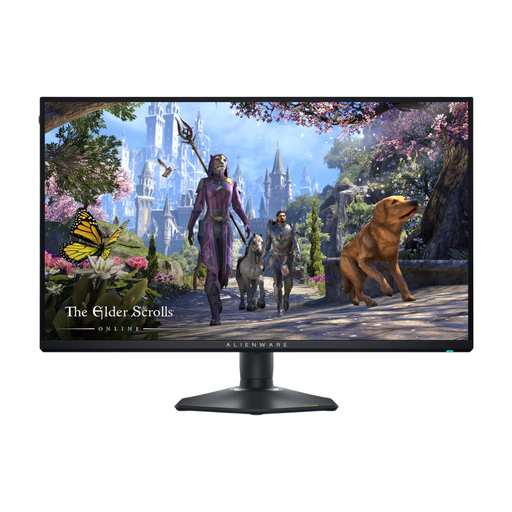
Alienware AW2725QF
This 27-inch 4K model is worth comparing if you want to view tutorial footage, subtitles and editing controls on one screen.
3840 × 2160 pixels; 4K UHD; LCD.
Joybuy
 No image available
Dell 27 Plus S2725QC
An option if you’re looking for a 27-inch 4K monitor with USB-C. Check that the video output and power delivery are compatible with your laptop.
Dell lists USB-C and a refresh rate of up to 120 Hz for the S2725QC.
Joybuy
 No image available
LG 27UQ850V-W
This 27-inch 4K model is worth comparing if you want to edit tutorial videos on one screen.
3840 × 2160 pixels; 4K UHD.
Joybuy
Frequently asked questions
Should I choose a particular colour profile for a Dutch tutorial video?
Choose a colour setting that suits your editing and export workflow. BenQ lists a Rec.709 mode for the PD2706U, while ASUS lists a Rec.709 preset for the PA279CRV. According to Adobe, Premiere’s standard SDR workflow uses the Direct Rec.709 preset. A preset alone doesn’t guarantee measured colour accuracy.
Can I connect a USB-C monitor to my laptop with one cable?
Only if the relevant port on your laptop supports video output and the monitor provides enough power for your laptop. BenQ lists DisplayPort Alt Mode and 90 W Power Delivery for the PD2706U; ASUS lists DisplayPort over USB-C and 96 W Power Delivery for the PA279CRV. Also check what your laptop’s USB-C port supports.
What should I measure before choosing a monitor for a small desk?
Measure the available width and depth, allowing for the stand, your keyboard and the space you need to work. BenQ specifies a stand depth of 238,3 mm for the PD2706U; stand dimensions vary by model.
What are my rights when I buy a monitor online?
According to the Dutch government, many online purchases from a business come with a 14-day cooling-off period, although exceptions may apply. This is separate from your right to receive a product that is fit for purpose: if there’s a problem, the seller must provide a solution. Check the terms that apply to your purchase before placing your order.


