
Colour-critical timelapse editor
You assess the colour and tone of successive harbour images, matching the display to the intended output colour space. Adobe explains that different sequences can have their own colour management settings.


When comparing edits, a 31.5-inch 4K monitor can give you more physical screen space, while a 27-inch model takes up less room on your desk. Also choose a screen mode that suits your SDR or HDR output, and check that the video connection and any laptop charging requirements are compatible with your computer. A 4K resolution or HDR label alone doesn’t guarantee a suitable colour workflow.
You assess the colour and tone of successive harbour images, matching the display to the intended output colour space. Adobe explains that different sequences can have their own colour management settings.
You want to view an earlier edit alongside the current one as a reference, while keeping your editing panels neatly arranged. Adobe describes how to compare images side by side in the Program Monitor.
You want to check 4K footage without a large screen taking up space on your desk, and are checking whether a suitable connection can also power your laptop. To do this, check the video and power capabilities of both your laptop and monitor.
When choosing a 4K monitor for a harbour timelapse with multiple project versions, you can prioritise colour reproduction, space to compare versions, frame detail or your laptop’s connectivity.
| What to consider | What should you look for? | Who is this important for? |
|---|---|---|
| Colour and output mode | Match the screen mode to your SDR or HDR output, and check your editing software’s colour settings. ASUS and BenQ list a Rec.709 preset or mode for the models mentioned. | If I want to assess the colour of successive harbour images, I want the screen settings to suit my intended output. Around 33% of consumers prioritise suitable colour reproduction. |
| Space for versions | Compare the screen diagonal and physical dimensions with your timeline and reference image. Adobe describes a side-by-side comparison in the Program Monitor. | If I want to view an earlier version alongside my current edit, I look at the physical space available for my panels. Around 27% of consumers give version comparison top priority. |
| 4K frame detail | Check that the exact model has a native resolution of 3840 × 2160 pixels. Adobe describes separate playback and pause resolution settings; when paused, you can set the pause resolution to Full. | If I want to check individual frames in detail, I look for a native 4K screen and suitable settings for paused playback. Around 27% of consumers choose frame detail as their main consideration. |
| Laptop connectivity | Compare your laptop’s video output and charging requirements with the monitor’s connection and cable. BenQ lists USB-C with DisplayPort Alt Mode and 90 W Power Delivery for the PD3205U. | If I want to connect my editing laptop with one suitable connection, I check that it supports both video and sufficient power. Around 13% of consumers prioritise laptop connectivity. |
An HDR feature alone doesn’t tell you whether the screen settings suit your timelapse output and workflow.
First decide whether you’re delivering in SDR or HDR, then match your editing and screen settings to it.
Both the 27-inch and 31.5-inch models mentioned have a stated native resolution of 3840 × 2160 pixels. So a larger diagonal doesn’t automatically mean more pixels.
Compare the physical screen size with your viewing distance and the layout of your timeline and reference image.
A 31.5-inch screen needs more physical desk space than the 27-inch models mentioned.
A USB-C connection will only work for video and charging if the monitor’s capabilities are compatible with your laptop.
Before buying, check video support, the cable and your laptop’s power requirements. BenQ specifies DisplayPort Alt Mode and 90 W Power Delivery for the PD3205U.
The PD3205U is a 31.5-inch 4K option for editors looking for physical screen space and a Rec.709 mode.
The ProArt PA279CRV is a 27-inch 4K option for anyone looking to compare a more compact screen with colour presets.
According to LG, the UltraFine 27UP850K-W combines a 27-inch 4K screen with USB-C, making it suitable for a compact editing setup.
The ColorEdge CS2740 is a 27-inch 4K option for workflows where regular hardware calibration is important.
The UltraSharp U2725QE is a 27-inch 4K option if a Thunderbolt hub suits your setup.
This selection includes 4K monitors with larger screens, for anyone looking to arrange physical space for editing panels and project versions.
 No image available
The 32-inch size could suit you if you want physical screen space for your editing layout.
VA panel; 3840 × 2160 pixels; 60 Hz; 300 cd/m²; 2× HDMI and DisplayPort.
 No image available
The 31.5-inch size gives you physical screen space for a layout with multiple editing panels.
QD-OLED; 4K UHD; 165 Hz; 0.03 ms; USB-C.
 No image available
The 32-inch size could suit you if you need room for your timeline and several editing panels.
4K UHD; QD-OLED; 120 Hz.
 No image available
The 32-inch size could suit an editing setup where you need room for a reference image and your current edit.
3840 × 2160 pixels; 4K Ultra HD; LED.
 No image available
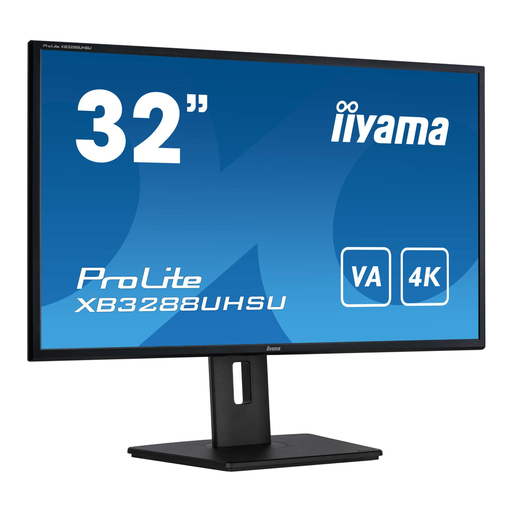
The 32-inch size could suit you if you need physical space for an editing layout with multiple versions.
VA panel; 4K resolution.
Not necessarily. Adobe explains how to compare a reference frame and the current frame side by side in the Program Monitor. Whether one screen gives you enough room for your timeline and other panels depends on your layout and the physical screen size.
Adobe lets you set playback and pause resolution separately. A lower playback resolution can make playback smoother; for checking detail, you can set the pause resolution to Full. This is a software setting and doesn’t mean the screen is faulty.
Check that your computer’s video output is compatible with the monitor’s connection and that the available power is sufficient for your laptop. If you want to use hardware calibration, also check which software and tools you’ll need; LG states that calibration software for the 27UP850K-W isn’t included.
ACM ConsuWijzer states that, in principle, an online purchase comes with a statutory cooling-off period that ends 14 days after delivery. The Netherlands Authority for Consumers and Markets states that the seller is responsible for the legal guarantee if a product is faulty. The European Commission states that computer monitors have an energy label on a scale from A to G; check the label for the exact model.