
Comparing drawings
You regularly compare floor plans or revisions side by side and want to read lines and annotations without constantly switching between windows. Compare the screen size with your viewing distance and scaling setting.


A 31.5-inch 4K screen displays drawings larger than a 27-inch 4K screen at the same scaling, but it takes up more desk space. BenQ, Dell and LG model specifications, along with Microsoft Support’s guidance on display scaling, can help you assess the difference. Adjustability and reflections also matter at a shared desk. Only choose USB-C or KVM after checking video support, power delivery and the ports on the laptops and monitor.
You regularly compare floor plans or revisions side by side and want to read lines and annotations without constantly switching between windows. Compare the screen size with your viewing distance and scaling setting.
You review drawings with a colleague or take over their workstation. Screen position, reflections and the view from different seating positions are all important considerations.
You regularly connect a different work laptop and want to know whether the monitor can handle the display, charging and peripherals. Check the laptop’s capabilities and the ports on the exact monitor model.
Start by checking how easy it is to read two of your own drawings from your usual viewing distance. Then consider whether the screen works comfortably for multiple users and computers.
| What to consider | What should you check? | Who is this important for? |
|---|---|---|
| Reading two drawings | Compare 27 and 31.5 inches using your own files, viewing distance and display scaling. Check that the stated resolution is 3840 × 2160. | When I put two drawings side by side, I want to be able to read lines and annotations from my usual viewing distance. Around 29% of consumers make this their top purchasing priority. |
| Viewing together | View the screen with colleagues from your usual seating positions, and consider the panel type, reflections and monitor placement. | When I discuss drawings with a colleague, I want us to be able to view them clearly from our usual seats. Around 24% of consumers prioritise a shared view. |
| Switching between laptops | Check for video over USB-C, the required charging power, and whether the monitor has KVM and the ports you need. | When I connect different laptops to the same desk, I want to know which functions a single connection actually provides. Around 18% of consumers make switching between computers their top purchasing priority. |
| Setting up your workstation | Check the height adjustment, tilt, space needed for the stand and reflections at your intended workstation. | When several people use the screen, I want to be able to adjust its position for each user. Around 17% of consumers prioritise adjustability. |
| Assessing colours | Decide whether you also assess visualisations. If so, compare the stated colour gamut and any calibration options for the exact model. | If I assess colours as well as line drawings, I want to choose features that suit the job. Around 12% of consumers make colour assessment their top purchasing priority. |
The size at which text and lines appear also depends on the screen size and scaling setting. Microsoft Support explains how to adjust scaling and layout in Windows.
Before choosing a screen size, try your own drawing files with both users and a suitable scaling setting.
Video over USB-C, power delivery and KVM are separate features. Dell Support recommends checking your laptop documentation for DisplayPort over USB-C.
Compare your laptop’s ports and power requirements with the ports and features of the exact monitor model.
You may need a suitable cable, a separate charger or an additional connection to get the setup you want.
A model name without its full suffix may refer to a different version. Also check the resolution of the variant on offer.
Compare the full model code and key features with the manufacturer’s information.
A stated colour mode or gamut doesn’t, by itself, say anything about the accuracy of dimensions in a drawing. BenQ describes the colour and CAD/CAM features of the PD3205U as monitor features.
Choose colour features if you also assess visualisations, and check dimensions in your drawing or review software.
BenQ describes the PD3205U as a 31.5-inch 4K IPS monitor with CAD/CAM mode, USB-C with up to 90 W of power delivery and KVM.
Dell lists a 31.5-inch 4K IPS screen, USB-C with up to 90 W of power delivery and RJ45 for the P3225QE.
LG says the 27UP850K-W has a 27-inch 4K IPS screen, an adjustable stand and USB-C with up to 96 W of power delivery.
iiyama describes the ProLite XB3288UHSU-B1 as a 31.5-inch 4K VA monitor with a matt finish, height adjustment, HDMI and DisplayPort.
Philips lists the 329P1H/00 as a 31.5-inch 4K USB-C docking monitor with up to 90 W of power delivery and a built-in webcam.
These Joybuy products are 31–32-inch 4K screens for viewing technical drawings side by side. If you’ll be sharing the monitor, also check the adjustability, viewing positions and laptop connections of the specific version.
 Image unavailable
Its stated 32-inch 4K resolution makes this a potential option for viewing two drawings side by side. Check readability with your own scaling setting.
VA panel; 3840 × 2160 at 60 Hz; 300 cd/m²; 2× HDMI and DisplayPort; tilt adjustment; speakers.
 Image unavailable
Its 32-inch 4K specification makes this a potential option for viewing drawings side by side. Check that the stated features suit your day-to-day work.
OLED; 4K Ultra HD; 165 Hz; gaming monitor.
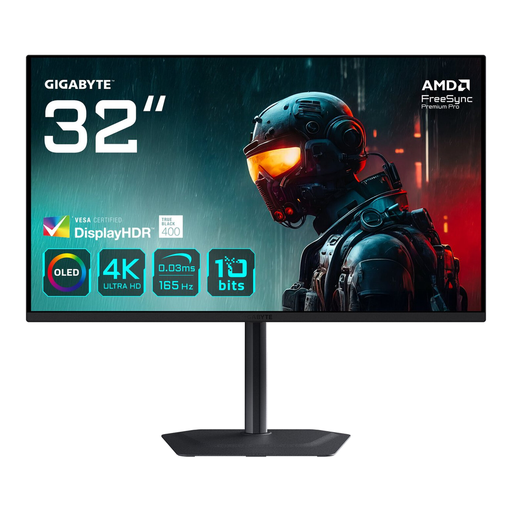 Image unavailable
Its stated screen size and resolution make this a potential option for viewing drawings side by side. Check readability with your own files and scaling setting.
31.5 inches; 3840 × 2160; 4K Ultra HD; OLED.
 Image unavailable
The product name specifies a 31.5-inch 4K screen for viewing drawings side by side. Check that the resolution and laptop connections you need are available on the version on offer.
3840 × 2160; LCD; black and grey.
 Image unavailable
The 31.5-inch 4K format gives you plenty of screen space for viewing drawings side by side. BenQ says this model also has USB-C with up to 90 W of power delivery and KVM. Check that your laptop supports the video connection you need.
3840 × 2160; LCD.
In Windows, use the recommended resolution, then adjust the size of text and apps under ‘Scale and layout’. Microsoft Support explains these settings. Then check with real drawing files whether two windows fit side by side at that scale.
No, it depends on the laptop port’s capabilities. Dell Support recommends checking your laptop documentation for DisplayPort over USB-C. Also check the monitor’s power delivery and features separately.
Check that the monitor is adjustable and view the screen from the usual seating positions. Arboportaal recommends a height-adjustable, non-reflective screen for computer work. Also consider the workstation layout and lighting.
For eligible distance purchases by consumers, there is often a 14-day cooling-off period, according to the Dutch government. If a product is faulty, consumers are entitled to a product that works as it should. In the Netherlands, there is no fixed statutory guarantee period, and the seller is your point of contact. If you’re buying for business, don’t assume that consumer rights apply.
Yes, if energy use is a factor in your decision. The European Commission states that computer monitors are covered by energy-labelling rules for electronic displays. Compare the label for the exact model.