What should you look for?
First decide whether your main priority is inspecting fine detail, switching between computers, or assessing colours and prints. Then compare the screen specifications and connections with your software, laptop and workspace.
| What to consider |
What to look for |
Who benefits most? |
| Checking for tiny traces of dust |
Check for 4K UHD resolution of 3840 × 2160 and make sure your computer supports 4K output. Use the zoom function too: according to Adobe, zooming changes the view, not the pixels in the scan file. |
I want to examine small imperfections clearly while still having room for my scan and tools. Around 33% of consumers rank checking fine detail as their top priority. |
| Switching between computers |
Check the video and USB connections, and whether the laptop supports the stated charging power through the cable you’ll be using. A USB-C port alone doesn’t guarantee a complete single-cable setup. |
I regularly connect a different computer at the shared desk and don’t want to reconnect my peripherals each time. Around 27% of consumers give switching between computers their highest priority. |
| Assessing the colour of scans or prints |
Check which calibration options and monitor profiles the model supports, and whether its stated colour space suits your files and output. Adobe also stresses the importance of ambient light. |
I edit scans where colour matters and want to avoid making corrections based on an inaccurate image on screen. Around 27% of consumers put colour management first. |
| Screen position at a shared workspace |
Look for height adjustment and a setup that avoids distracting reflections. Arboportaal sets out requirements for applicable display screen work by employees; if this applies to you, also consider the wider workspace setup. |
I share the desk with people who sit differently and want to adjust the viewing position. Around 13% of consumers name adjustability as their top priority. |
Joybuy monitors for scan retouching
These models are suited to viewing scans on a 4K screen; the selection also includes options whose product details suggest they could work well with different computers at a shared desk.
 No image available
INNOCN CB27U1 27-inch 4K UHD monitor
An option to compare if you view scans at a shared desk and value height adjustment or laptop connectivity.
The product title lists 3840 × 2160 resolution, IPS, USB-C with 90 W PD and a height-adjustable stand. Check that the video connection and power delivery are compatible with the laptop you use.
View at Joybuy
 No image available
Dell Plus S2725QS 27-inch 4K monitor
A model to consider if you’re mainly looking for a 4K screen for inspecting scans.
The product title lists a 68.6 cm (27-inch) diagonal and a resolution of 3840 × 2160 pixels. Check the connections and adjustability for your shared workspace.
View at Joybuy
 No image available
Dell Plus S2725QC 27-inch 4K monitor
A 4K model to compare if you want to inspect scans while also taking different laptop connections into account.
The product title lists a 68.6 cm (27-inch) diagonal and a resolution of 3840 × 2160 pixels. Check the video, USB and charging features your laptop needs.
View at Joybuy
 No image available
Dell UltraSharp U2725QE 27-inch 4K monitor
A model to compare if you want to view scans in 4K and use multiple devices at your workspace.
The product title lists a 68.6 cm (27-inch) diagonal and a resolution of 3840 × 2160 pixels. Check which connections and charging options your equipment requires.
View at Joybuy
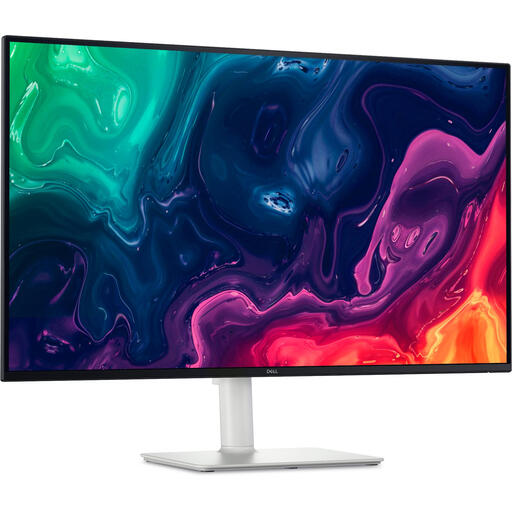 No image available
Dell Plus S3225QS 31.5-inch 4K monitor
A larger screen may be worth considering if you want physical space for your scan and editing panels; use software zoom to check fine detail too.
The product title lists an 80 cm (31.5-inch) diagonal and a resolution of 3840 × 2160 pixels. A larger screen doesn’t add more image pixels at the same 4K resolution.
View at Joybuy
Frequently asked questions
Does a 4K monitor automatically show dust or remove it?
No. Use your editing software’s zoom function to inspect fine details in the scan; according to Adobe, zooming doesn’t change the image data. A 4K screen gives you more screen space, but it won’t remove dust.
What should I look for if colleagues connect a different laptop each time?
Compare the video connection, the USB features you need and each laptop’s charging requirements with the specifications for the exact monitor model. A USB-C port alone doesn’t guarantee a complete single-cable setup.
How can I keep colour assessment consistent at a shared desk?
Use a suitable monitor profile and a manageable calibration and lighting setup. Adobe notes that changes to screen settings after calibration may mean you need to recalibrate.
Do monitors automatically come with a standard two-year legal guarantee in the Netherlands?
No. According to the Dutch government, there is no fixed statutory guarantee period for consumer products in the Netherlands. A manufacturer’s guarantee is in addition to this; if a product is faulty, contact the seller. This explanation of consumer rules does not necessarily apply to business purchases made by an employer.
Are there Dutch workplace rules for a shared desk?
For applicable display screen work by employees, Arboportaal outlines employers’ obligations and rules on matters including adjustability and avoiding reflections. This doesn’t mean that every individual consumer is legally required to choose a specific monitor model.


