Who should consider this?

Product photographer working across two screens

Wants to assess the same photo reliably on both the editing screen and a second screen. Separate colour profiles and similar viewing conditions help you take differences between screens into account; Adobe explains why it’s important to use a suitable profile for each monitor.

Creator of online shop photography

Mostly assesses digital product images and wants to check sRGB display without confusing colour gamut with colour accuracy. Adobe explains how colour profiles are specific to the screen in use.

Creator of colour-critical prints

Assesses product colours for print as well, so may want to consider colour gamut, calibration and the output profile. Adobe notes that factors such as paper type and ambient lighting affect colour display; EIZO describes hardware calibration for specific ColorEdge models.

What should you look for?

What to consider What to look for Who should prioritise this?
Colour across screens Check the active colour mode and corresponding ICC profile on both screens, and compare them under similar lighting. When I assess the same photo on my editing screen and second screen, I want to be able to identify colour differences between them. Around 36% of consumers say that matching the two screens is their top priority.
Colour gamut for your output Compare the specified sRGB and Adobe RGB coverage for the exact model, and decide whether your workflow is mainly digital or also involves colour-critical prints. Whether I’m working with digital images or prints, I want to choose a colour mode that suits my output. Around 29% of consumers put a suitable colour gamut first.
Connecting two screens Check your computer’s video outputs, cables and the resolution supported by each screen. For USB-C or Thunderbolt, also check which features are supported. If I want to connect two screens to my computer, I want to know in advance which connections and cables I’ll need. Around 21% of consumers say connecting two screens is their top priority.
Workspace and calibration Measure the available space and check which calibration features are included with the exact model, and whether you’ll need measuring equipment. When my workspace needs to accommodate two monitors, I also want to factor in space and the calibration features I’ll need. Around 14% of consumers put workspace and set-up first.

Common pitfalls

  • Expecting the same 4K resolution to produce the same colours

    Resolution doesn’t describe how a screen displays colour. Profiles, settings and ambient lighting can all affect how screens compare.

    Check the active colour mode and profile on both screens before choosing based on resolution alone.

    Calibrating and profiling each screen separately takes time and may require measuring equipment.

  • Assuming a high colour gamut percentage guarantees accurate prints

    A wider colour gamut won’t automatically match a print. The output profile, paper and the rest of your workflow also play a part.

    Choose a colour gamut to suit your output and consider the whole colour workflow, not just a percentage in the product specifications.

  • Assuming USB-C or Thunderbolt automatically supports two screens

    Ports and power outputs vary by model. Your computer, cables and monitors all need to support the set-up you want.

    Check the entire connection chain and supported resolutions before you order.

    Your set-up may require a different compatible cable, connection or power solution.

Brands to compare

BenQ

BenQ offers models for both sRGB-focused digital workflows and photography with specified Adobe RGB coverage.

  • BenQ lists 100% sRGB, 95% P3 and up to 65 W power delivery for the PD2725U; for the SW272U, the brand lists 99% Adobe RGB and hardware calibration.
  • These model specifications don’t prove that the monitor will match a second screen. Also check that its connections are compatible with your computer.

EIZO

The ColorEdge CG2700X is a 27-inch 4K model for those looking to compare scheduled calibration and an integrated sensor.

  • EIZO specifies a built-in self-calibration sensor and hardware calibration for this model.
  • These features won’t automatically match an existing second monitor. Check which equipment and software are suitable for your set-up.

ASUS

According to ASUS, the ProArt PA279CRV combines a 27-inch 4K screen with specified coverage for wider-gamut workflows.

  • ASUS lists 99% Adobe RGB, 99% DCI-P3, factory calibration and 96 W USB-C power delivery for the PA279CRV.
  • Factory calibration of one screen doesn’t show that two monitors match. Check the exact version and your computer’s connections.

Dell

The UltraSharp U2723QE is an example of a 4K monitor that combines sRGB display with a range of connections.

  • Dell lists 100% sRGB, 98% DCI-P3, a DisplayPort output and up to 90 W USB-C power delivery for this model.
  • Check that the connections and power delivery suit your computer and dual-screen set-up.

ViewSonic

The ColorPro VP2786-4K is another option to compare for Adobe RGB and print assessment.

  • ViewSonic lists 100% Adobe RGB and an integrated calibrator for this model.
  • Before buying, check the version available in the Netherlands, delivery and warranty. The product information these details are based on is global.

Joybuy monitors

These Joybuy monitors are options to compare for product photography across two screens. Calibrate each screen separately and check that the model, connections and colour workflow suit your needs.

Dell UltraSharp U3226Q 32-inch 4K UHD 120Hz QD-OLED monitor

Dell UltraSharp U3226Q 32" 4K UHD 120Hz QD-OLED monitor

An option to compare if you’re looking for a 4K screen for colour-critical work. A new screen won’t automatically match the colour display of your second monitor.

32-inch, 4K UHD, 120 Hz, QD-OLED.

View at Joybuy

CRUA CR320QB 32-inch curved 4K monitor

CRUA CR320QB 32-inch curved 4K monitor

An option to compare for mainly digital product photography. Check the colour mode and make sure the profile is set up for both screens.

32-inch, 3000R, VA, 3840 × 2160, HDR10, Adaptive Sync and 100% sRGB colour gamut coverage.

View at Joybuy

MSI Modern MD272UPHG 27-inch 4K UHD monitor

MSI Modern MD272UPHG 27-inch 4K UHD monitor

An option to compare for photo and image editing. Assess colour consistency using the profile and settings for both screens.

27-inch, 3840 × 2160 pixels, 4K Ultra HD.

View at Joybuy
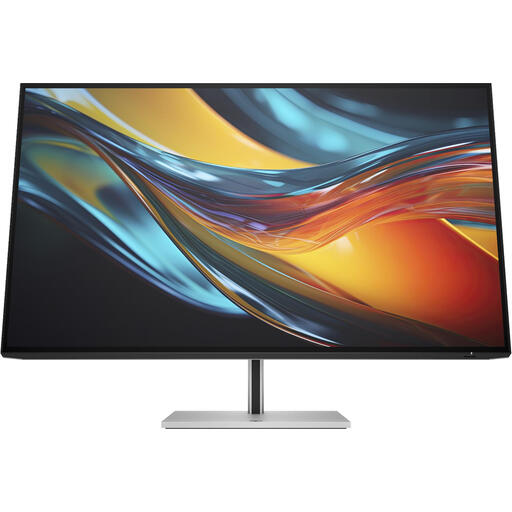
HP Series 7 Pro 732pk 31.5-inch 4K Thunderbolt 4 monitor

HP Series 7 Pro 732pk 31.5-inch 4K Thunderbolt 4 monitor

An option to compare if you want to connect multiple devices to a laptop set-up. Check that your computer and cables support the dual-screen configuration you need.

31.5-inch, 4K, Thunderbolt 4.

View at Joybuy

Dell UltraSharp U2725QE 27-inch 4K UHD LCD monitor

Dell UltraSharp U2725QE 27-inch 4K UHD LCD monitor

An option to compare if connections are important. Check that your computer and cables can run both screens at the resolution you want.

27-inch, 3840 × 2160 pixels, 4K Ultra HD, LCD.

View at Joybuy

Frequently asked questions

Is calibrating one new monitor enough to make both screens display the same colours?

No. Calibrate and profile both screens separately. Check the active colour setting and suitable profile for each monitor; differences in calibration status and ambient lighting may still be visible.

How do you set up two screens for photo editing?

Choose the colour mode you want for each screen and use an ICC profile that matches that setting. Adobe warns that a corrupted monitor profile can affect colour display in Lightroom Classic.

Can you connect two 4K screens and your laptop with one cable?

That depends on the monitor, laptop and cables, not just the 4K resolution. BenQ specifies Thunderbolt daisy-chaining and up to 65 W power delivery for the PD2725U; also check that your computer and second screen support the set-up you want.

What costs and consumer rights should you consider when buying online in the Netherlands?

Check whether calibration equipment is included with the model and whether any additional warranty terms add to your statutory rights. According to the Dutch government, consumer purchases are covered by a statutory guarantee with no fixed guarantee period in the Netherlands, and the seller is your point of contact. For distance purchases, you generally have a 14-day cooling-off period, subject to exceptions. Check the applicable terms, especially when buying for business use.
